Queries
The following section describes how to control and extract SAP Queries with ERPConnect.
Note
SAP Queries refer to queries that can be created by the SAP transactions SQ02 and SQ01. If you want to use a BW Query as a data source, see BW Cube/Queries.
About SAP Queries
SAP Queries are used to access data sets, see SAP Help - Working with Queries for more information.
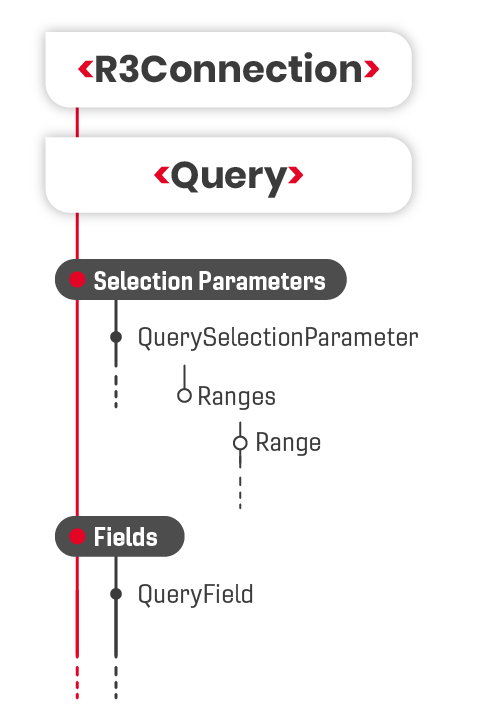
The input of a Query is defined by the SelectParameters collection. Every input parameter can contain an arbitrary number of values. The values are represented by ranges. In addition, a query object contains a Fields collection that in turn contains the output fields.
The figure below shows the object hierarchy that is provided by the Queries classes in ERPConnect.
Call Queries
The following sample shows how to fetch data from an SAP Query using ERPConnect.
- Connect to the SAP system using
R3Connection. - Create a query object using
CreateQuery. Each SAP query is defined by three descriptors:- the user workspace (local or global)
- the user group
- the name of the query
- Define the parameters of the query. Every parameter has a distinctly technical name that can be looked up in the SAP.
Example: To create a selection criteria, access the parameter's range collection via the indexer and add a new range usingAdd. An individual range is defined by three descriptors:- a sign (include or exclude)
- an operator (e.g. equals for parity)
- a low or high value (LowValue and HighValue or only LowValue when using parity).
- Execute the query using
Execute. - The query returns a table of the DataTable type. Access the result table using
Resultattribute.
Tip
If you don't know the technical name of a Query parameter, you can look it up in your SAP-System. Use the transaction SQ01 or SQ02 to search a Query. Open the description of the Query and scroll to the section Selections. All parameter properties including the name are listed.