Transactions
This section shows how to use the Transaction class to execute SAP transactions.
About Transactions
ERPConnect can execute SAP transactions as a foreground or as a background process (Batch Input).
When executing transactions in a background process, mass data can be processed and transferred to the SAP system. This technique is often used if no suitable BAPI exists.
For more information on SAP transactions, see SAP Help: Using Transaction Codes.
Execute SAP Transactions
To run SAP transactions from ERPConnect:
- Connect to the SAP system using
R3Connection. Set theUseGuiproperty to true. - Create a transaction object using
Transaction(). - Specify the SAP transaction code using
TCode. - Optional: add batch steps using
AddStep. - Launch the SAP GUI and execute the SAP transaction using
Execute.
Tip
The installation package of ERPConnect includes the Transaction-Recorder tool. This tool records transactions and implements them to code, see Transaction-Recorder.
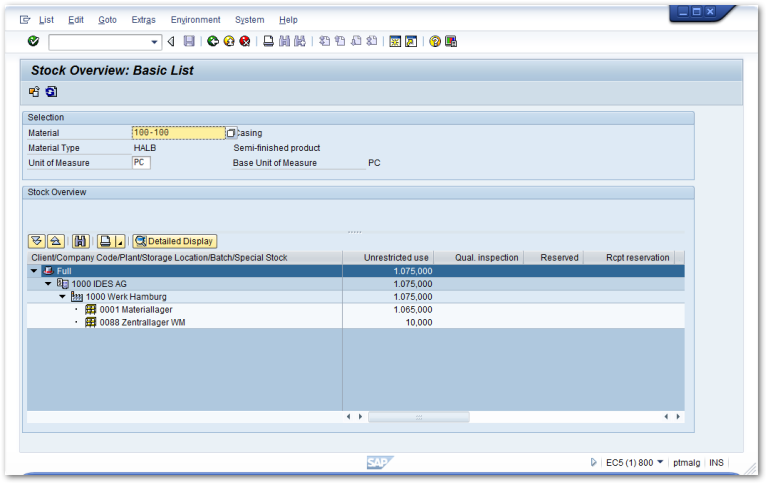
The following sample code executes the SAP transaction MMBE (stock overview):
Input:
Output:
Related Topics
- Samples: Access Stock Overview using Batch Input
- Samples: Create New Customers using Batch Input
- Samples: Create Purchase Orders using Batch Input and Background Processing
Last update: June 25, 2026