SNC Authentication
This page shows how to configure the Xtract data source to use encrypted communication via Secure Network Communication (SNC) between Xtract for Alteryx and SAP.
Prerequisites
- Secure Network Connection (SNC) is configured in your SAP system, see SAP Help: Configuring the Application Server.
- Download the same SAP Cryptographic Library that is used for the encryption in your SAP system (
sapgenpseandsapcrypto.dll) from the SAP Service Marketplace. To check which library is used in SAP, go to transaction RZ10 and check the SAP profile parameter snc/gssapi_lib in SAP transaction RZ10.
Secure Network Communication (SNC)
Follow the steps below to set up SNC credentials for an SAP connection:
- In the main menu of the Alteryx Designer navigate to File > Manage Connections. The window “Connection Manager” opens.
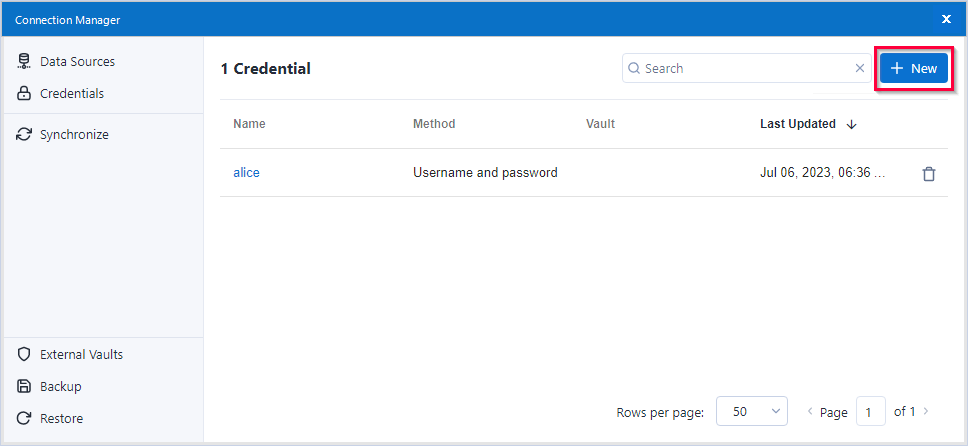
- In the tab Credentials click [New] to create a credential.
- Enter a name for the credential, e.g., "alice-SNC".
- Select the authentication method SAP SNC.
- Enter the SAP Partner Name configured for the SAP application server in the field Partner Name, e.g.,
p:SAPserviceERP/Alice@THEOBALD.LOCAL. - Enter the path to the SNC library in the Library Path field, e.g.,
C:\Program Files\SAP\FrontEnd\SecureLogin\sapcrypto.dll.
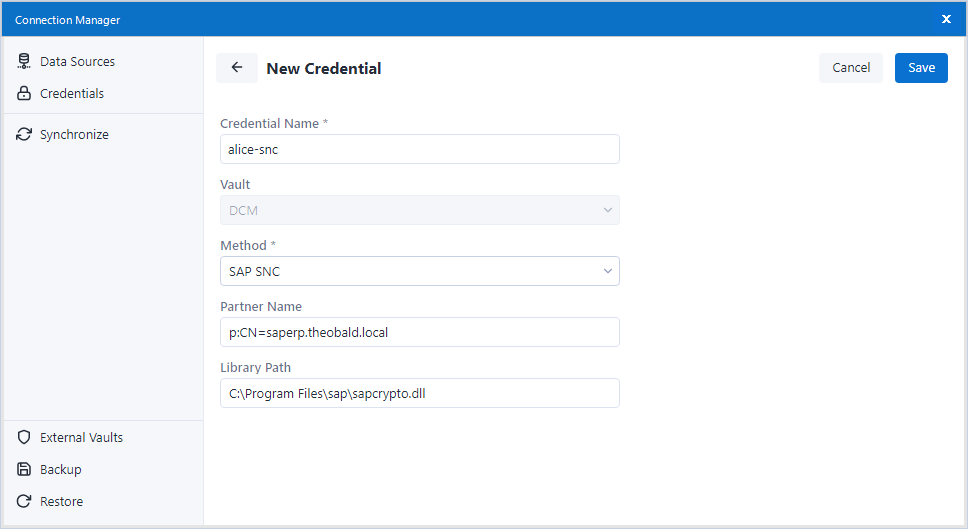
- Click [Save] to save the credential.
Assign SNC Credentials to an Xtract Data Source
Follow the steps below to assign the SNC credentials to an Xtract data source:
- In the main menu of the Alteryx Designer navigate to File > Manage Connections. The window “Connection Manager” opens.
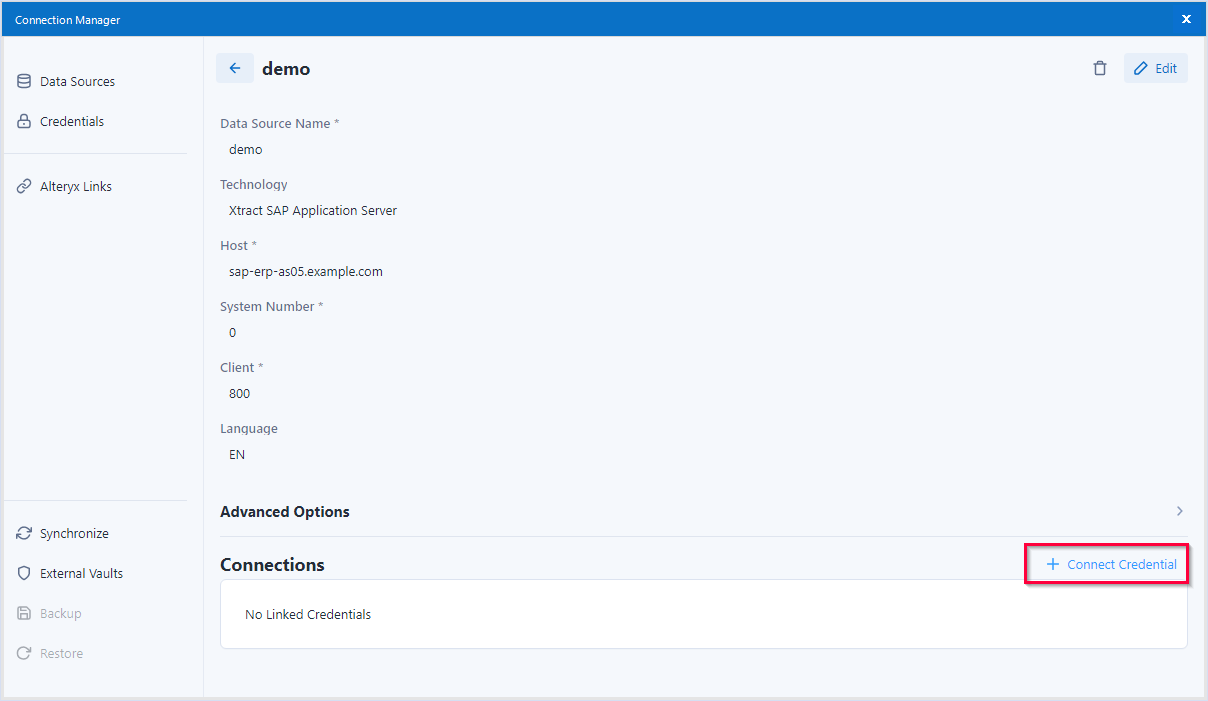
- In the tab Data Sources click on a data source to display the details of the data source.
- Click + Connect Credential.
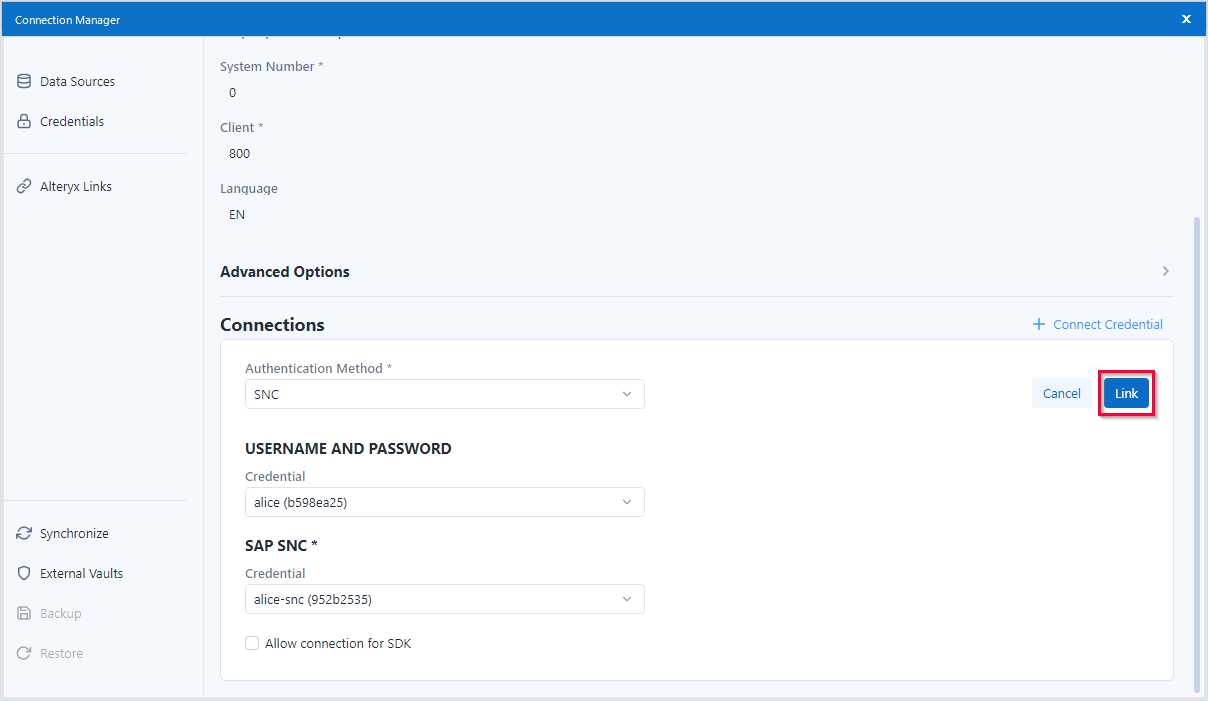
- Select the authentication method SAP SNC. The sections USERNAME AND PASSWORD and SAP SNC are displayed.
- In the section USERNAME AND PASSWORD, select the credential that contains the username and password of the SAP dialog or system user that is used for the SAP connection.
- In the section SAP SNC, select the credential that contains the SNC settings for the SAP connection.
- Click [Link] to assign the credentials to the Xtract data source.
Last update: June 24, 2026