Selections
This page shows how to filter the data that is extracted by the Xtract ODP (OData) component. Selections limit the result set of the Xtract ODP (OData) component to extract only records that match the selection.
Edit Selections
To edit selection fields and filter data:
- In the subsection Fields, click Edit next to the field you want to edit. The window “Edit selection” opens.
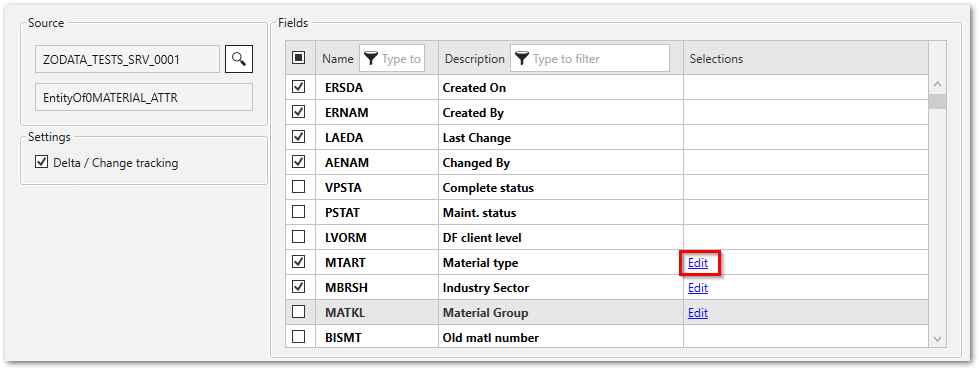
-
Select one of the following filter types and options:
Filter Type Operation Description Single Extract data based on a single filter value. = (equal to) Only extract data that equals the specified value. <> (not equal to) Only extract data that does not equal the specified value. < (less than) Only extract data that is less than the specified value. <= (at most) Only extract data that is less than or equal to the specified value. > (more than) Only extract data that is greater than the specified value. >= (at least) Only extract data that is greater than or equal to the specified value. Interval Extract data based on a range of values. [] (between) Only extract data that lies within the specified range of values. ][ (not between) Only extract data that lies outside the specified range of values. -
Enter values directly into the input fields or assign existing runtime parameters to the selection. If runtime parameters are available, you can use the icon button next to the input field to switch between static values ( ) and runtime parameters ( ).
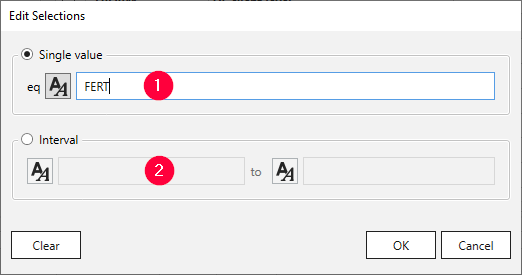
- Click [OK] to confirm your input.
- Click [Load live preview] in the main window of the component to check the result of your selection. If runtime parameters are defined, you are prompted to provide actual values for the selection.
The selection filter is applied and the filter statement is displayed in the main window next to the Edit option.
Data Format
Use the following internal SAP representation for input:
- Date: The date 01.01.1999 has the internal representation 19990101 (YYYYMMDD).
- Year period: The year period 001.1999 has the internal representation 1999001 (YYYYPPP).
- Numbers: Numbers must contain the leading zeros, e.g., customer number 1000 has the internal representation 0000001000.
Warning
Values accept only the internal SAP representation.
Input that does not use the internal SAP representation results in error messages. Use the internal SAP representation. Example: