Getting Started
This section shows how to install and set up Xtract for Alteryx for the first time.
Installation
To install Xtract for Alteryx:
- Download a 30 day trial version of Xtract for Alteryx or download the latest version from the customer portal.
- Close the Alteryx Designer.
-
Run the Xtract for Alteryx executable (XtractForAlteryxSetup.exe) to install Xtract for Alteryx.
For information on system requirements, see Requirements.Note
During the setup you need to specify the installation directory for Xtract for Alteryx and also the installation directory of Alteryx. If you have multiple instances of Alteryx installed, choose the instance on which you want to use Xtract for Alteryx.
-
Open the Alteryx Designer. The Xtract for Alteryx components are available in the Xtract For Alteryx toolbox.
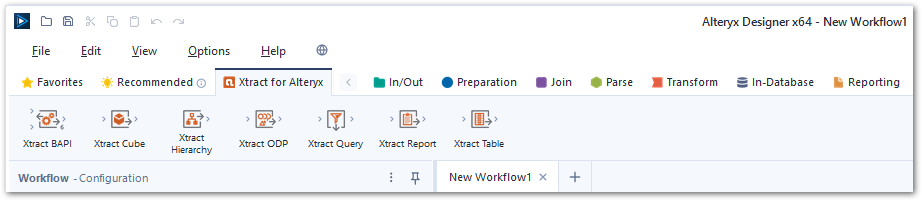
The Xtract for Alteryx components are available in the Xtract For Alteryx toolbox. For more information, see Setup.
Connect to SAP
Xtract for Alteryx can connect to SAP using the Data Connection Manager (DCM) of Alteryx or the Xtract for Alteryx GUI. If your version of Alteryx does not support the DCM, refer to the Knowledge Base Article: Create an SAP Connection using the Xtract for Alteryx GUI.
To connect to SAP:
- Set up an SAP dialog user with the necessary SAP user rights.
- In the main menu of the Alteryx Designer navigate to File > Manage Connections. The window "Connection Manager" opens.
- In the tab Data Sources click [New] to create a new data source.
- Select the Xtract technology to create an Xtract data source.
- Enter the system details of your SAP system. Input values for the SAP connection can be found in the Properties of the SAP Logon Pad or they can be requested from the SAP Basis team.
- Click [Save] to save the SAP connection. The subsection Connection opens.
- In the subsection Connection, select an authentication methods and link or create and link the credential of your SAP system or dialog user to the data source.
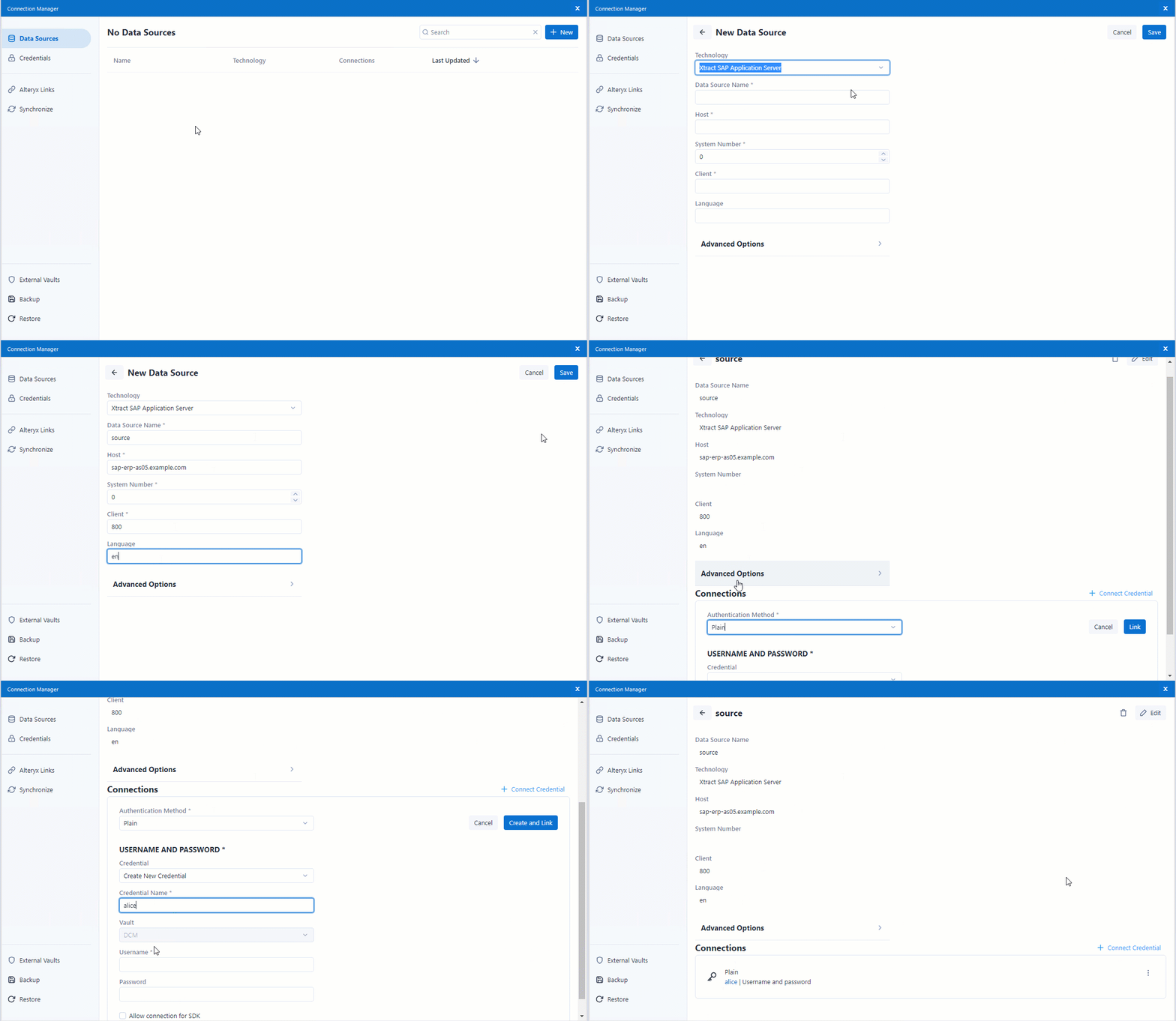
The SAP connection is ready to use. For more information, see SAP Connection.
Use Xtract Components in Workflows
To add an Xtract component to your workflow:
- Drag & drop an Xtract component from the Xtract for Alteryx toolbox into the workflow .
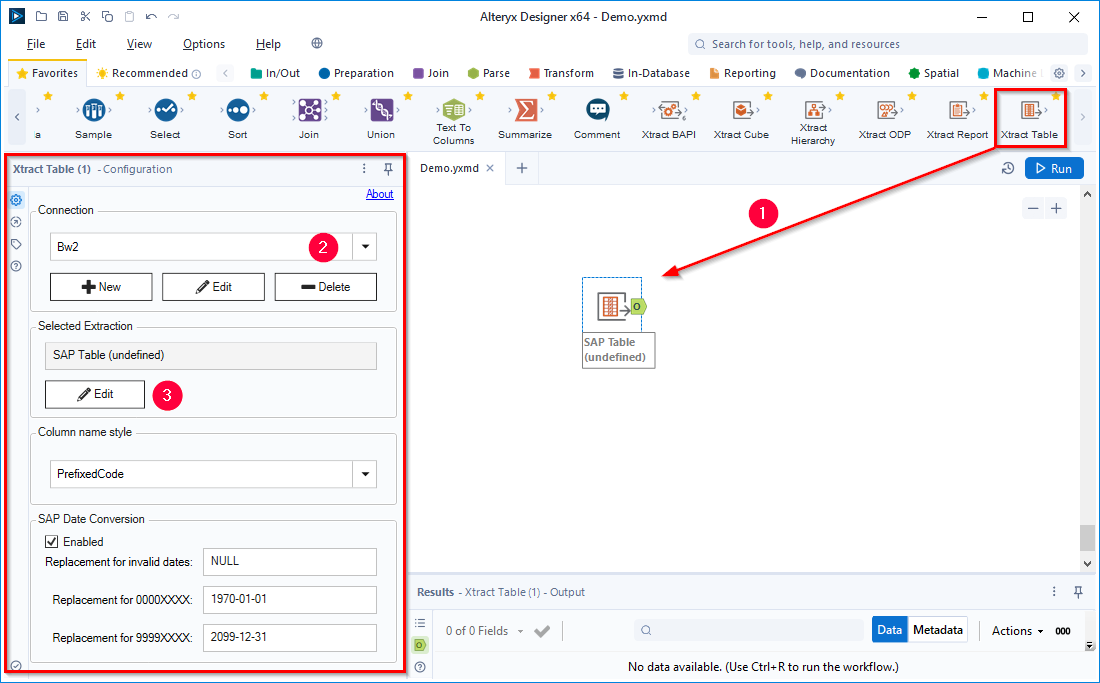
- Assign an existing SAP connection .
- Click [ Edit] to open the main window of the component.
The Xtract component is added to your workflow and ready to be configured.
Xtract for Alteryx offers the following components:
| Component | Description |
|---|---|
| Xtract BAPI | Execute BAPIs and Function Modules. |
| Xtract Cube | Extract data from SAP BW InfoCubes and BEx Queries. |
| Xtract Hierarchy | Extract Hierarchies from an SAP BW / BI system. |
| Xtract ODP | Extract data via the SAP Operational Data Provisioning (ODP) framework. |
| Xtract ODP (OData) | Extract ODP-based data using OData services. |
| Xtract Query | Extract data from ERP queries. Note: BEx queries are covered by the Xtract Cube component. |
| Xtract Report | Extract data from SAP ABAP reports. |
| Xtract Table | Extract data from SAP tables and views. |
A Simple SAP Data Extraction for Beginners
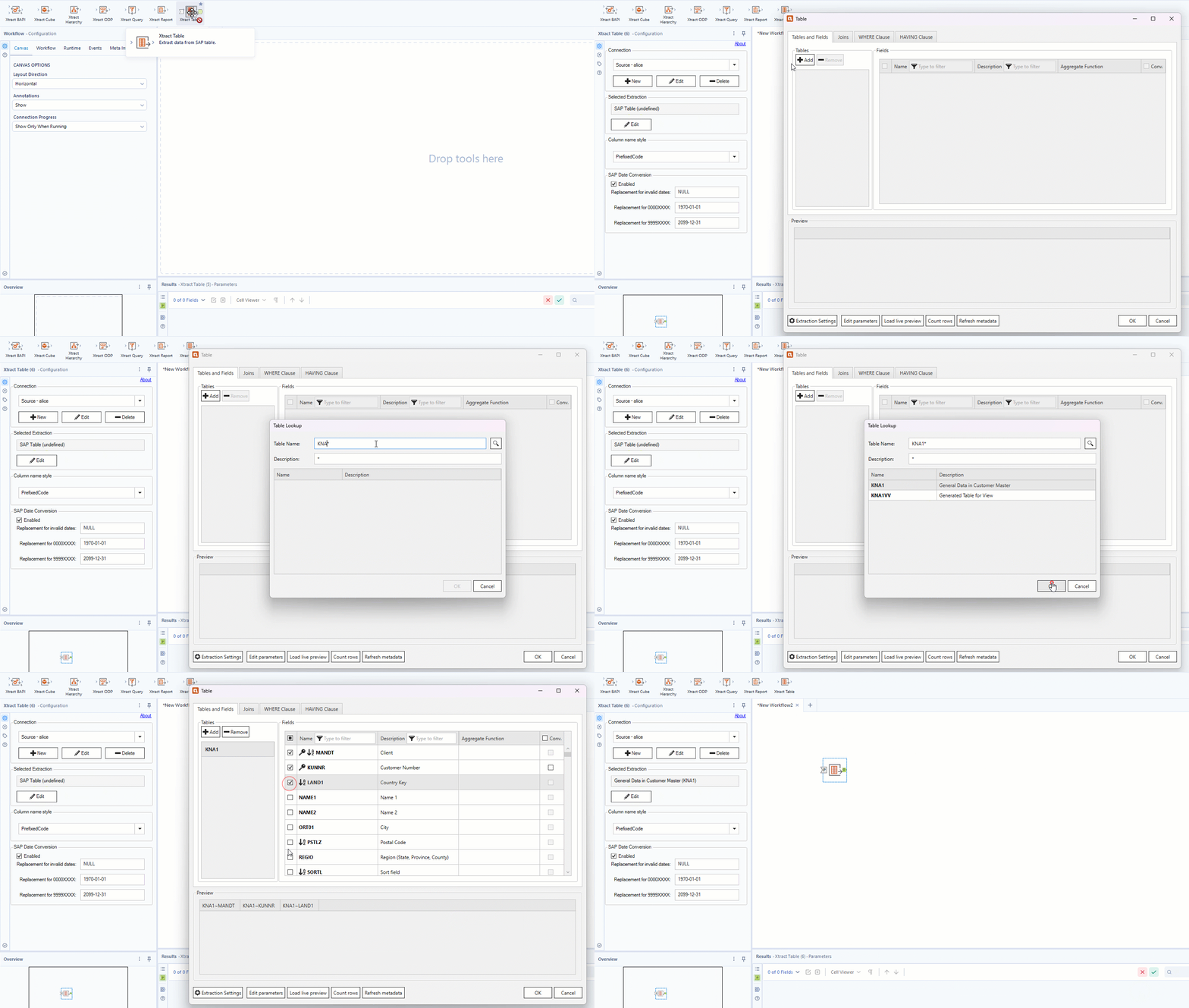
To extract customer master data from the SAP table KNA1:
- Drag & drop the Xtract Table component into the workflow.
- Assign an existing SAP connection and click [ Edit] to open the main window of the component.
- Click [Add] to look up an SAP table. The window “Table Lookup” opens.
- In the field Table Name, enter the name of the table to extract (KNA1). Use wildcards (*) if needed.
- Click [ ]. Search results are displayed.
- Select the table KNA1 and click [OK]. The application returns to the main window of the component.
- Optional: Select the table columns you want to extract. By default all columns are extracted. For more information on filter options and advanced settings, see, Define the Xtract Table Component.
- Click [Load live preview] to display a live preview of the first 100 records.
- Click [OK] to save the component.
The Xtract Table component extracts customer master data from SAP table KNA1.