Xtract BW Loader
This page shows how to use the Xtract BWLoader component.
Unlike the other components, the Xtract BWLoader component is a data destination, not a data source.
Add an Xtract BW Loader Component
To add an Xtract BW Loader component to your SSIS package:
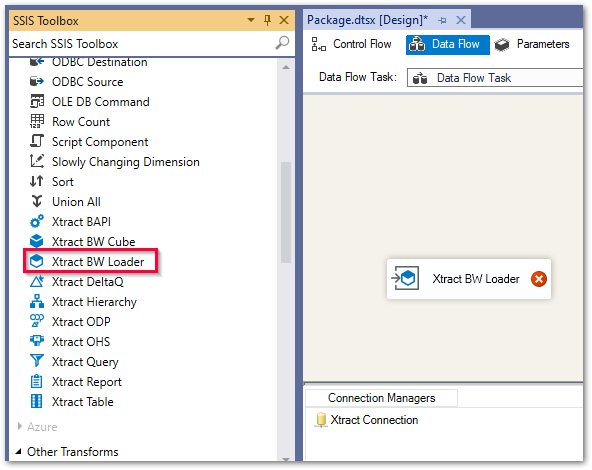
- Drag&drop the Xtract BW Loader component from the SSIS toolbox into your data flow task.
-
Double-click the component. A connection manager is automatically assigned to the component.
Note
If there are multiple connection managers, the window "Select Connection Manager" opens, see SAP Connection. Once a connection manager is selected, the main window of the component opens.
The main window of the component opens and you can start setting up your component.
Prerequisites
For the Xtract BWLoader component to deliver data correctly, an InfoPackage is required. Create the following InfoPackage in the SAP BW system:
- Create a new source system of the type 3rd party / Staging BAPIs. The Xtract BWLoader component requires the program ID of the source.

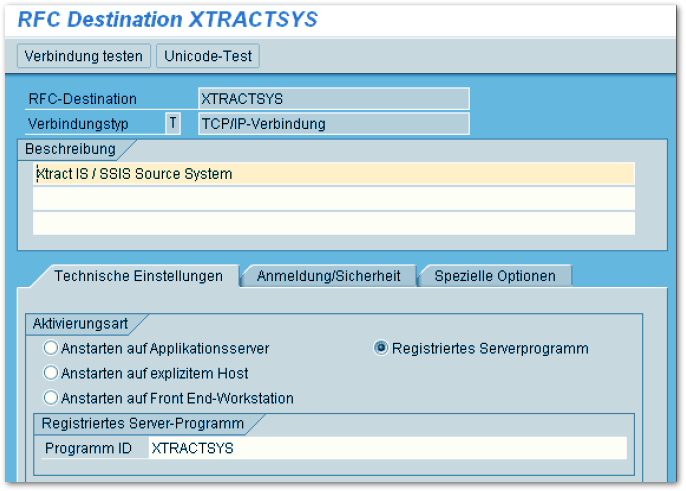
- When using a 3.x data flow, you can assign the source system to the InfoSource and create an InfoPackage.
- When using a 7.x data flow, create a DataSource for the newly created 3rd party source system and create an InfoPackage. Xtract BWLoader loads data to the PSA of the DataSource.
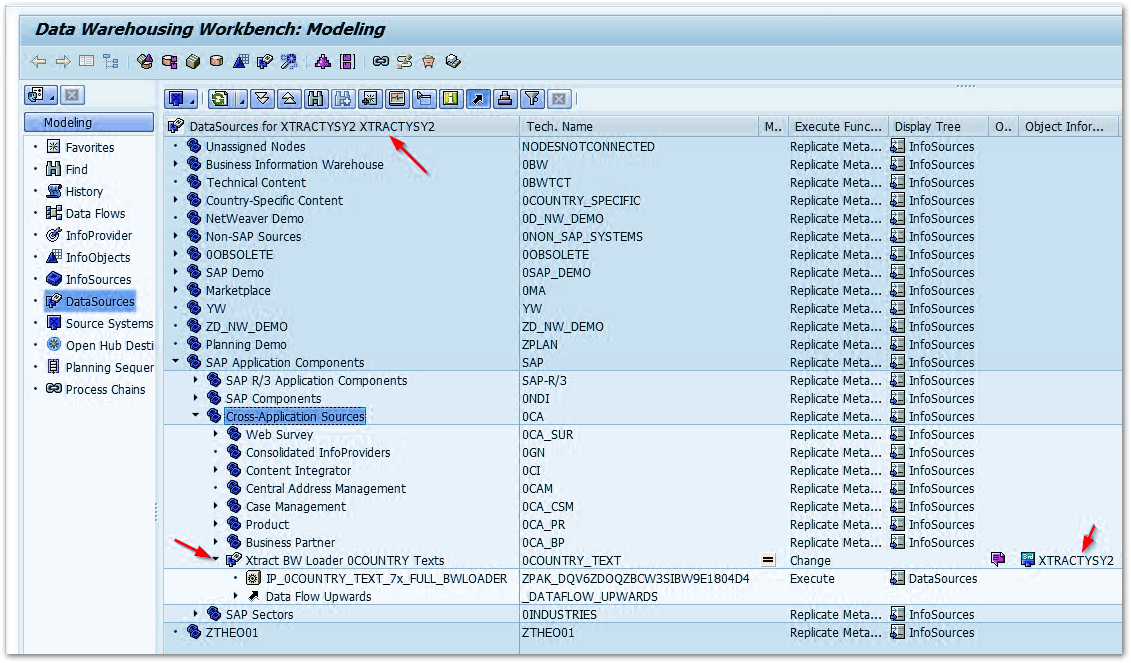
For more information on how to create data imports in SAP BW, refer to the SAP Documentation.
Look up an InfoPackage
The Xtract IS lookup finds InfoPackages based on either 3.x or 7.x DataSources. To look up an InfoPackage, an InfoSource, or a Source System in SAP:
- In the main window of the component, click the search botton. The window “Look Up InfoPackage” opens.
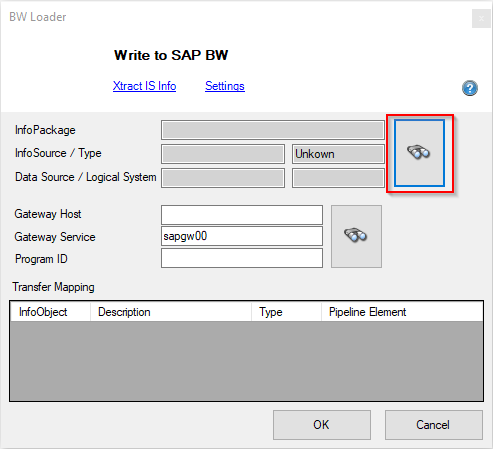
- Look up the name of an InfoPackage, an Info Source or a Source System . Use wildcards (*) if needed.
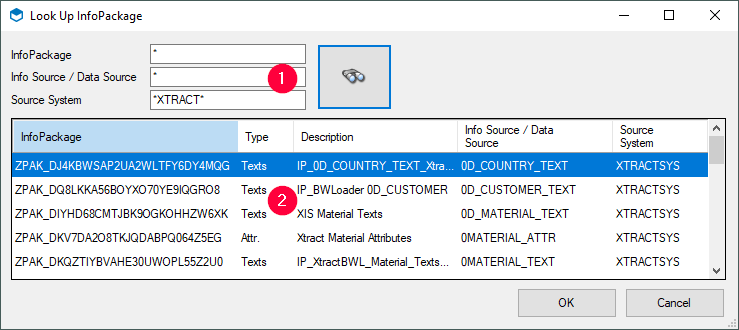
- Click the search button. Search results are displayed.
- Select an item from the list and click [OK] to confirm.
The SAP objects is selected and the application returns to the main window.
Define the Xtract BWLoader Component
The BW Loader component offers the following settings for data loading:
-
In the main window of the component enter values for the following fields or use the search button to look up available RFC Destinations:
Input Field Description Gateway Host the network address of your BW system. Gateway Service usually "sapgwXX" (substitute XX with your system number). Program ID is the Program ID that is defined in the BW SourceSystem. -
Click [OK] to save your input.
- Pass input data to the input pipeline of the Xtract BWLoader component.
- Open the main window of the Xtract BWLoader component component.
- Map each element of the pipeline to one element of the transfer structure.
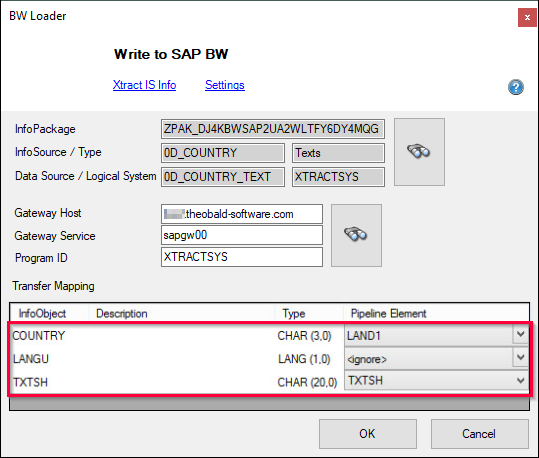
- Check the settings before running the SSIS package.
- Click [OK] to save your input.
The BW Loader component is configured and ready to run.
Load Data into SAP BW
There are two options on how data can be loaded into SAP BW:
- The InfoPackage that initiates the data load is triggered from SSIS.
- The InfoPackage is started from within SAP.
For the second scenario there are two options:
-
Option 1
Set the setting No InfoPackage start (Only wait) to true. In this case the SSIS package must be started and running. Then you can start the InfoPackage in BW manually or by scheduler and the process in SSIS will continue.
-
Option 2
Use the BI Notification Receiver. The BI Notification Receiver enables triggering multiple SSIS packages from BW without having to run the SSIS packages all the time. This application registers itself to BW as an external system and waits for notification.