Xtract OHS
This page shows how to use the Xtract OHS component.
The Xtract OHS component can be used to extract data from Open Hub Service (OHS) destinations.
Prerequisites
- A connection to an SAP system is available, see SAP Connection.
- The SAP user has sufficient user rights, see SAP Authority Objects.
- Configure your SAP BW system to make data sources accessible, see Customization for OHS in BW.
Warning
Missing Authorization.
To use the Xtract OHS component, access to the designated authority objects (RFC) in SAP must be available. Adjust SAP Authority Objects accordingly.
Add an Xtract OHS Component
To add an Xtract OHS component to your SSIS package:
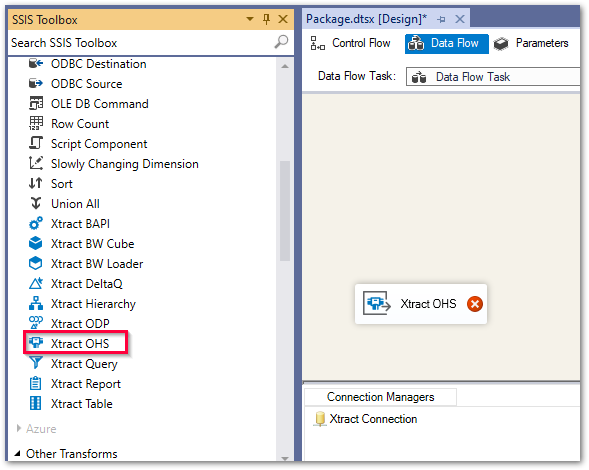
- Drag&drop the Xtract OHS component from the SSIS toolbox into your data flow task.
-
Double-click the component. A connection manager is automatically assigned to the component.
Note
If there are multiple connection managers, the window "Select Connection Manager" opens, see SAP Connection. Once a connection manager is selected, the main window of the component opens.
The main window of the component opens and you can start setting up your component.
Look up an OHS Destination
Follow the steps below to look up an OHS destination in SAP:
-
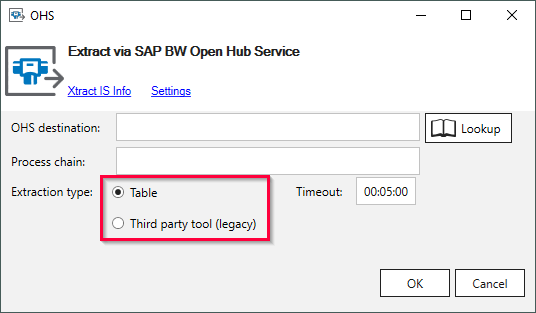
In the main window of the component, select an Extraction type in the main window of the component.
- Select Table if you use BW4Hana2.0 and make sure that the open hub destination type in SAP is set to database table.
- Select Third party tool (legacy) if you use BW4Hana2.0 and make sure that the open hub destination type in SAP is set to third party tool.
-
Click [ Lookup]. The window “OHS Lookup” opens.
- In the field OHS Destination, enter the name of an OHS destination . Use wildcards (*) if needed.
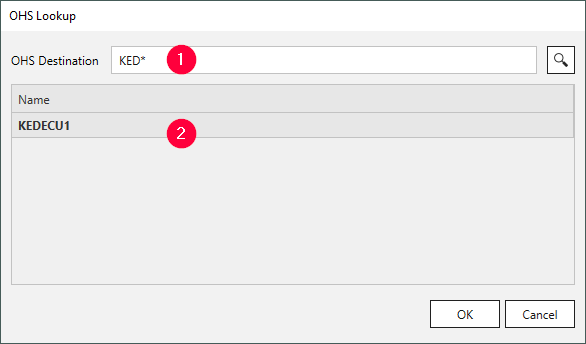
- Click [ ]. Search results are displayed .
- Select an OHS destination and click [OK] to confirm.
The OHS destination is selected and the application returns to the main window.
Configure the Xtract OHS Component
Follow the steps below to configure the Xtract OHS component:
-
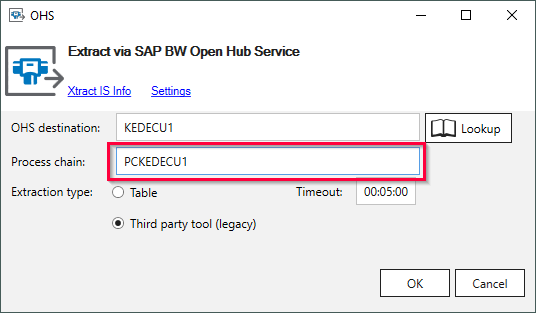
If Process Chain is empty, enter an SAP process chain assigned to your OHS destination, see SAP Help: Display/Maintenance of Process Chain Attributes.
Note
If Process Chain is left empty, the extraction fails.
-
Optional: Use the Timeout setting to set a maximum time period to wait for a notification from the BW system. If the time limit is reached, the extraction fails.
- Check the Settings before running the SSIS package.
- Click [OK] to save the component.
The Xtract OHS component is configured and ready to run.