SNC Authentication
This page shows how to configure an XTRACT Connection Manager to use encrypted communication via Secure Network Communication (SNC) between Xtract IS and SAP.
Prerequisites
- Secure Network Connection (SNC) is configured in your SAP system, see SAP Help: Configuring the Application Server.
- Download the same SAP Cryptographic Library that is used for the encryption in your SAP system (
sapgenpseandsapcrypto.dll) from the SAP Service Marketplace. To check which library is used in SAP, go to transaction RZ10 and check the SAP profile parameter snc/gssapi_lib in SAP transaction RZ10.
Configure an XTRACT Connection Manager to use SNC
To set up an SAP connection that uses SNC:
- Create or open an XTRACT Connection Manager. For more information, see Connect to SAP.
-
Enter the system details of your SAP system and enter the SAP username and password of an SAP system or dialogue user.
Tip
Input values for the SAP connection can be found in the Properties of the SAP Logon Pad or they can be requested from the SAP Basis team.
-
In the "XTRACT Connection Manager" window, click Additions. The window "XTRACT Connection Manager Additions" opens.
- Activate the option SNC enabled.
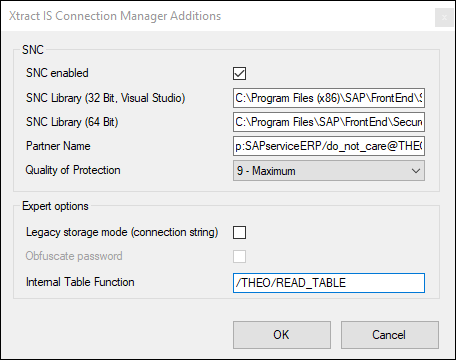
- Enter the path to the SNC library for 32 Bit & 64 Bit in the SNC library fields, e.g.,
C:\Program Files (x86)\SAP\FrontEnd\SecureLogin\sapcrypto.dll. - Enter the SAP Partner Name configured for the SAP application server in the field Partner Name, e.g.,
p:SAPserviceERP/Alice@THEOBALD.LOCAL. - Select the SNC level of protection in the field Quality of protection. The default value is 9 - Maximum.
For more information, see SAP Help: Secure Network Communications (SNC) - Levels of Protection. - Click [OK] to confirm your input.
- Click [Test Connection] to validate the connection parameters.
- Click [OK] to save the XTRACT Connection Manager.
Download Kerberos DLLs
It is possible to use Kerberos libraries for encryption between the client and the SAP server. For more information, see SAP Note 2115486.
Different DLLs for 32-bit (gsskrb5.dll) and 64-bit (gx64krb5.dll) platforms are provided with SAP Note 2115486.