Microsoft Azure Storage
This page shows how to connect to Microsoft Azure Storage and how to write SAP data to a cloud based Azure Storage container. The setup in Xtract Universal.iQ consists of 3 main steps:
Requirements
The Azure Storage (Blob / Data Lake) destination supports the following Azure storage account types:
- General-purpose V2 (including Azure Data Lake Storage Gen2)
- General-purpose V1
- BlockBlobStorage
- BlobStorage
To use the Azure Storage (Blob / Data Lake) destination you need one of the above Azure storage accounts. For more information, see Microsoft Documentation: Azure storage account overview.
Connect to Microsoft Azure Storage
To create a connection to a Microsoft Azure Storage container:
- Open the Connections menu.
- Click [Add Connection].
- Enter a name in the Connection Name field.
- Select Microsoft Azure Storage from the Connection Type dropdown. The corresponding settings open.
- Fill out the connection settings.
- Click [Test Connection] to validate the connection parameters. A status message opens in the bottom right corner of the window.
- If the connection is successful, click [Save].
The connection is now listed in the Connections menu and can be assigned to services.
Next, assign the destination to a service.
Assign Microsoft Azure Storage to a Service
To assign the Microsoft Azure Storage destination to a service:
- Open the Services menu.
- Select one or more services.
- Click [ Edit].
- Select an existing Microsoft Azure Storage connection from the Destination dropdown.
- Click [Save].
When running the service, the results are written to the Microsoft Azure Storage container.
Next, check if the service-specific destination settings match your needs.
Connection Retry and Rollback
Connection retry is a built-in function of the Microsoft Azure Storage destination. The retry function is activated by default.
Connection retry is a functionality that prevents extractions from failing in case of transient connection interruptions to Microsoft Azure Storage. Xtract Universal follows an exponential retry strategy. The selected exponential strategy results in seven retry attempts and an overall timespan of 140 seconds. If a connection is not established during the timespan of 140 seconds, the extraction fails.
The retry function is applied after receiving one of the following HTTP errors or exceptions:
- 503 Service Unavailable
- 504 Gateway Timeout
- WebExceptionStatus.ConnectionClosed
- WebExceptionStatus.ConnectFailure
- WebExceptionStatus.Timeout
- WebExceptionStatus.RequestCanceled
- WebExceptionStatus.SendFailure
- WebExceptionStatus.NameResolutionFailure
Rollback covers scenarios where service runs do not fail due to connection failures to Azure but due to an error when connecting to SAP. In those cases Xtract Universal.iQ tries to remove any files from Azure Storage created during the service run.
Connection Settings
Connection settings define how Xtract Universal.iQ connects to the Microsoft Azure Storage service. To open the connection settings:
- Open the Connections menu.
- Select a connection of type Microsoft Azure Storage.
- Click [ Edit].
The connection settings of the Microsoft Azure Storage connection open and can be modified.
System
The System section contains settings that define which Microsoft Azure Storage storage account to connect to.
Storage Account
Enter the name of your storage account. Do not enter the full URL.
Authentication
The Authentication section contains settings that define how to connect to Microsoft Azure Storage.
Authentication Method
The following authentication methods are supported for Microsoft Azure Storage:
| Authentication Method | Description |
|---|---|
| Access Key | This method of authentication authorizes access to the complete storage account. For more information, see Microsoft Documentation: Manage storage account access keys. |
| Entra ID | This method of authentication uses Microsoft Entra ID (formerly Azure Active Directory) with OAuth 2.0 or Service Principals, see Authentication via Microsoft Entra ID for Azure Storage to access storage account or specific containers. |
| Shared Access Signature (Account) | This method of authentication uses Shared Access Signatures (SAS) to access the complete storage account. For more information, see Microsoft Documentation: Grant limited access to Azure Storage resources using shared access signatures. |
| Shared Access Signature (Container) | This method of authentication uses Shared Access Signatures (SAS) to access a specific storage container. For more information, see Microsoft Documentation: Create SAS tokens for storage containers. |
For information about advantages and disadvantages of authentication methods, see Microsoft Documentation: Choosing the right authentication method.
Depending on the selected authentication method, the following input fields are available.
Access key
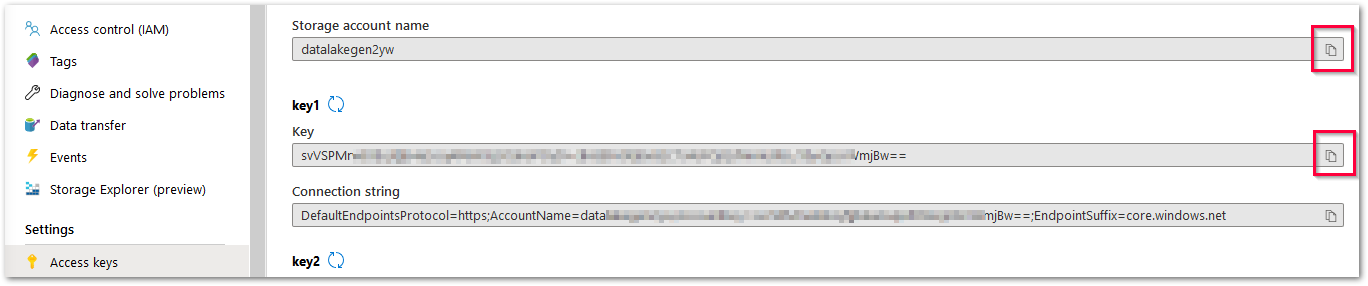
Enter the access key of the Azure Storage account. You can copy the storage account name and access key from the Azure Portal.
Connect
Click [Connect] to establish a connection to the storage account. If the connection is successful, a "Connection successful" info window opens.
OAuth / Service Principal
Use the slider to switch between OAuth and Service Principal authentication. For more information, see Authentication via Microsoft Entra ID for Azure Storage.
Tenant ID
Enter the ID of the Azure AD tenant.
Client ID
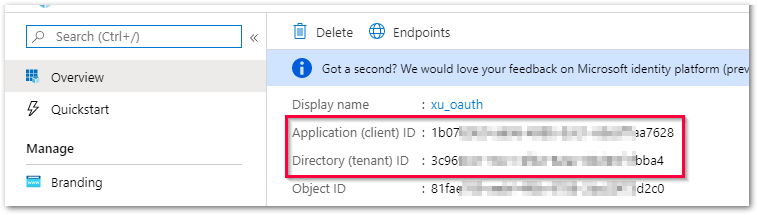
Enter the ID of the registered app. You can copy the tenant ID and client ID in the Azure portal.
Client Secret
This option is only available for service principal authentication. Enter the client secret of the registered app.
Connect
To authenticate Xtract Universal.iQ against Microsoft:
- Click [Connect]. The window "Azure OAuth 2.0" opens.
- When prompted, sign in with your Microsoft credentials. Make sure that the user meets the following requirements:
- The user has the 'Storage Blob Data Contributor' or 'Owner' role in Azure Storage.
- The user does not use Multifactor Authentication (MFA) as extractions fail when the MFA of the user expires.
- If the connection is successful, a "Connection successful" info window opens.
Warning
The window "Entra ID" shows a blank screen.
If the window "Entra ID" shows a blank screen, the content is likely blocked by the Internet Explorer ESC (Enhanced Security Configuration) on Windows servers.
To disable the Internet Explorer ESC, refer to the instructions in the Microsoft Documentation: How to turn off Internet Explorer ESC on Windows servers.
SAS token
Enter the SAS token at the Azure Storage container level. Note that the following permissions are required when using Shared Access Signature (SAS):
- Add
- Create
- Write
- Delete
- List
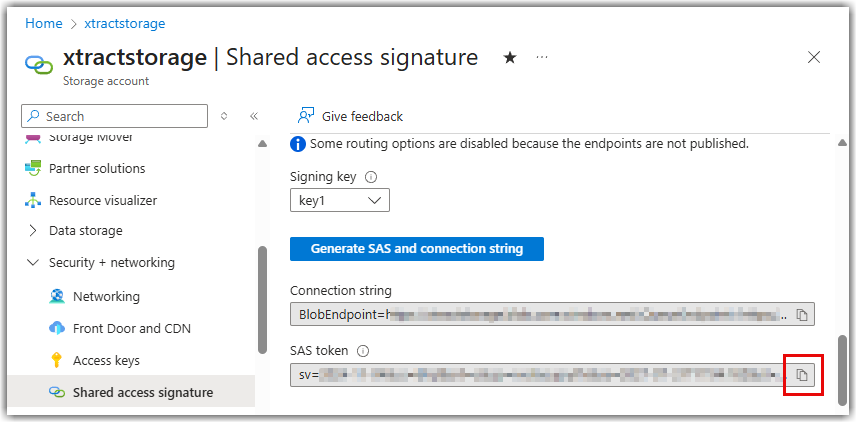
You can copy the SAS token from the Azure portal.
Connect
Click [Connect] to establish a connection to the storage account. If the connection is successful, you can select an existing container from the drop down list Container.
SAS token
Enter the SAS token generated at the Azure Storage container level. Note that the following permissions are required when using Shared Access Signature (SAS):
- Add
- Create
- Write
- Delete
- List
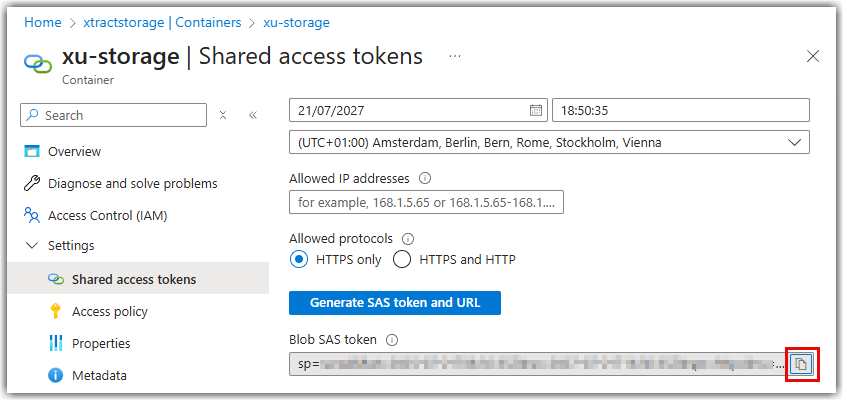
You can copy the SAS token from the Azure portal.
Connect
Click [Connect] to establish a connection to the storage account.
Container
The Container section contains settings that define which container to connect to.
Enter the name of an existing Azure storage container:
- When using Access Key authentication, select a Blob container from the drop-down list.
- When using Entry ID authentication, enter the name of the Blob container manually.
- When using Shared Access Signature (Account) authentication, select a Blob container from the drop-down list.
Test connection
Click [Test Connection] to check if the storage container can be accessed.
If the connection is successful, a status message "Connection to container <name of container> successful" opens.
File Format
The File Format section defines the format of the output file written to the Amazon S3 bucket.
File Type
Select one of the following file formats used for the service output:
- CSV
- JSON
- Parquet
Compatibility mode
For Parquet files, a compatibility mode can be selected to ensure compatibility with different processing engines, such as Spark or Hadoop. The following compatibility modes are available:
- Pure: standard parquet format
-
Spark: ensures compatibility with Apache Spark by using different data types than the standard parquet format:
SAP Pure / BigQuery Spark INT1 UINT_8 INT16 TIMS TIME_MILLIS UTF8 -
BigQuery: ensures compatibility with with Google BigQuery by formatting the columns names, see BigQuery Documentation: Column Names.
Note
If an SAP Table contains a 6-character time field of type TIMS (format HHMMSS for hours, minutes and seconds), make sure to use the compatibility mode Spark to ensure compatibility with Microsoft.
CSV Settings
The CSV Settings section is only available for the CSV output format.
Column Separator
Defines how two columns in CSV are separated. Typical column separators:
,(comma separator);(semicolon separator)\t(tab separator)
Row Separator
Defines how two rows in CSV are separated. Typical row separators:
\r\n(carriage return + line feed)\n(line feed)\r(carriage return)
Quote Symbol
Defines which character is used to encase field data. A sequence of characters may be used as the quote symbol. Quotation is applied in these scenarios:
- The column separator is part of the field data.
- The quote symbol is part of the field data.
- The row separator is part of the field data.
- The escape character is part of the field data.
Escape Character
When the escape character is part of the field data, the respective field containing this character is encased by the Quote symbol. The default escape character is the backslash \. The field may remain empty.
Column Names in First Row
Defines if the first row contains the column names. This option is set by default.
Row Separator After Last Row
Defines if the last row contains a row separator. This option is set by default.
Misc
Additional connection settings for Microsoft Azure Storage. The Misc settings can only be used in combination with a Blob container.
Folder Path
Creates a folder structure within the container.
- Create a single folder by entering a folder name without slashes:
[folder] - Create subfolders using the following syntax:
[folder]/[subfolder_1]/[subfolder_2]/[..]
Note
The specified folder path applies to all extractions. To define a folder path for single services, use the Folder option in the Destination Settings.
Destination Settings
Destination settings define how and where a service saves its output data, such as the target folder and filename.
To open the destination settings:
- Open the Services menu.
- Select a service that uses the Microsoft Azure Storage connection.
- Click [ Edit]. The service settings open.
- Open the tab Destination Settings.
The destination settings for Microsoft Azure Storage are open and can be modified.
File Name
Determines the name of the target table. The following options are available:
| Option | Description |
|---|---|
| Same as service name | Adopt the name of the service. |
| Custom | Define a name of your choice in the Custom File Name input field. |
Append timestamp
Adds a timestamp in the format _YYYY_MM_DD to the filename of the service.
Note
If the name of an object does not begin with a letter, it will be prefixed with an ‘x’, e.g. an object by the name _namespace_tabname.csv will be renamed x_namespace_tabname.csv when uploaded to the destination. This is to ensure that all uploaded objects are compatible with Azure Data Factory, Hadoop and Spark, which require object names to begin with a letter or give special meaning to objects whose names start with certain non-alphabetic characters.
Column Name Format
Defines the format of the column name. The following options are available:
| Option | Description |
|---|---|
| Code | The SAP technical column name is used as column name in the destination e.g., MAKTX. |
| PrefixedCode | The SAP technical column name is prefixed by SAP object name and the tilde character e.g., MAKT~MAKTX |
| CodeAndText | The SAP technical column name and the SAP description separated by an underscore are used as column name in the destination e.g., MAKTX_Material Description (Short Text). |
| TextAndCode | The SAP description and the SAP technical column name description separated by an underscore are used as column name in the destination e.g., Material Description (Short Text)_MAKTX. |
| Text | The SAP description is used as column name in the destination e.g., Material Description (Short Text). |
File Settings
Blob Type
Specifies the type of the new blob. Xtract Universal.iQ supports the following blob types:
| Blob Type | Description |
|---|---|
| Append Blob | Creates an append blob, see Microsoft Documentation: Append Blob. |
| Block Blob | Creates a block blob, see Microsoft Documentation: Block Blob. |
Note
For both file types an MD5 hash is created upon upload to Azure storage.
Custom Directory
Writes the extracted data to a specific folder structure within the container. If the specified folder does not exist, it is created.
- Create a single folder by entering a folder name without slashes:
folder - Create subfolders using the following syntax:
folder/subfolder_1/subfolder_2/...
Note
The specified folder path only applies to the selected service. To define a folder path for all extractions, use the Folder path option in the Connection Settings.
Script Expressions for Dynamic Folder Paths
Script expressions can be used to generate a dynamic folder path. This allows generating folder paths that are composed of service properties, e.g., service name, SAP source object. The described scenario supports script expressions based on .NET and the following custom script expressions:
| Input | Description |
|---|---|
#{Source.Name}# | Name of the SAP source. |
#{Extraction.ExtractionName}# | Name of the service. |
#{Extraction.Type}# | Service type (Table, Report, BAPI, etc.). |
#{Extraction.SapObjectName}# | Name of the SAP object that the service is extracting data from. |
#{Extraction.Timestamp}# | Timestamp of the service. |
#{Extraction.SapObjectName.TrimStart("/".ToCharArray())}# | Removes the first slash '/' of an SAP object. Example: /BIO/TMATERIAL to BIO/TMATERIAL - prevents creating an empty folder in a file path. |
#{Extraction.SapObjectName.Replace('/', '_')}# | Replaces all slashes '/' of an SAP object. Example: /BIO/TMATERIAL to _BIO_TMATERIAL - prevents splitting the SAP object name by folders in a file path. |
#{TableExtraction.WhereClause}# | Only for Table services: returns the WHERE clause of the service. |
File Splitting
Writes extraction data of a single extraction to multiple files. Each filename is appended by _part[nnn].
Max. File Size (in MB)
Defines the maximum size of each splitted file.
Note
The option Max. File Size does not apply to gzip files. The size of a gzipped file cannot be determined in advance.
Create files for empty data sets
When active, empty result sets create an empty file in the target environment. Deactivate this option to not create empty files.
Date Conversion
Convert SAP Dates
Converts the SAP date format (YYYYMMDD) to a regular date format (YYYY-MM-DD), e.g., 19900101 becomes 1990-01-01. Target data uses a real date data-type and not the string data-type to store dates.
Replace SAP Dates 0000XXXX with
Converts the SAP date 00000000 to the entered value.
Replace SAP Dates 9999XXXX with
Converts the SAP date 9999XXXX to the entered value.
Replace Invalid SAP Dates with
If an SAP date cannot be converted to a valid date format, the invalid date is converted to the entered value. NULL is supported as a value. When converting the SAP date the two special cases 00000000 and 9999XXXX are checked first.