Manage Roles
This page shows how to create, maintain user roles. Roles define the permissions that users have in Enterprise Glossary. You can create custom roles, assign users to roles, and manage existing role definitions.
About User Roles
Roles determine what users can view and edit in Enterprise Glossary. Use roles control which folders and Entities users can view and edit.
Enterprise Glossary comes with three default roles that cannot be modified:
| User Role | Access Rights |
|---|---|
| Author | Edit Entities Create and edit Custom Entities Edit Connector Templates (can be disabled per user) Create and edit Custom Templates Add or remove Fields Add attachments Manage Entity connections Edit the folder structure in the sidebar Maintain abbreviation meanings |
| Visitor | View all folders Read Entities from all Templates Read Custom Entities Read abbreviation meanings |
| Data Product Visitor | View all folders Read Data Products |
The number of authors is limited by your license. The number of visitors and Data Product visitors is not limited. Authors, visitors and Data Product visitors can also be Administrators.
Prerequisites
Only Administrators can create and maintain user roles.
Create Roles
To create a new role:
- Click the gear icon button () in the navigation bar, then select Maintain Roles. The "Maintain Role" menu opens.
- In the upper-left corner of the "Connections" menu, click Create. The role settings open.
- Enter a unique name for the role in the Name field.
- Enter a description of the role in the Description field.
- Click [Save] to create the role and return to the "Maintain Role" menu.
The new role is now listed in the "Maintain Role" menu and can be assigned to users.
Edit Roles
To edit the name or description of an existing role:
- Click the gear icon button () in the navigation bar, then select Maintain Roles. The "Maintain Role" menu opens.
- Choose the role you want to modify.
- Click the pen icon () in the Actions column of the role. The role settings open.
- Change the name and / or description of the role.
- Click [Save].
The role is updated.
Copy Roles
To copy the permissions of an existing role:
- Click the gear icon button () in the navigation bar, then select Maintain Roles. The "Maintain Role" menu opens.
- Choose the role you want to copy.
- Click the copy icon () in the Actions column of the role. A popup window opens.
- Enter a unique name for the copied role.
- Click [Clone]. The popup window closes.
The new role is added to the list of roles.
Delete Roles
You can only delete roles that are not assigned to one or more users. To delete an existing role:
- Click the gear icon button () in the navigation bar, then select Maintain Roles. The "Maintain Role" menu opens.
- Choose the role you want to delete.
- Click the delete icon () in the Actions column of the role. A popup window opens.
- Click [Yes]. The popup window closes.
The role is removed from the list of roles.
Assign Users To Roles
Users can have multiple roles. When a user has more than one role, Enterprise Glossary combines the permissions of all assigned roles. To assign users to a role:
- Click the gear icon button () in the navigation bar, then select Maintain Roles. The "Maintain Role" menu opens.
- Choose the role you want to add users to.
- Click the users icon () in the Actions column of the role. A popup window opens. The "Add/Remove Users of Role" menu opens.
- Select users to assign the role or deselect users to unassign the role.
- Click [OK] to assign the users and return to the "Maintain Role" menu.
The selected users are assigned to the role.
Role Authorizations
To configure permissions for a role:
- Click the gear icon button () in the navigation bar, then select Maintain Roles. The "Maintain Role" menu opens.
- Choose the role you want to add users to.
- Click the key icon () in the Actions column of the role. A popup window opens. The role authorization menu opens.
- Define authorizations for:
- Click [Close] to apply the authorizations and return to the "Maintain Role" menu.
The access rights of the user role are updated.
Connections in Sidebar
Use the Connections in Sidebar tab in the role authorization menu to control which Connections users can view in the sidebar. For each node in a connection, you can configure the following permission:
- Visible: Allows users to view the node and its contained Entities. If disabled, the node is hidden. Users with multiple user roles may still access the nodes via another role.
Directory Folders
Use the Directory Folders tab in the role authorization menu to control which folder users can access in the sidebar. For each folder, you can configure the following permissions:
- Visible: Affects all users except administrators. When enabled, users can view the folder and its content. Users with multiple user roles may still view the folder and its content via another role.
- Edit: Only affects users that are authors. When enabled, users can create, edit and delete items in the selected Folder. This excludes creating, editing or deleting the folder. Users with multiple user roles may still maintain the folder via another role.
- Folders: Only affects users that are authors. When enabled, users can create, edit and delete own folders inside the selected folder. Users with multiple user roles may still maintain subfolders via another role.
Tip
You can also access the directory folder authorization directly from the "Maintain Role" menu using the Folder Authorization option in the menu bar.
Entity Authorization
Use the Entity Authorization tab in the role authorization menu to control which Entities users can view and edit. For each selected Template from the Template dropdown, you can configure the following permissions:
- Read: Allows users to view Entities from the selected template.
- Edit: Allows users to view and edit Entities from the selected template.
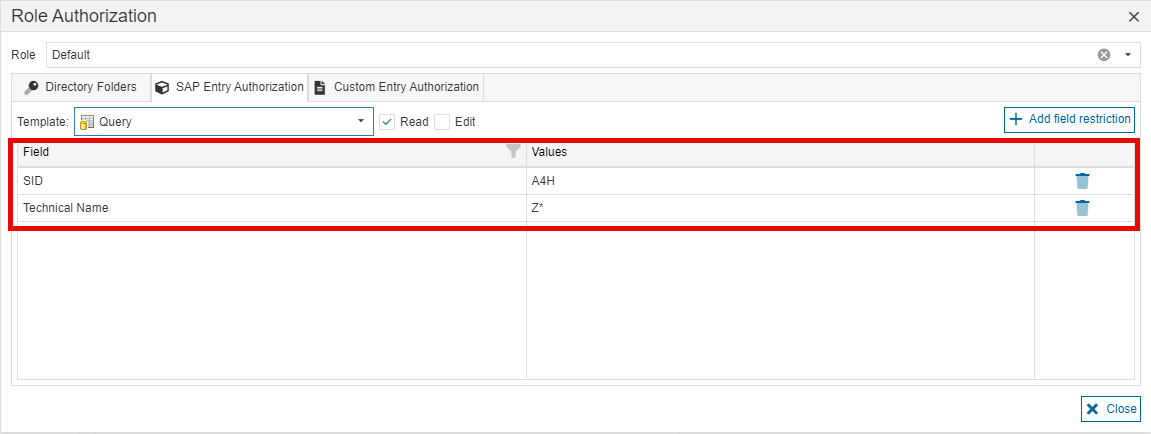
- Field Restriction: Add field restrictions to restrict access based on the content of Entity Fields. Example: It is possible to have users only view Query SAP Entities when the SID field contains
A4Hand the Technical Name field starts withZ, see screenshot. You select an Entity Field from the Field dropdown and assign a value to it. Users can only view Entities that match the specified Field values.
Note
Not all source objects support role restrictions.
Custom Entity Authorization
Use the Custom Entity Authorization tab in the role authorization menu to control which Custom Entities users can view and edit. For each selected Custom Template from the Template dropdown, you can configure the following permissions:
- Read: Allows users to view Entities from the selected template.
- Edit: Allows users to view and edit Entities from the selected template.
- Field Restrictions: Add field restrictions to restrict access based on the content of Entity Fields. You select an Entity Field from the Field dropdown and assign a value to it. Users can only view Custom Entities that match the specified Field values.
Navigation and Search
Use the Navigation and Search tab in the role authorization menu to control which objects users can see in the navigation bar and in the search bar:
- Navigation Visibility: Allows users to see the following menu items in the top navigation bar:
- Data Products
- Entities
- Custom Entities
- Templates
-
Search Visibility: Allows users to look up the following objects in the search bar:
- Data Products
- Entities
- Custom Entities
Example: if Custom Entities is disabled, users with this role do not see Custom Entities in any search results.
-
Draft Access: Allows authors to access drafts of other users.