Connector Entities
This page describes how synchronized connector objects are represented as Entities in Enterprise Glossary.
About Entities
Entities represent objects within a connected system, see Connection. Each supported object in the connected system creates a corresponding Entity during the synchronization process. These Entities provide detailed technical metadata about the SAP object. Entities can also store additional information using Custom Fields. To add Custom Fields to an Entity, add them in the Template of the object type.
For information about commonly used fields and tabs in Entities, see Fields.
Prerequisites
To load SAP objects or Xtract Universal.iQ services as Entities into Enterprise Glossary, create a Connection to a source system and run a Synchronization Job.
Open Entities
There are multiple ways to open an Entity:
- In the navigation bar, go to Entities and click an Entity from the list of Entities.
- In the sidebar, click an Entity inside a folder or in the Connections node.
Delete Entities
Entities cannot be deleted individually. When a connection is deleted, all associated Entities are removed from Enterprise Glossary.
If the source object of an Entity is deleted in the connected system, the Entity is marked as deleted in Enterprise Glossary. These Entities do not appear in search results or within the Entities grid. They are still listed in areas like the Last Viewed section.
Edit Entities
Entities allow the following modifications:
- Add files as Attachments
- Link Entities to maintain relationships with other Entities.
- Label the Entity as a Data Product.
- Link the Entity to a folder in the Enterprise Glossary sidebar.
There are multiple ways to open the Entity settings and edit the Entity:
- Open an Entity and click Edit in the upper left corner of the Entity.
- In the navigation bar, go to Entities and click the pen icon () in the Actions column of the Entity you want to edit.
- If an Entity is linked inside a folder in the sidebar, open the context menu of the Entity and select Edit.
Tip
To update multiple Entities with custom information use the Mass Edit functionality.
Other modifications like adding Custom Fields or removing Fields from an Entity, is handled in the Template of the object type.
Publish vs Draft
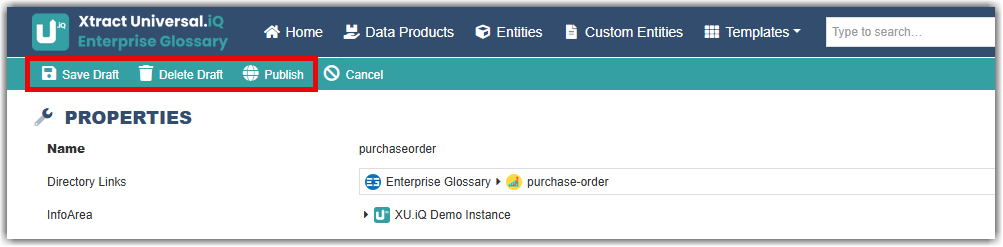
Edited Entities can be saved as drafts. Saving a draft has no effect the existing Entity. Only published versions affect existing Entity and create new entries to the version history of the Entity.
- To publish a draft, click Save Draft in the Entity settings.
- To delete a draft, click Delete Draft in the Entity settings.
- To publish a draft, click Publish in the Entity settings.
Entity Menu Bar
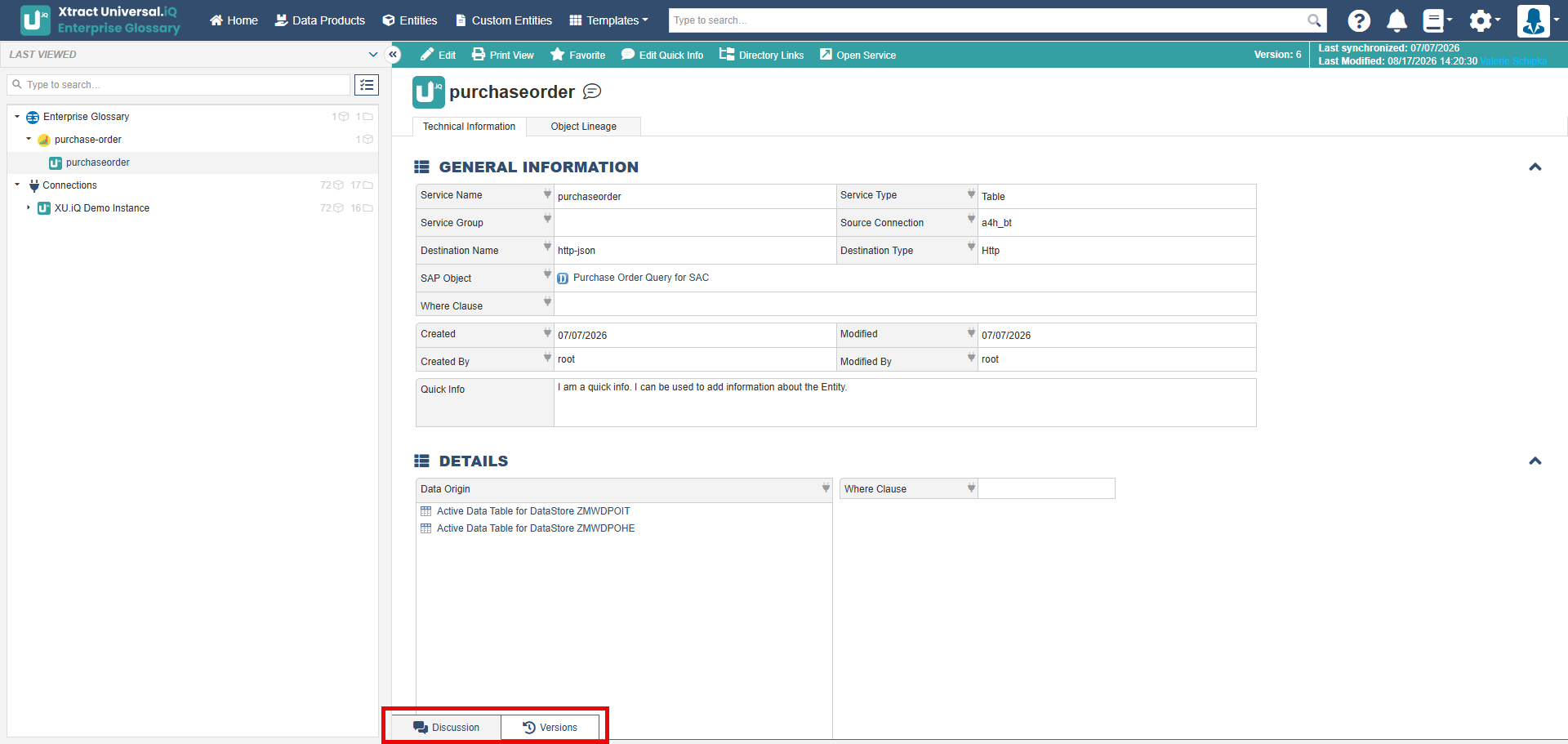
The Entity menu bar contains:

Entity Bottom Drawers
The Entity bottom drawers contain: