Custom Formulas
This page shows how to create and use custom formulas in Enterprise Glossary. Custom formulas allow you to create and combine formulas, Entity Links, and operators to create reusable calculation logic.
Create Custom Formulas
To create a new custom formula:
- In the navigation bar, go to Custom Entities*. A list of existing Custom Entities opens.
- Click [Create Formulas]. The formula editor open.
- Enter a unique name in the Name field.
- Optional: Enter a description of the formula in the Description field.
- Build the formula in the Formula area:
- Right-click in the middle of the Formula area to add elements from the context menu.
- Double-click empty spots in the formula to add values left and right of an operator.
- Adding an Entity Link via right-click opens a popup windows that list all Entities. Select the Entity you want to link and click [OK].
- Adding another formula via right-click opens a popup windows that list all formulas. Select the formula you want to link and click [OK].
- Click [Publish].
The formula is listed in the Custom Formulas tab of the Custom Entity overview and can be used in Custom Entities and other formulas.
Edit Custom Formulas
To edit an existing custom formula:
- In the navigation bar, go to Custom Entities. A list of existing Custom Entities opens.
- Open the Custom Formulas tab.
- Click the pen icon () in the Actions column of the formula. The formula editor opens.
- Modify the formula:
- Right-click an operator and navigate to Change Operation in the context menu to select a new operator.
- Right-click an operator and select Delete from the context menu to delete an operation.
- Double-click values in the formula to change values.
- Click [Publish].
The updated formula is available in all locations it is used.
Delete Formulas and Drafts
To delete a custom formula:
- In the navigation bar, go to Custom Entities. A list of existing Custom Entities opens.
- Open the Custom Formulas tab.
- Choose the formula you want to delete.
- Click the delete icon () in the Actions column of the formula. A popup window opens.
- Click [Yes].
The formula or formula draft is removed from the list of formulas.
Use Formulas In Entities
To use a custom formula in an Entity or Custom Entity:
- Add a Formula Field to a Template.
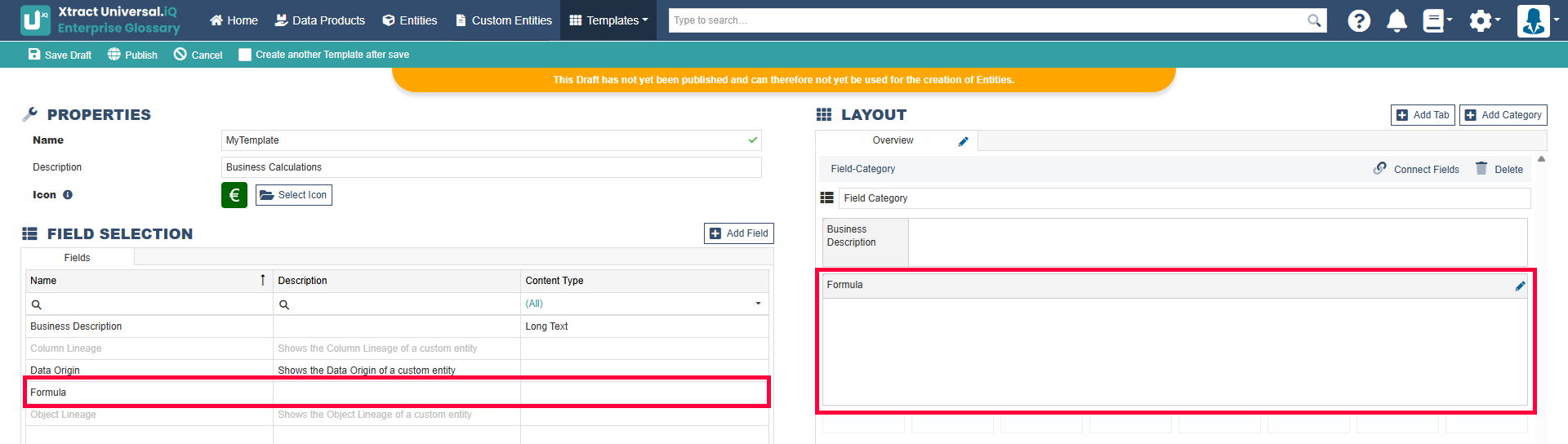
- Edit an Entity that uses the Template.
- Configure the formula values.
The Entity displays and uses the selected formula.
Last update: August 24, 2026