Organize Entities
The sidebar in the main window of Enterprise Glossary offers a folder structure to organize Entities. Organizing Entities in folders allows you to group related objects or objects of different departments for faster access. Access to folders can be restricted using authorizations in the user role.
The following options are available inside the Enterprise Glossary sidebar:
A list of the five last viewed Entities is displayed at the top of the sidebar.
Note
The standard node "Connections" inside the sidebar lists synchronized Entities per connected system. Which connections and object types are displayed can be defined in the authorization of the user role.
Create a New Folder
To create new Entity folders inside the sidebar of Enterprise Glossary:
- Right-click a parent folder that should contain the new folder, e.g., the root folder.
- Select Add to Folder > New Folder from the context menu. A popup window opens.
- Enter a unique name for the folder.
- Enter a description of the content to want to add to the folder.
- Select an icon for the folder.
- Click [Create]. The popup window closes.
The new folder is added in the sidebar.
Add Entities to a Folder
To add Entities to a folder inside the sidebar of Enterprise Glossary:
- Right-click the folder.
- Select Add to Folder > Link (Custom) Entities from the context menu. A popup window opens.
- Select the Entities you want to link to.
- Click [Add]. The popup window closes.
The Entities are listed inside the folder.
Remove Entities from a Folder
To remove a linked Entity from a folder inside the sidebar of Enterprise Glossary:
- Right-click the Entity inside the folder.
- Select Delete Entity Link from the context menu. A popup window opens.
- Click [Yes]. The popup window closes.
The Entity is removed from the folder.
Move Entities to Another Folder
To move a linked Entity to another folder inside the sidebar of Enterprise Glossary:
- Right-click the Entity inside the folder.
- Select Move Entity Link from the context menu. A popup window opens.
- Select the destination folder for the Entity.
- Click [OK]. The popup window closes.
The Entity is now listed under the selected folder.
Add a Website to a Folder
To add a website link to a folder inside the sidebar of Enterprise Glossary:
- Right-click the folder.
- Select Add to Folder > Web Link from the context menu. A popup window opens.
- Enter the display name of the website and the URL of the website.
- Select New Tab to open the website in a new tab or select iframe to embed the website into Enterprise Glossary. Not all websites support embedding via iframes.
- Click [Create]. The popup window closes.
The website link is added to the folder.
Move a Folder
To move a folder to another position inside the sidebar of Enterprise Glossary:
- Right-click the folder.
- Select Move Folder from the context menu. A popup window opens.
- Select a new parent folder, e.g., the root folder.
- Click [OK]. The popup window closes.
The folder is now listed under the selected parent folder.
Delete a Folder
To delete a folder inside the sidebar of Enterprise Glossary:
- Right-click the folder.
- Select Delete Folder from the context menu. A popup window opens.
- Click [Yes]. The popup window closes.
The folder is removed from the sidebar.
Change Properties of a Folder
To change the name, description or icon of a folder inside the sidebar of Enterprise Glossary:
- Right-click the folder.
- Select Edit Folder from the context menu. A popup window opens.
- Change the name, description or icon of the folder.
- Click [Save]. The popup window closes.
The new folder properties are updated.
Restrict Access to a Folder
To restrict user access to a folder inside the sidebar of Enterprise Glossary:
- Right-click the folder.
- Select Folder Authorization from the context menu. A popup window opens.
- Select access rights for each user role:
- Visit - Users can see the folder and its content.
- Edit - Users can create, edit and delete content in the folder.
- Folders - Users can create, edit and delete own folders inside the folder.
- Click [Yes]. The popup window closes.
The access rights to the folder are updated.
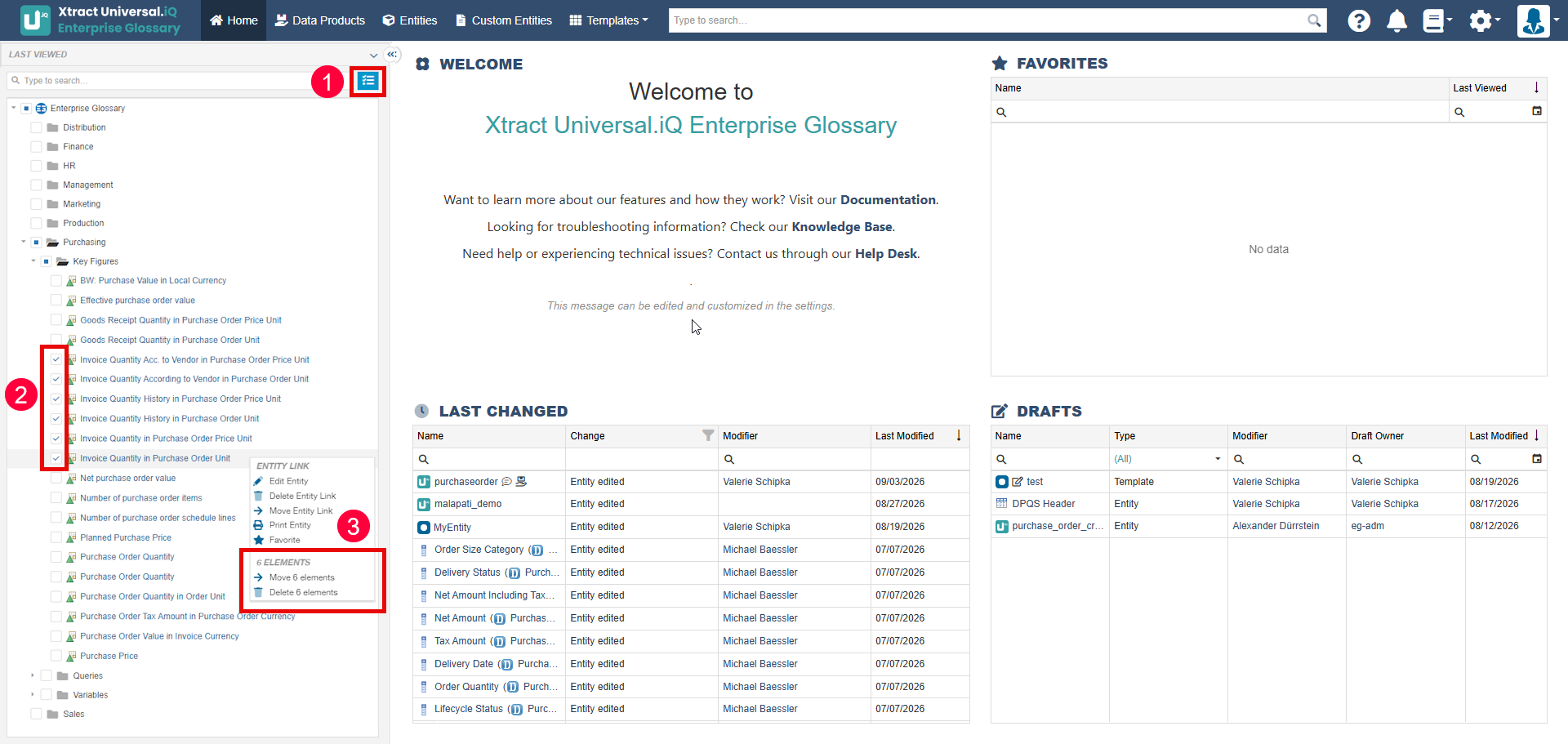
Mass Editing
To delete, move, print and mark multiple Entities in the Entity directory:
- Click the select icon button () next to the search bar to enable Entity selections.
- Select multiple Entities and/or folders in the Entity directory.
- Right-click inside the Entity directory and use the context menu to delete, move, print and mark all selected items.
Changes are applied to all selected Entities.