Run in Docker
This page shows how to run Enterprise Glossary in Docker and how to configure the synchronization service.
About the Enterprise Glossary Containers
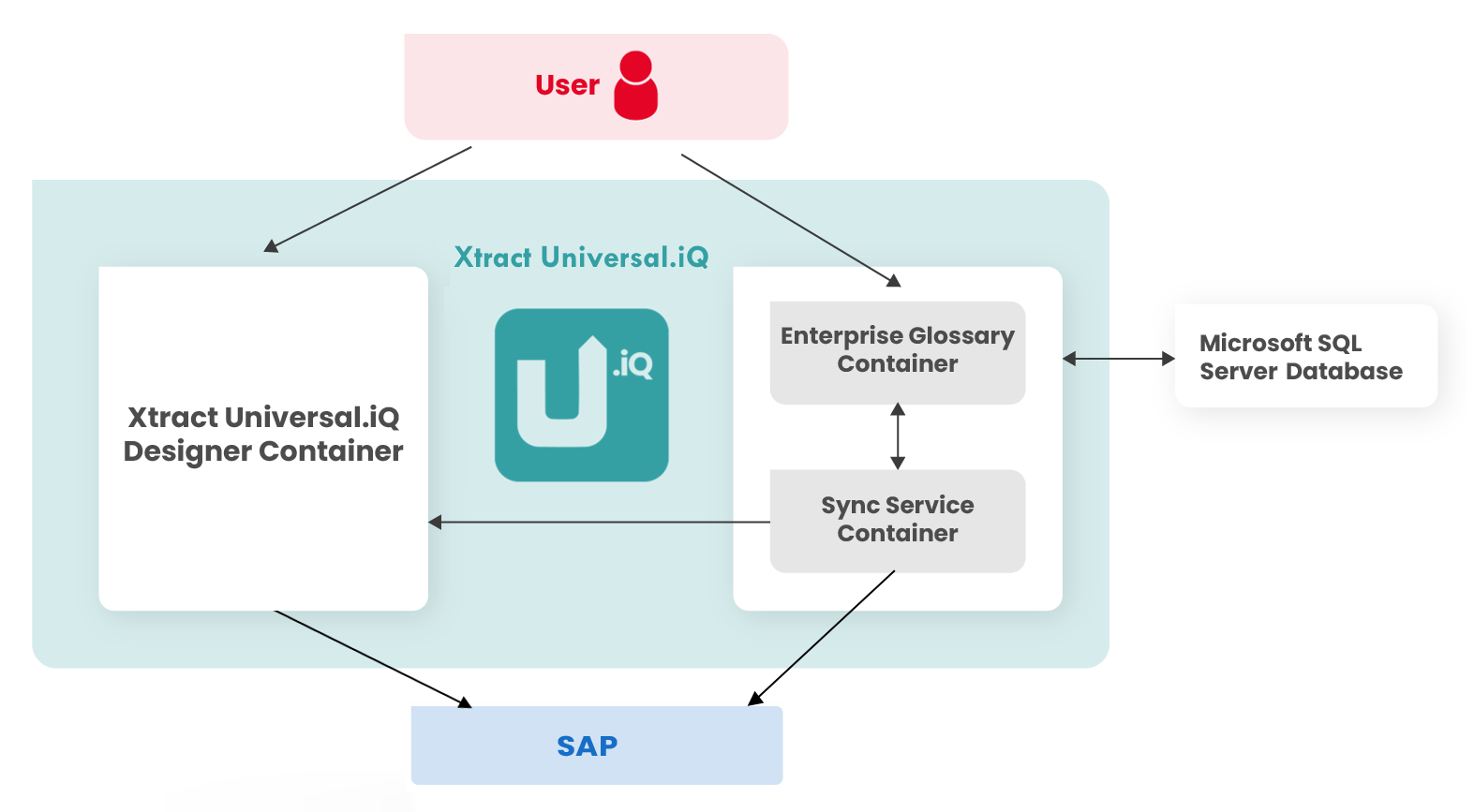
Enterprise Glossary runs in two containers:
- The web service hosts the Enterprise Glossary application and user interface.
- The sync service executes synchronization jobs and imports metadata into Enterprise Glossary.
The graphic below shows which systems the Enterprise Glossary containers access and interact with.
Note
The Microsoft SQL Server is a prerequisite and is not included with Enterprise Glossary. You must provide and maintain the SQL Server environment.
For more information, see System Requirements.
Prerequisites
To run in a Docker environment, Enterprise Glossary requires:
- Credentials for the Theobald Software container registry and a (demo) license, see Download Trial.
- Docker Desktop.
- Administrator rights.
- Access to a Microsoft SQL Server.
- Download the
setup.zipbelow. It contains scripts and a.envfile used for the container setup.
- Credentials for the Theobald Software container registry and a (demo) license, see Download Trial.
- Docker Engine.
- A user account with permission to run Docker commands.
- Access to a Microsoft SQL Server.
- Download the
setup.zipbelow. It contains scripts and a.envfile used for the container setup.
The setup.zip archive contains the following files:
| File | Description |
|---|---|
docker-compose.yml | Defines services and volumes. |
.env | Editable config: ports, tag, secrets, see Configuration Reference. |
run.ps1 | PowerShell script to run containers with Docker. |
run-podman.ps1 | PowerShell script to run containers with Podman. |
stop.ps1 | PowerShell script to stop Docker containers. |
Pull the Container Image
To pull the Enterprise GLossary images from the Theobald Software container registry:
- Start Docker Desktop / Docker Engine.
- Open a terminal, e.g., PowerShell on Windows.
-
Use the following command to log in to the Theobald Software container registry:
-
When prompted, provide your credentials. Note that the password is not displayed in the terminal when typing.
-
Use the following commands to pull the Xtract Universal.iQ Enterprise Glossary images:
docker pull registry.theobald-software.com/theobald-software/enterpriseglossary-sync:latest
docker pull registry.theobald-software.com/theobald-software/enterpriseglossary:latest
Pulling the images might take some time.
The Xtract Universal.iQ Enterprise Glossary images is now available in Docker.
Next, prepare a certificate for secure communication.
Tip
To check if the images were pulled correctly, open Docker Desktop and go to the Images menu. Alternatively, use the docker image ls command.
Provide a Certificate
It is recommended to set up Transport Layer Security (TLS) for the Enterprise Glossary container. To provide a certificate for TLS:
- Create a dedicated folder on the machine that runs the Enterprise Glossary containers, e.g.,
C:\Docker\enterprise-glossary\. - Inside that folder, create a subfolder
certs/where you can store certificates. - Provide a Transport Layer Security (TLS) certificate to set up secure communication between clients and the Enterprise Glossary. The certificates requires the following properties:
- Use an organization provided certificate or create your certificate.
- The certificate must be provided as a .pfx file. The filename must be
eg.pfx. - Note the password of the .pfx file for later use.
- Copy the file to
/certs/eg.pfx
- Extract the content of the
setup.ziparchive into the root folder. - Open the
.envfile in a text editor of your choice and setCERT_PASSWORDto the password of youreg.pfx.
After creating the container, the Enterprise Glossary web UI is accessible via HTTPS protocol.
Next, create the container.
Create the Container
To create and run the Enterprise Glossary Docker stack, run the PowerShell script run.ps1 provided in the setup.zip archive. The script accepts the following optional parameters:
| Parameter | Default | Description |
|---|---|---|
-EnvPath | .env | Path to an alternative .env file. |
-ForceRecreate | (off) | Tears down and recreates containers even if already running. |
| no parameter | Creates both containers. | |
-EgWeb | Creates only the web container. | |
-EGSync | Creates only the sync container | |
-EgWeb -EgSync | Creates both containers, like when no parameter is used. |
Note
You might have to load the images manually before running the stack:
After the script finishes successfully, open a web browser and navigate to one of the following URLs. Replace 8080 and 8443 with the port numbers configured in the .env file:
- HTTP:
http://localhost:8080 - HTTPS:
https://localhost:8443
The Enterprise Glossary containers are up and running.
Next, configure the synchronization service container.
Configure the Synchronization Service
The synchronization server loads data into the Enterprise Glossary. To connect the synchronization service to Enterprise Glossary:
- Log in to Enterprise Glossary at
https://localhost:8443as an administrator. - Navigate to Settings > Synchronization Jobs > Download Config to download the
Config.xmlfile. - Open the
Config.xmlfile in a text editor of your choice and replacelocalhostwithwebin the URL field. Example:<Url>https://localhost:8443/</Url>becomes<Url>https://web:8443/</Url>. -
Use the following command to find the name of the running synchronization service container:
-
Copy the modified
Config.xmlfile into the configuration directory of the running synchronization service container: -
Restart the synchronization service container for the changes to take effect:
The synchronization service now connects to Enterprise Glossary.
For information on common container scenarios, see Knowledge Base: Container Mainentance.
Common Errors
| Symptom | Cause | Fix |
|---|---|---|
| run.ps1 fails with ".env not found" | Script not run from the deployment folder | cd into the extracted folder first |
| Port conflict ("address already in use") | Another process uses 8080/8443 | Change WEB_HTTP_PORT / WEB_HTTPS_PORT in .env |
| HTTPS certificate error in browser | Self-signed or untrusted certificate | Expected for test certificates - click through the warning, or import the CA |
| Health check failing | App still starting or cert mismatch | Wait 60 s; verify CERT_PASSWORD matches eg.pfx |
| Sync service keeps restarting | Config.xml missing or invalid | Place a valid Config.xml in the sync-config volume |
Update Enterprise Glossary
To update Xtract Universal.iQ Enterprise Glossary to a new version, load a new version of the image, adjust the .env file and start a new container from that image:
- Open the
.envfile in a text editor and update the version number in theIMAGE_TAGentry. Alternatively, replace the.envfile with the new.envfile and change the certificate password in the new.envfile. - Stop the running stack using the PowerShell script
stop.ps1. - Load the new images using the PowerShell script
run.ps1. -
Open a web browser and navigate to one of the following URLs. Replace
8080and8443with the port numbers configured in the.envfile:- HTTP: http://localhost:8080
- HTTPS: https://localhost:8443
The containers runs with the updated Enterprise Glossary version and your existing configuration.
Troubleshooting
| Symptom | Cause | Fix |
|---|---|---|
| App still shows old version. | Old image cached under same tag. | Check IMAGE_TAG in .env; run docker images | grep enterpriseglossary to verify the new tag was loaded. |
| "Missing image TAR" error. | TAR file not in deployment folder. | Copy both TAR files next to run.ps1 before starting. |
| Health check failing. | The application is still initializing. | Wait up to 60 s; check with docker compose logs -f web. |
Configuration Reference
The .env file contains the following settings:
| Variable | Default | Description |
|---|---|---|
IMAGE_WEB_NAME | enterpriseglossary | Name of the web image. |
IMAGE_SYNC_NAME | enterpriseglossary-sync | Name of the sync service image. |
PROJECT_NAME | enterpriseglossary-project | Compose project name. Useful if running multiple instances side-by-side --- give each a unique name. |
WEB_HTTP_PORT | 8080 | Host port mapped to the web container's HTTP endpoint. Change if 8080 is already in use. |
WEB_HTTPS_PORT | 8443 | Host port mapped to the web container's HTTPS endpoint. Change if 8443 is already in use. |
CONTAINER_HTTP_PORT | 8080 | Port the app listens on inside the container. Do not change unless the application was built with a different port. |
CONTAINER_HTTPS_PORT | 8443 | Same as above, for HTTPS. Do not change unless explicitly instructed. |
CERT_PASSWORD | (set by build) | Password for the eg.pfx certificate file in certs/. Must match the actual PFX password. |
JWT_SECRET_KEY | (set by build) | Secret key used for JWT token signing. Must be consistent across restarts to keep user sessions valid. |
For information on common container scenarios, see Knowledge Base: Container Mainentance.
Web Service Container
Configuration:
- Restart policy:
unless-stopped. - Memory limit:
14 GB. - Memory reservation:
12 GB. - Health check:
curl -f -k https://localhost:<CONTAINER_HTTPS_PORT>/diagnostics/healthevery 30 seconds, with a 60-second startup grace period. extra_hosts:host.docker.internal:host-gateway(allows the container to access services running on the Docker host, e.g., a database onlocalhost)
Volumes:
| Volume | Mount Point | Purpose |
|---|---|---|
app-data | /app/App_Data | Application data, including database files and configuration. Persistent. |
uploads | /app/wwwroot/uploads | User-uploaded files. Persistent. |
./certs (read-only bind mount) | /app/certs | TLS certificate (eg.pfx). |
Sync Service Container
Configuration:
- Restart policy:
always. - Memory limit:
5 GB. - Memory reservation:
512 MB. - Depends on:
web(waits for a healthy status) - Command:
--configFile=/app/config/Config.xml
Volumes:
| Volume | Mount Point | Purpose |
|---|---|---|
sync-config | /app/config | Synchronization configuration (Config.xml). Persistent. Place or edit the configuration file in this volume. |
sync-logs | /app/Logs | Synchronization log files. Persistent. |
Environment variables:
| Variable | Value | Purpose |
|---|---|---|
DOTNET_ENVIRONMENT | Production | Sets the .NET hosting environment. |
DOTNET_SYSTEM_NET_HTTP_SOCKETSHTTPHANDLER_HTTP2SUPPORT | true | Enables HTTP/2 support for gRPC and SignalR communication. |
LD_LIBRARY_PATH | /app/runtimes/linux-x64/native | Ensures native SAP libraries can be located and loaded. |