Custom Templates
This page shows how to use Custom Templates in Enterprise Glossary.
Custom Templates are the base for Custom Entities and only use Custom Fields.
Create Custom Templates
Only authors can edit Custom Templates. To edit a Custom Template:
- In the navigation bar, go to Templates > Custom Templates. A list of existing Custom Templates opens.
- Click Create. The Template settings opens.
- Enter a unique name for the template.
- Add a description of the template.
- Select an existing icon or upload a custom icon that is displayed in all Entities that use the template.
- Create and add custom Fields to the template layout until the layout fits your needs, see Custom Template settings.
- Click [Publish].
The new template is now available for Custom Entities.
Edit Custom Templates
To edit existing Custom Templates:
- In the navigation bar, go to Templates > Custom Templates. A list of existing Custom Templates opens.
- Choose the template you want to modify.
- Click the pen icon () in the Actions column of the template. The Template settings opens.
- Make changes to the template, see Custom Template Settings.
- Click [Publish] to update the existing template.
The new template settings are applied to all Entities that use the template.
Copy Templates
To copy existing Custom Templates:
- In the navigation bar, go to Templates > Custom Templates. A list of existing Custom Templates opens.
- Choose the template you want to copy.
- Click the copy icon () in the Actions column of the template. A popup window opens.
- Enter a unique name for the copied template.
- Click [Clone]. The popup window closes.
The copy is saved as a draft.
Delete Templates and Drafts
To delete existing Custom Templates and drafts:
- In the navigation bar, go to Templates > Custom Templates. A list of existing Custom Templates opens.
- Choose the template or draft you want to delete.
- Click the delete icon () in the Actions column of the template. A popup window opens.
- Click [Yes]. The popup window closes.
The template / draft is removed from the list of templates.
Not
When deleting a draft of a template exists, only the draft is deleted, not the published template. A template cannot be deleted if it is used by an Entity.
Custom Template Settings
The Custom Template settings consist of the following areas:
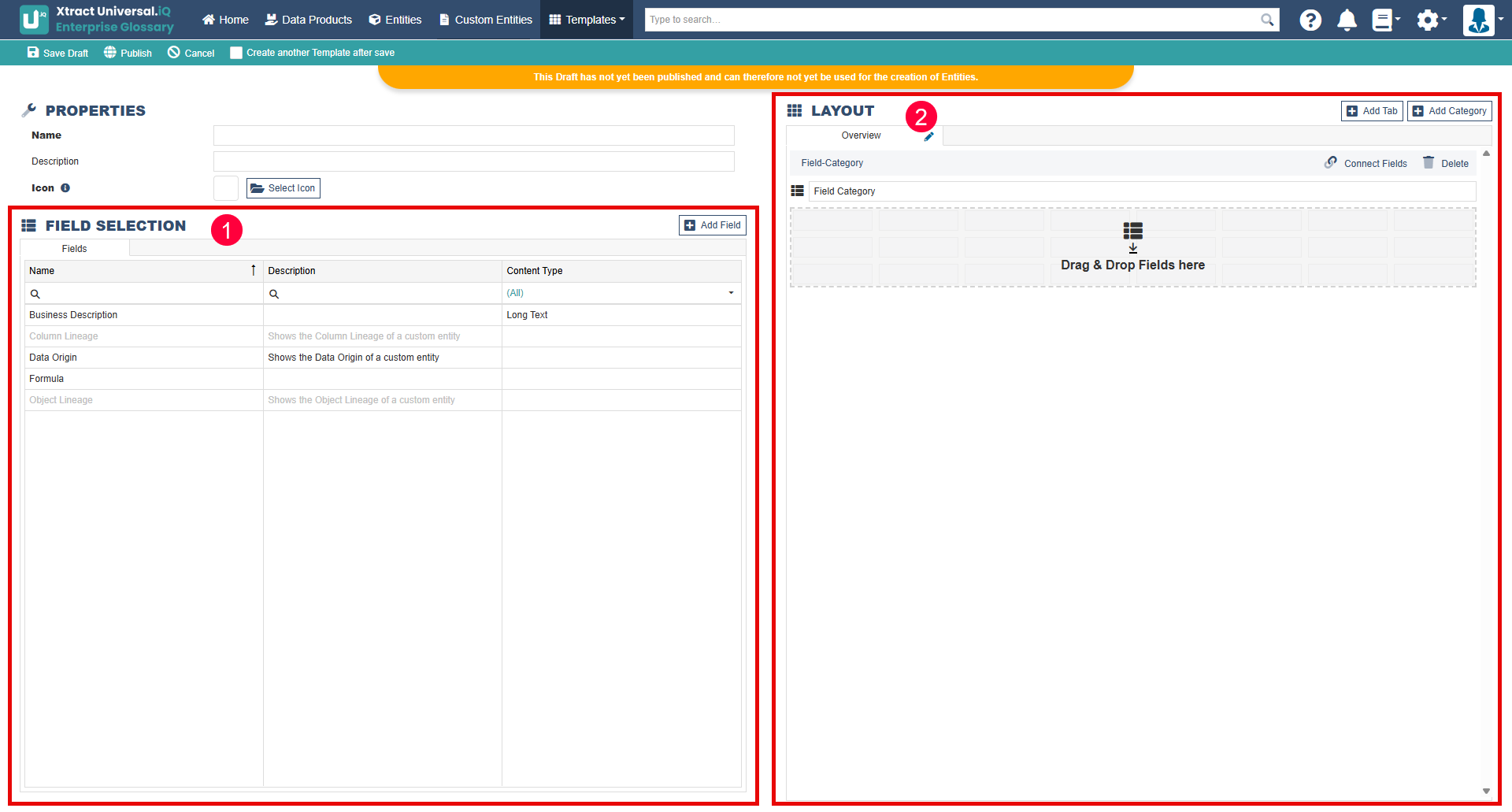
Field Selection
The field selection contains a list of all available Fields that you can add to the template by dragging and dropping them into the layout section. The same Field can be added multiple times to the same template.
You can create additional Fields to extend your template, see Custom Fields.
Layout
The layout defines the structure and content of Entities associated with the template.
- Tabs: represent pages in a template. You can add tabs to structure templates.
- Categories: collects Fields into groups inside a tab. You can add categories to structure templates.
After adding Fields to the layout, you can change the size of a Field by dragging the edges to the desired height or width.