Post-Processing Column Name Format
This article shows how to rename column names of extracted data sets within the Microsoft SQL-Server environment. The depicted example uses Custom SQL in the Finalization step of the database transaction within the Xtract Universal.iQ destination settings.
About Column Name Formats
The Xtract Universal.iQ Microsoft SQL Server destination offers 4 different Column Name Formats for naming the SAP table columns in databases:
- Code -
[FieldName] - Prefixed Code -
[TabName]~[FieldName] - CodeAndText -
[FieldName]_[FieldDescription] - TextAndCode -
[FieldDescription]_[FieldName]
The depicted example uses the Column Name Format 'Prefixed Code', which uses the format [TabName][ColumnName] with the SAP standard separator '~'. This naming is mainly used for table joins because identical column identifiers exist in different tables. A typical example is the table join of 'EKKO' (Purchasing Document Header) and 'EKPO' (Purchasing Document Item). Both tables have the following identical column descriptions:
- 'MANDT'
- 'EBELN'
When selecting the standard Column Name Format 'Code' in the destination settings, SQL returns the following error for these fields:
System.Data.SqlClient.SqlException (0x80131904):
Column names in each table must be unique. Column name 'MANDT' in table 'EKKO_JOIN' is specified more than once.
Adjust Standard Separator using Custom SQL
To change the SAP standard separator from '~' to '_' using Custom SQL:
- Open Xtract Universal.iQ and go to the destination settings of your Microsoft SQL Server service.
- Set Column Name Format to 'PrefixedCode'.
-
In the Finalization processing section, click [Edit SQL] and insert the following SQL code.
declare @table_name nvarchar(128) = '#{ Extraction.TableName }#' declare @old_name nvarchar(128) declare @new_name nvarchar(128) declare cur CURSOR LOCAL for select COLUMN_NAME from INFORMATION_SCHEMA.COLUMNS where TABLE_NAME = @table_name open cur while (1 = 1) begin fetch next from cur into @old_name IF @@FETCH_STATUS != 0 BREAK SET @new_name = REPLACE(@old_name, '~', '_') SET @old_name = '[' + @table_name + '].[' + @old_name + ']' EXEC sp_rename @old_name, @new_name, 'COLUMN' end close cur deallocate cur -
Click [OK] to confirm your input.
- Click [Run] to execute the service.
- If the service run is successful, open the SQL Server Management Studio (SSMS) to check the Column Name Format changes.
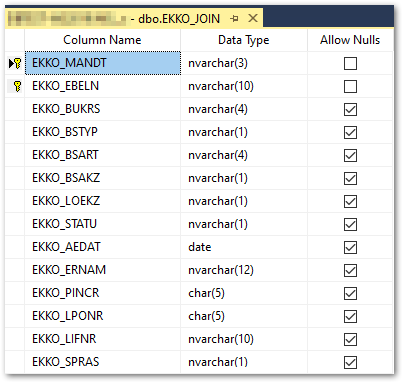
The column names now use the separator '_'.
Create Stored Procedure (sp) using SSMS
You can create a stored procedure that contains the T-SQL code for renaming column name styles shown above, and call it in the Finalization step of the destination settings. This approach allows you to change the renaming logic in the database or SQL Server instance without editing each service.
To adjust the SAP standard separator from '~' to '_':
- Open the SQL Server Management Studio and create a T-SQL stored procedure. For more information, see Microsoft Documentation: Create a stored procedure.
- Assign a name to the stored procedure, e.g., ColumnNameStyle.
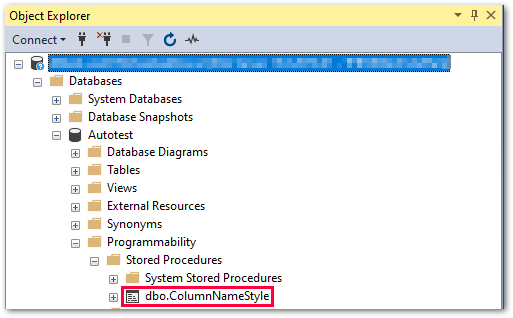
-
Insert the SQL code below and click [Execute] to save the process.
CREATE PROCEDURE ColumnNameStyle @table_name nvarchar(128) AS BEGIN declare @old_name nvarchar(128) declare @new_name nvarchar(128) declare cur CURSOR LOCAL for select COLUMN_NAME from INFORMATION_SCHEMA.COLUMNS where TABLE_NAME = @table_name open cur while (1 = 1) begin fetch next from cur into @old_name IF @@FETCH_STATUS != 0 BREAK SET @new_name = REPLACE(@old_name, '~', '_') SET @old_name = '[' + @table_name + '].[' + @old_name + ']' EXEC sp_rename @old_name, @new_name, 'COLUMN' end close cur deallocate cur END -
Open Xtract Universal.iQ and go to the destination settings of your Microsoft SQL Server service.
- Select a Column Name Format, e.g., 'PrefixedCode'.
-
In the Finalization processing section, click [Edit SQL] and insert the following SQL code.
-
Click [OK] to confirm your input.
- Click [Run] to execute the service.
- If the service run is successful, open the SQL Server Management Studio (SSMS) to check the Column Name Format changes.
The stored procedure renames column names automatically on each extraction run.