Authentication via Microsoft Entra ID for Azure Storage
This article shows how to connect to the Microsoft Azure Storage destination using Authentication via Microsoft Entra ID (OAuth2.0 or Service Principal). The article leads you through the following process:
- Register a new app with your Entra ID tenant authentication.
- Assign access rights for the new app in Azure Storage.
- In Xtract Universal.iQ, connect to Azure Storage using Microsoft Entra ID.
OAuth2.0 vs Service Principal
The Azure Storage destination offers the following authentication optins for Microsoft Entra ID:
- OAuth2.0
- Service Principal
Comparison:
| OAuth 2.0 (User Sign-In) | Service Principal (Client Secret) | |
|---|---|---|
| Microsoft EntraID | Enforces access based on user roles and assigned permissions | Enforces access based on the service principal’s permissions on the Azure Storage account |
| Security Model | Delegated access via user consent; identity managed by Microsoft Entra ID user accounts | App-only access via a Service Principal identity; reduces reliance on user credentials |
| Access Flow | Application receives access/refresh tokens after user authenticates via Microsoft Entra ID | Application uses its own credentials to acquire tokens from Entra ID without user interaction |
| Token Type | Access + refresh tokens (refresh token valid for 90 days) | Access token only (new tokens must be requested periodically using client secrets; the secret validity can be setup on creation and is limited to 24 months) |
| Consent | Requires explicit user consent or pre-granted admin consent to access resources | Requires admin consent during app registration or permission assignment |
| User Sign-In Required | ✅ Yes — user must sign in via embedded UI in Xtract Universal.iQ | ❌ No — app authenticates using credentials (client ID + secret) |
| Typical Use Case | Ideal for user-driven / delegated scenarios | Ideal for automation scenarios where no user is present |
App Registration
Register an app in Microsoft Entra ID via the Azure portal. The app used for authentication and access to Azure resources.
To register a new app with OAuth 2.0 authentication:
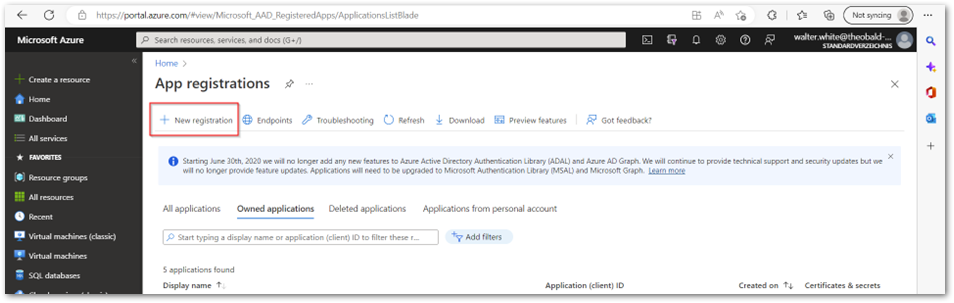
- Open the Azure portal and navigate to App Registrations.
- Click [New registration] to register a new app with your Entra ID tenant.
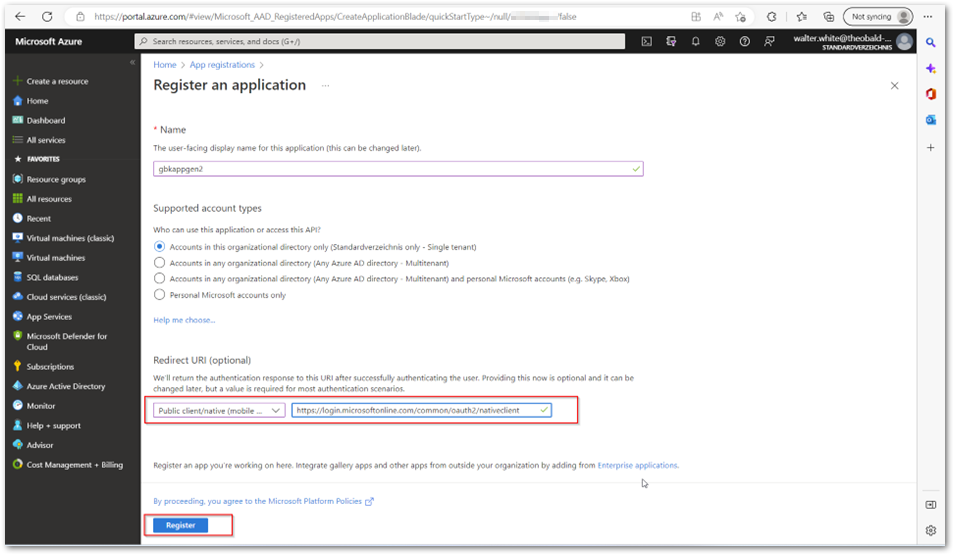
- Enter the name of the application.
- In the Redirect UI section, select Public Client /native (mobile and desktop) and assign
https://login.microsoftonline.com/common/oauth2/nativeclientas the redirect URI. - Click Register.
- Open the new application and navigate to API Permissions > Add a permission > Azure Storage.

- Click Grant admin consent.
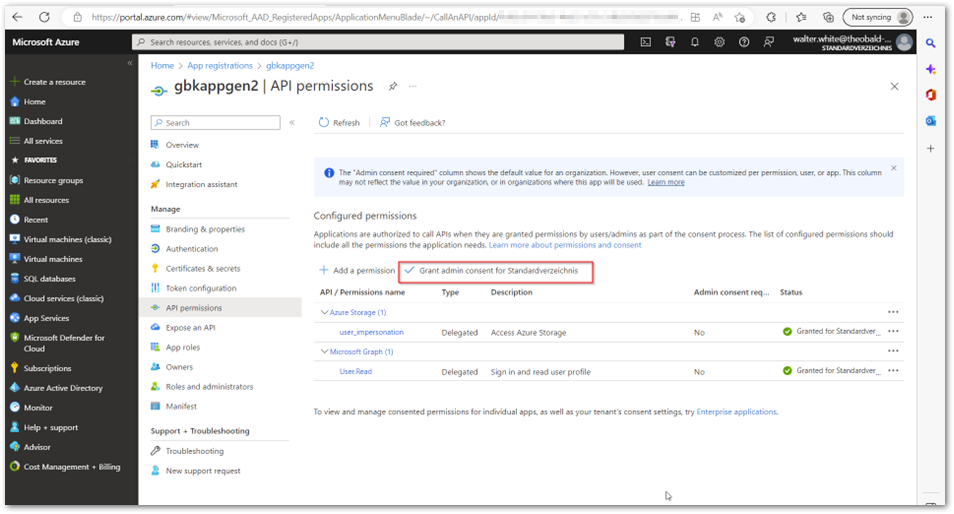
The app is now registered.
To register a new app with Service Principal authentication:
- Open the Azure portal and navigate to App Registrations.
- Click [New registration] to register a new app with your Entra ID tenant.
- Enter the name of the application.
- Click Register.
- Open the new application and navigate to Manage > Certificates & secrets and create a new client secret.
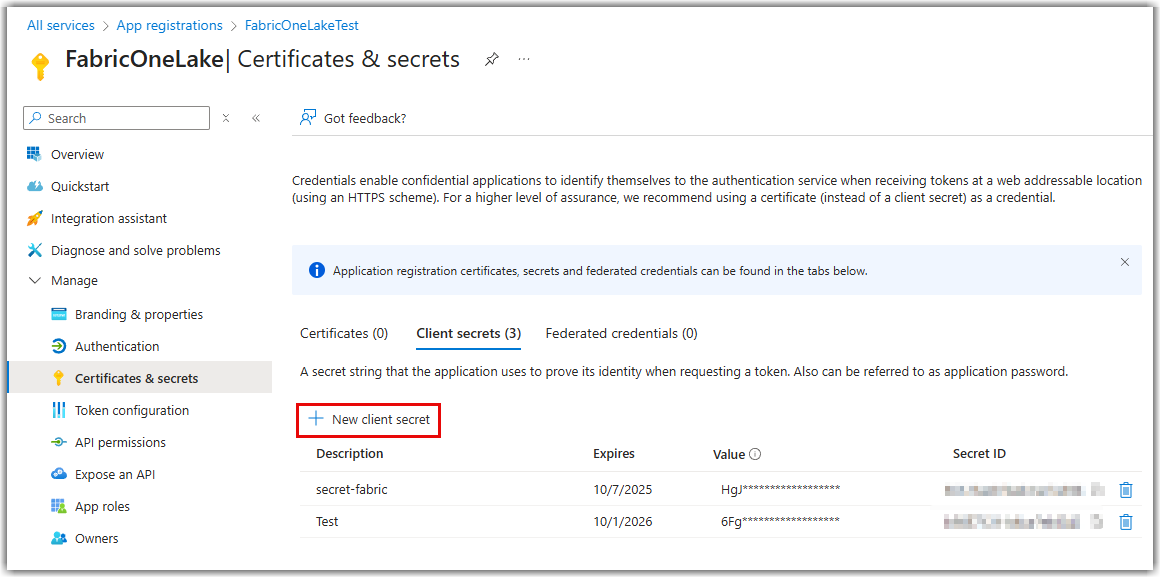
- Copy the value of the client secret. Note that the secret can only be viewed immediately after creation, so make sure to store it in a safe location.
The app is now registered.
Access Rights in Azure Storage
To assign access rights for the new Azure app in Azure Storage:
- Open the Azure portal and navigate to the Access Control (IAM) menu of your storage account.
- Click [Add role assignment].

- Select the Storage Blob Data Contributor role and click [Next].

- Click + Select members and add the new Azure app created in App Registration to the members.
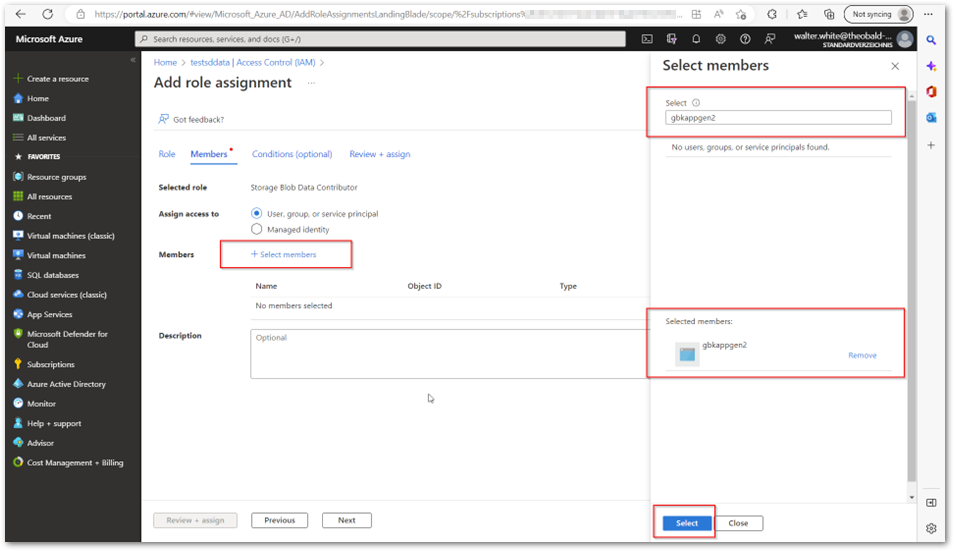
- Click [Next] to continue, then click [Review + assign] to assign the access rights.

Access rights are now assigned.
Connect Xtract Universal.iQ to Microsoft Azure Storage
To connect Xtract Universal.iQ to Microsoft Azure Storage via Microsoft Entra ID, follow the instructions in Documentation: Microsoft Azure Storage Destination.
Written by: Bharath Gorapalli, Valerie Schipka