Establish an Azure Relay Hybrid Connection to Xtract Universal.iQ
The following article shows how to set up the Azure Relay Hybrid Connection in Xtract Universal.iQ.
An Azure Relay Hybrid Connection can be used to make Xtract Universal.iQ services accessible to applications running in the Azure cloud. For more information on Azure Relay, see Microsoft Documentation: What is Azure Relay?.
Setup in Azure
Create an Azure Relay namespace and an Azure Relay Hybrid Connection, see Microsoft Documentation: Get started with Relay Hybrid Connections HTTP requests in .NET.
Use the following settings in the Azure Relay Hybrid Connection:
- Deactivate the option Requires Client Authorization to send requests to the hybrid connection URL from every browser.
- Create a Shared Access Policy with Send and Listen enabled.
- Copy the primary connection string from the Shared Access Policy.
The Azure Relay Hybrid Connection is now ready to use.
Note
Make sure the copied Primary Connection String contains EntityPath=<name-of-your-hybrid-connection>. Example:
Endpoint=sb://azure.servicebus.net/;SharedAccessKeyName=defaultListener;SharedAccessKey=<your-key>;EntityPath=<name-of-your-hybrid-connection>
Setup in Xtract Universal.iQ
To set up the Azure Relay Hybrid Connection in Xtract Universal.iQ:
- Open the Settings menu in Xtract Universal.iQ.
- Set Service URL to Azure Relay Hybrid Connection.
- Paste the primary connection string from the Shared Access Policy of the Azure Hybrid Connection into the input field Azure Relay Connection String.
- Click [Save] and restart the Xtract Universal.iQ container to complete the registration.
The Azure Relay Hybrid Connection in Xtract Universal.iQ is now ready to use.
How to check the Connection
There are multiple ways to check the connection between Azure and Xtract Universal.iQ:
- Check the Hybrid Connection in Azure:
The number of Listeners that are connected to a Hybrid Connection is displayed in the Overview screen of Azure Relay. If the connection to Xtract Universal.iQ is established successfully, the number of Listeners equals 1.

- Check the Xtract Universal.iQ logs:
Open the Logs menu in Xtract Universal.iQ and display the latest logs, see Documentation: Logs. If the connection to Azure Relay is established successfully, the following log entries are displayed:
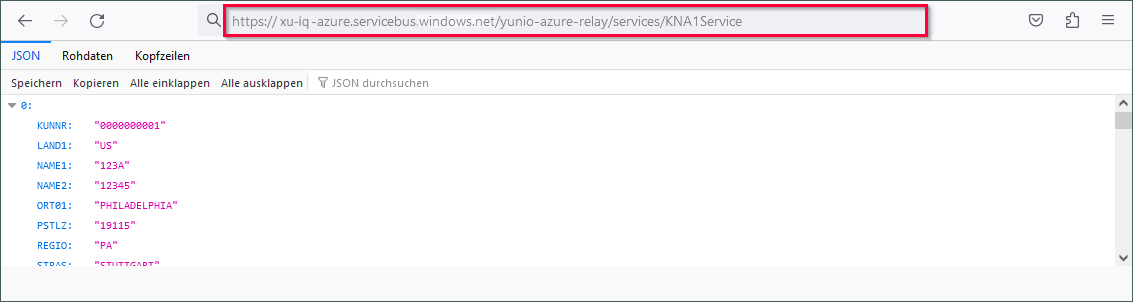
- Check the URL of Xtract Universal.iQ services:
Run a service in the browser and see if the service URL uses the Azure Relay endpoint. Example:
Related Topics
- Xtract Universal.iQ Documentation: Server Settings
- Microsoft Documentation: What is Azure Relay?
- Microsoft Documentation: Get started with Relay Hybrid Connections HTTP requests in .NET