Integrate a Service with Alteryx One
This article shows how to integrate an Xtract Universal.iQ service with Alteryx One.
Alteryx One is a software platform that allows you to access, cleanse, test, combine and analyze output data, see Alteryx One Official Website.
Xtract Universal.iQ Integration
Xtract Universal.iQ can be integrated with Alteryx One using a REST API connection. This allows you to access and utilize Xtract Universal.iQ services directly within your Alteryx One workflows.
You can use Xtract Universal.iQ services to:
- Extract large volumes of SAP data from supported SAP objects, see Service Overview.
- Load incremental data with CDSFlow Services, Table CDC Services or OData Services.
- Trigger transactions and processes in SAP with the Transaction Services.
Create a REST API Connection
To use Xtract Universal.iQ with Alteryx One:
- Open the Alteryx One platform at https://us1.alteryxcloud.com/.
- Open the Data menu.
- Click [+ New Connection]. The window "Create Connection" opens.
- Find and click the REST API connector. The REST API settings open.
- Enter a name for the connection.
-
Copy the Base URL of your Xtract Universal.iQ instance into the field Base URI. The URL should include the following port and suffix:
Example:
https://example.com:8175/api/v1/services/.Tip
You can copy the URL from the Run menu of your Xtract Universal.iQ instance.
Open a service in Xtract Universal.iQ and click [Run] to open the Run menu. The URL field contains the complete URL for running the service. -
If Access Control is set up in Xtract Universal.iQ, select Basic from the Credential Type dropdown and enter your credentials in the Username and Password fields. If access control is not set up, select No auth from the Credential Type dropdown.
-
In the API ENDPOINTS section, add the endpoints of the Xtract Universal.iQ services you want to use in Alteryx One:
- Enter a name for the data set, e.g., KNA1.
- Select Flattened Documents from the Data Model dropdown.
- Enter the relative endpoint of your service in the URL endpoint field using the following format:
Example:
kna1/run. For more information about the endpoint settings, see Alteryx One Help: REST API Connections - Configure Endpoints. -
Click [Test Connection] to validate your settings.
- Click [Create] to create the connection.
You can now use the REST API connection to Xtract Universal.iQ in Alteryx One workflows.
Use the REST API Connection in Workflows
To use the REST API connection in an Alteryx One workflow:
- Open the Alteryx One platform at https://us1.alteryxcloud.com/.
- Open the Designer Cloud menu.
- Click [New] to create a new workflow.
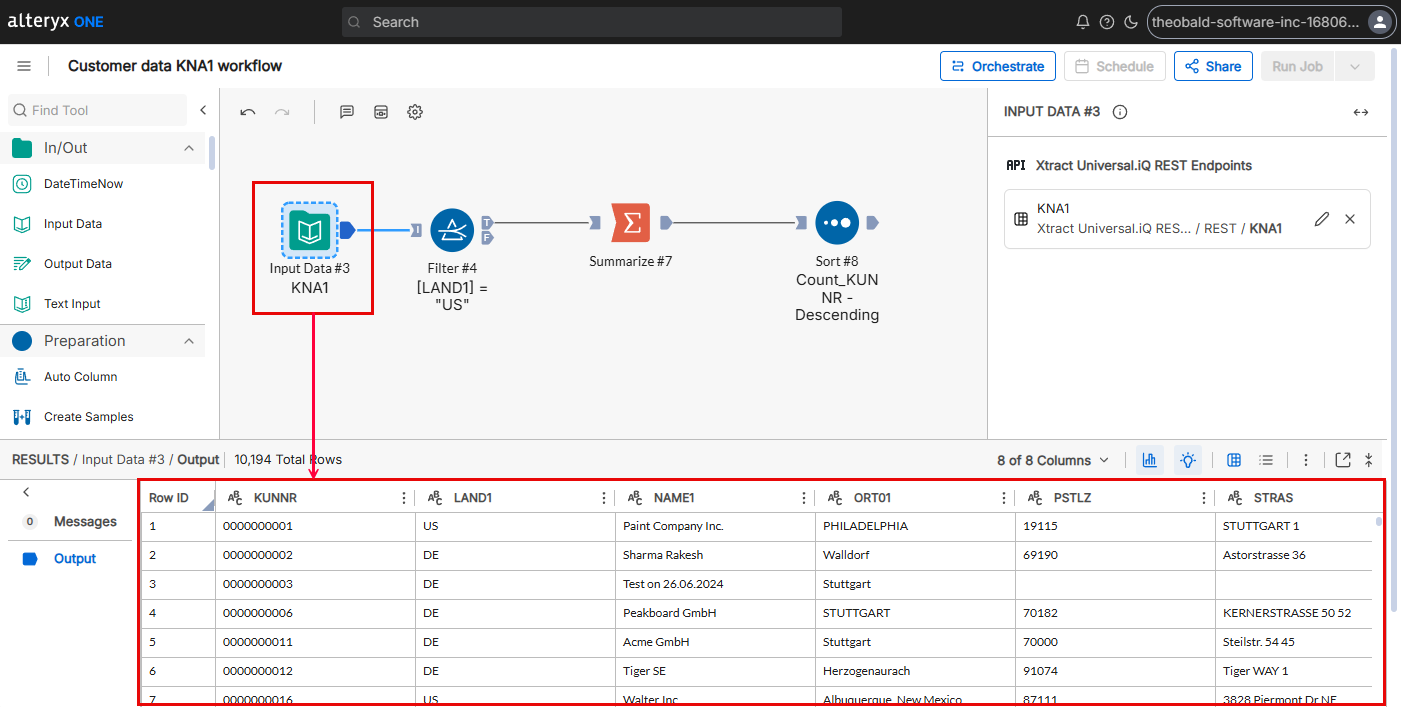
- Drag and drop an Input Data tool onto the workflow canvas.
- In the Input Data tool settings, click [Connect to Data]. The window "Input Data" opens.
- Select your REST API connection to Xtract Universal.iQ from the list of connections. Alteryx One loads the connection.
- Click REST. Alteryx One displays all available endpoints.
- Select an endpoint and click [Next]. Alteryx One runs the corresponding service.
- Click [Create Dataset]. The window "Input Data" closes and Alteryx One returns to the workflow.
The data from the selected Xtract Universal.iQ service endpoint is now available in the Alteryx One workflow.
Pass Parameters
The REST API connection has the the following data-handling limitations:
- The REST API connection only supports data imports.
- You cannot pass dynamic parameters.
For more information, see Alteryx One Help: REST API Connections - Limitations.
Define a Set of Parameter Values
Xtract Universal.iQ allows you to pass parameter values as query parameters when running a service. To run Xtract Universal.iQ services with a predefined set of static parameters in Alteryx One:
- Open your REST API connection to Xtract Universal.iQ.
- In the service endpoint's API ENDPOINTS section, open Advanced Options.
-
Add query parameters by entering the name of a service parameter in the Key field and its value in the Value field. For a complete list of supported query parameters, see Parameter Overview. Example:
-
Add the same Xtract Universal.iQ service as another endpoint in the REST API connection, but change the value of the query parameter. Add as many endpoints as needed with different parameter values.
- In your Alteryx One workflow, add logic to invoke the endpoint with the desired parameter values.
The Alteryx One workflow can now invoke a set of endpoints with different parameter values.
Write Data to SAP
Most Xtract Universal.iQ services that write data to SAP require parameter values in the JSON request body of the service, see body parameters. To run Xtract Universal.iQ services with a predefined JSON body in Alteryx One:
- Open your REST API connection that connects to Xtract Universal.iQ.
- Navigate to the API ENDPOINTS section of your service endpoint.
- Select POST from the Method dropdown.
-
Enter the JSON body required by the Xtract Universal.iQ service into the Request Body field.
Tip
You can copy the expected JSON body structure from the Run menu of your Xtract Universal.iQ service.
Open the service in Xtract Universal.iQ and click [Run] to open the Run menu. Click [Save] to download the parameters as a[service name]_input_payload.jsonfile to your machine. The file contains all parameters and their expected structure in JSON format. If you enter parameter values in the Run menu before downloading the payload, they are included in the file. -
Add the same Xtract Universal.iQ service as another endpoint in the REST API connection, but change the values in the JSON body.
- In your Alteryx One workflow, add logic to invoke the endpoint with the desired parameter values.
The Alteryx One workflow can now invoke a set of endpoints with different JSON bodies.
Related Topics
- Alteryx One Designer Documentation: API REST Connection
- Alteryx One Designer Documentation: Input Data Tool
- Integrate a Service with Alteryx
Written by: Christian Tauchmann, Valerie Schipka