Integrate a Service with Alteryx
This article shows how to integrate an Xtract Universal.iQ service with Alteryx.
Alteryx is a software platform that allows you to access, cleanse, test, combine and analyze output data, see Alteryx Official Website.
Integrate Xtract Universal.iQ in Alteryx
To use Xtract Universal.iQ with Alteryx:
- Open or create a new Alteryx workflow.
- Add a Download tool to your workflow.
- In the Configuration section of the Download tool, activate the option Use Data Connection Manager (DCM) and click [Set Up Connection]. The Alteryx Data Connection Manager (DCM) opens.
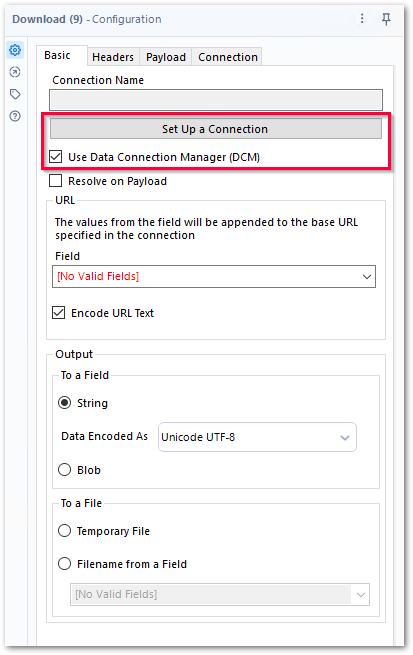
- Click [New] to create a new data source.
- Enter a name for the connection.
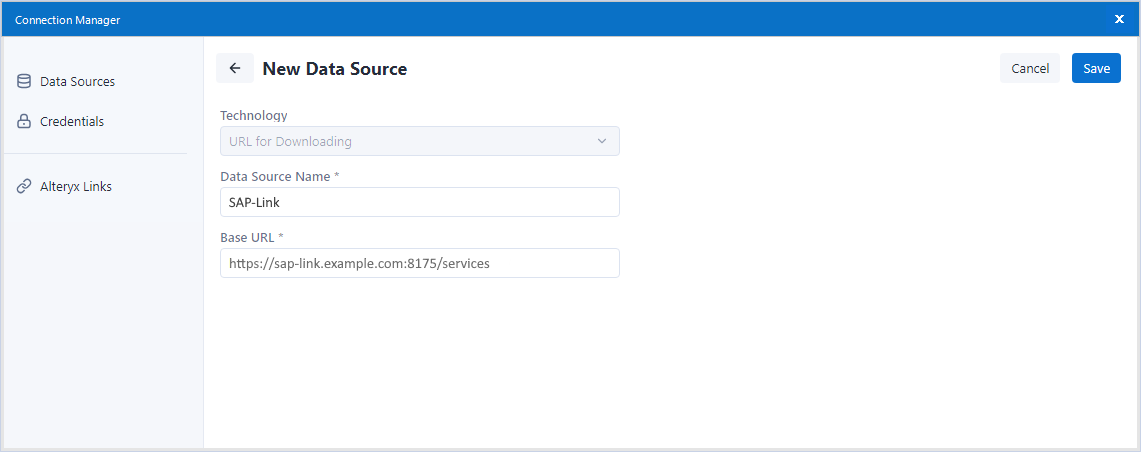
- Copy the Base URL of your Xtract Universal.iQ instance into the field Base URL.
- Click [Save]. The subsection Connection is displayed.
- In the subsection Connection select one of the following authentication methods:
- No Credentials (if no authentication is set up in Xtract Universal.iQ).
- Username (if no authentication is set up in Xtract Universal.iQ).
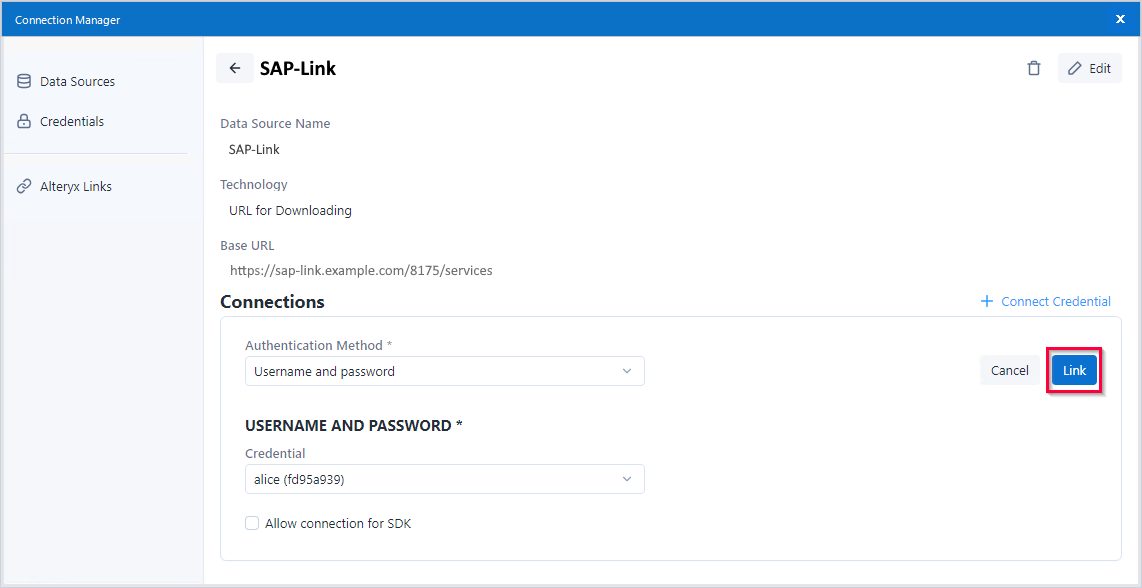
- Username and password (if Basic Authentication is set up in Xtract Universal.iQ, see Access Control).
- Select an existing credential or click + Connect Credential to create a new credential that can access and run Xtract Universal.iQ services.
- Click [Link] / [Create and link] to link the credential to the connection.
- Click [Connect] to establish a connection to Xtract Universal.iQ. The Data Connection Manager closes.
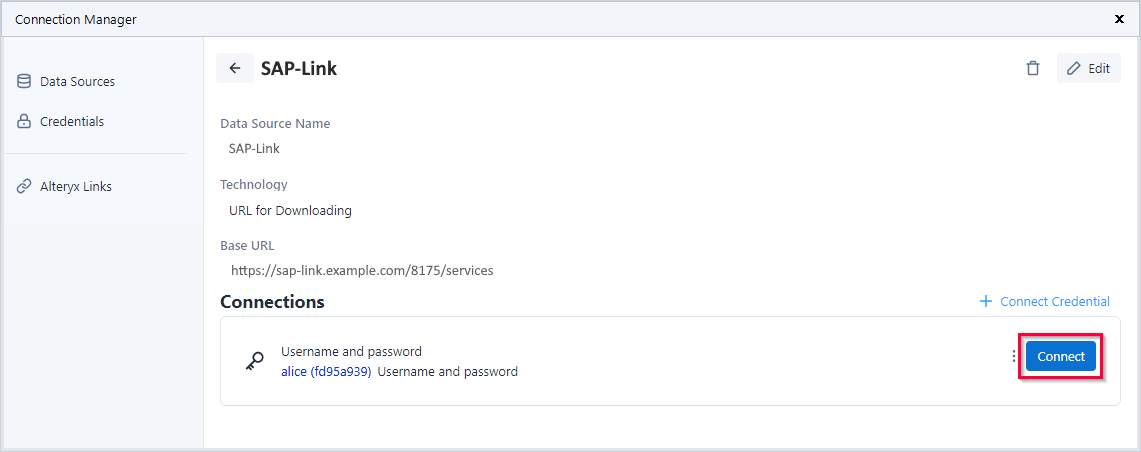
- Use the name of an Xtract Universal.iQ service as input for the Download tool to call the service.
Xtract Universal.iQ is now available as a data source in Alteryx and can be used to call Xtract Universal.iQ services in Alteryx workflows.
Pass Parameters
To pass parameters to Xtract Universal.iQ services in Alteryx:
- Create a new service in Xtract Universal.iQ. This example uses an Xtract Universal.iQ transaction service that changes customer master data in SAP, see Transaction XD02 - Change Customer Master Data.
- Open or create a new Alteryx workflow.
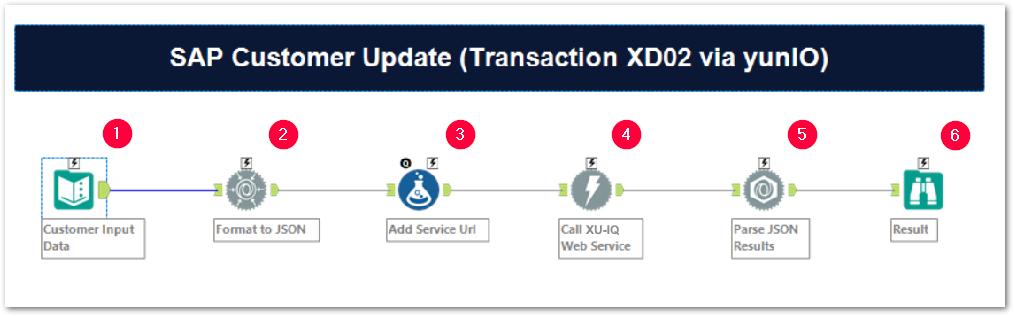
-
Add an Input Data tool that provides values for the input parameters of the Xtract Universal.iQ service. Example:
Name Value 1 skipPopups false 2 CustomerNo 1001 3 Name The Fresh Loaf 4 Street Washington Boulevard 5 HouseNo 1000 6 PostalCode 65936 7 City Frankfurt 8 Country DE 9 Region 06 10 Phone 069-467653-0 -
Add a JSON Build tool to format the input data into a JSON format that can be processed by the Xtract Universal.iQ service. Example:
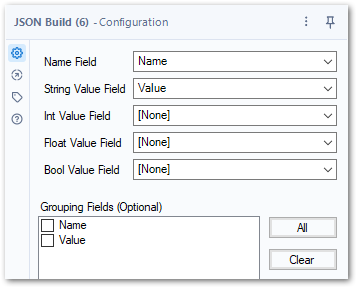
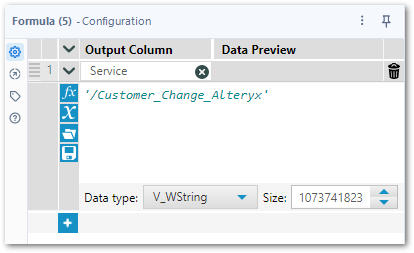
- Add a Formula tool to add a new column Service to the result of the JSON Build tool. The column contains the name of the service you want to call e.g.,
/Customer_Change_Alteryx.
- Add a Download tool to your workflow and set up a connection to Xtract Universal.iQ, see Integrate Xtract Universal.iQ in Alteryx.
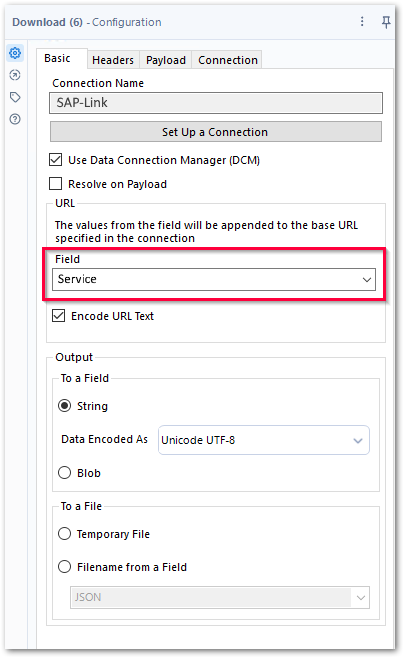
- Select the Service column that contains the name of the service as the input for the URL field. Make sure that the combination of the base URL and the service name represents a valid URL e.g.,
https://sap-link.example.com:8175/services/Customer_Change_Alteryx.
- Add a JSON Parse tool to parse the JSON results returned by the service.
- Add a Browse tool to view the parsed result message of the Xtract Universal.iQ service.
- Run the workflow. If the run is successful, the workflow returns the message "Changes have been made".
The Xtract Universal.iQ service runs and returns the result message of the service in the workflow results.
Related Topics
- Alteryx Designer Documentation: Data Connection Manager
- Alteryx Designer Documentation: Download-Tool
- Alteryx Designer Documentation: JSON Build-Tool