Integrate a Service with Langdock
This article shows how to integrate a Xtract Universal.iQ service with Langdock workflows using HTTPS request nodes. For information on how to integrate Xtract Universal.iQ services using the Xtract Universal.iQ MCP server, see Xtract Universal.iQ MCP Integration with Langdock.
Setup in Xtract Universal.iQ
Before integrating Xtract Universal.iQ with third-party tools:
- Create a service in Xtract Universal.iQ.
- Testrun the service in Xtract Universal.iQ to make sure it works, see Documentation: Run Services in Xtract Universal.iQ.
- Click [ Run > Service > Copy URL] to copy the service URL to your clipboard.
You can now use the endpoint URL to run services in Langdock workflows.
Setup in Langdock
To run Xtract Universal.iQ services from Langdock workflows:
- Open https://app.langdock.com/chat and create a new workflow in the Workflows section.
- Add a trigger node and an HTTP Request node.
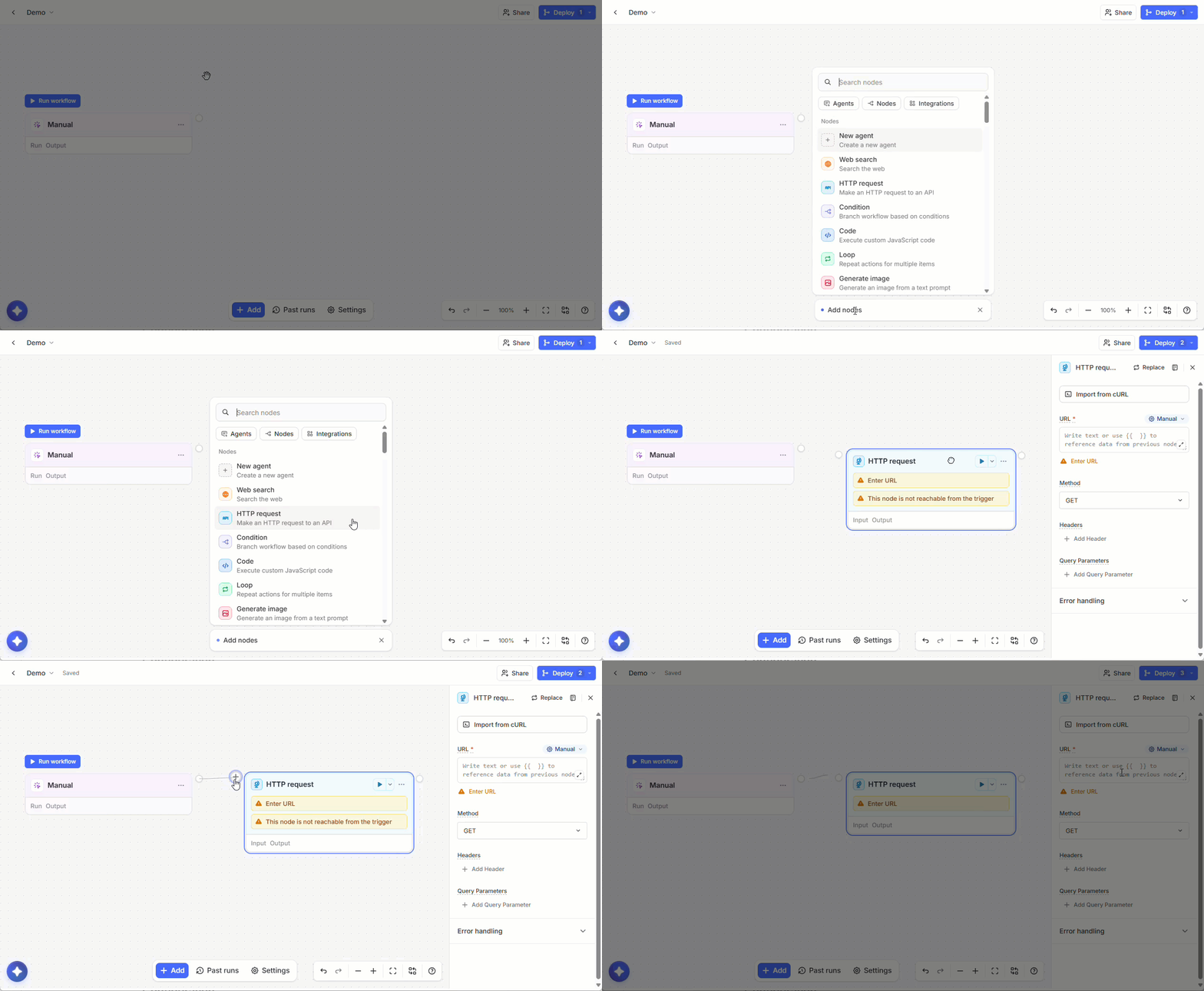
- In the HTTP Request node settings, set Method to POST.
-
Enter the Xtract Universal.iQ service endpoint URL into URL, e.g.,
https://sap-link.example.com:8175/services/[service-name].Tip
You can find the URL in the Run menu of your service.
-
Add headers that define authentication and input / output formats of the service. Examples:
Key Value Description AuthorizationBasic [base64 encoded username:password]Authentication against Xtract Universal.iQ. If Xtract Universal.iQ uses access restrictions, enter Basicfollowed by your base64 encoded Xtract Universal.iQ credentials in the formatusername:password.Content-Typeapplication/jsonSpecifies that the data you send in the request body is formatted as JSON. Use this when passing parameters as a JSON object. Acceptapplication/jsonSpecifies that you want to receive the response data in JSON format. -
Optional: use Send Body or Send Query Parameters to pass parameters to your service, see Pass Parameters.
- Click [] at the top of the node to test the service call. If successful, the Output panel underneath the node displays the service output.
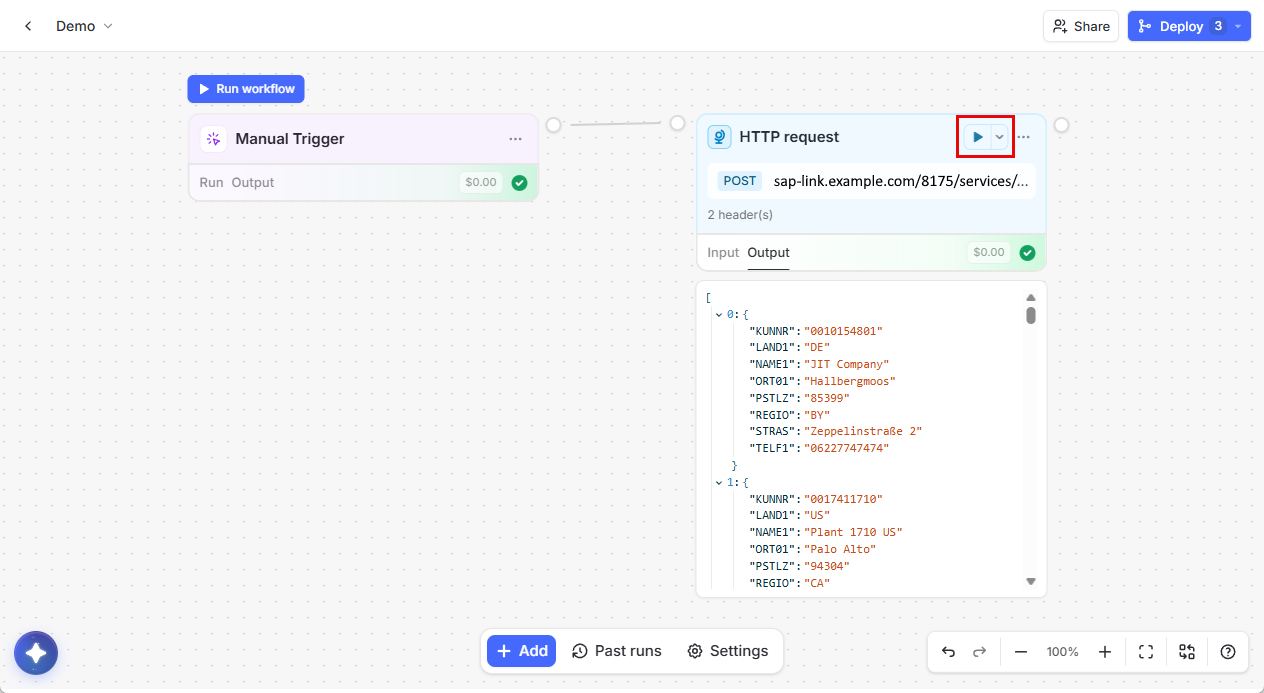
You can now fetch SAP data via Xtract Universal.iQ and pass it to other nodes for further processing.
Pass Parameters
There are multiple ways to pass parameters to your service in Langdock:
- using the JSON payload of the service, see Configure Body Using JSON.
- using the Send Query Parameters option of the HTTP node to pass query parameters, see Parameter Overview.
Configure Body Using JSON
To pass parameters in the request body of the service:
- Open the Xtract Universal.iQ Services menu.
- Select the service you want to parameterize and click Run > Service > Run. The "Run" menu opens.
- Optional: Enter values using the Input Parameters fields.
- In the Parameters section, click Save. The parameters are downloaded as a
[service name]_input_payload.jsonfile to your machine. The file contains all parameters and their structure in JSON format. If you assign parameters in the "Run" menu before downloading the payload, they are included in the file. - Open the HTTP Request node settings in your Langdock workflow.
-
Add the following header:
Key Value Content-Typeapplication/json -
Copy the content of the
[service-name]_input_payload.jsonfile into the Request Body field. - If your parameters do not have values yet, add values directly in the JSON body or use Langdock variables to map parameters to output from previous nodes, see Langdock Documentation: Variable Usage.
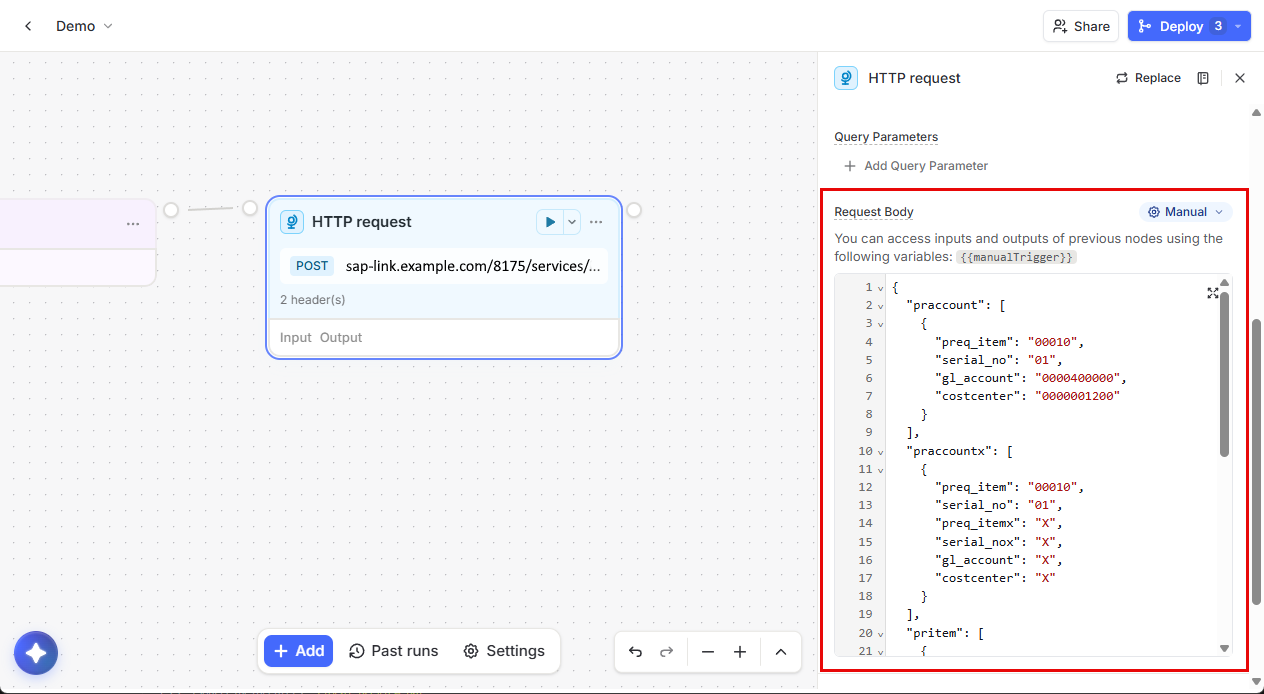
- Click [] at the top of the node to test the service call. If successful, the Output panel underneath the node displays the service output.
You can now pass parameters to your service and fetch specific data from SAP.
For information on how to pass variables, refer to Langdock Documentation: Variable Usage.
Related Links
- Langdock Documentation: Workflows
- Langdock Documentation: HTTP Request Node
- Langdock Documentation: Variable Usage
- Knowledge Base: MCP Integration with Langdock
- Xtract Universal.iQ Documentation: Run Services
- Xtract Universal.iQ Documentation: Parameters
Written by: Christian Tauchmann, Valerie Schipka