Integrate a Service with n8n
This article shows how to integrate a Xtract Universal.iQ service with n8n.
n8n is a workflow automation platform. Build flows by linking nodes for actions, triggers, or webhooks. It supports HTTP requests, credentials, and data synchronization. For more information, see n8n Documentation.
Setup in Xtract Universal.iQ
Before integrating Xtract Universal.iQ with third-party tools:
- Create a service in Xtract Universal.iQ.
- Testrun the service in Xtract Universal.iQ to make sure it works, see Documentation: Run Services in Xtract Universal.iQ.
- Click [ Run > Service > Copy URL] to copy the service URL to your clipboard.
You can now use the endpoint URL to integrate the service with third-party tools.
Setup in n8n
To run Xtract Universal.iQ services from n8n:
- Open n8n and create a new workflow.
- Add a trigger node and an HTTP Request node.
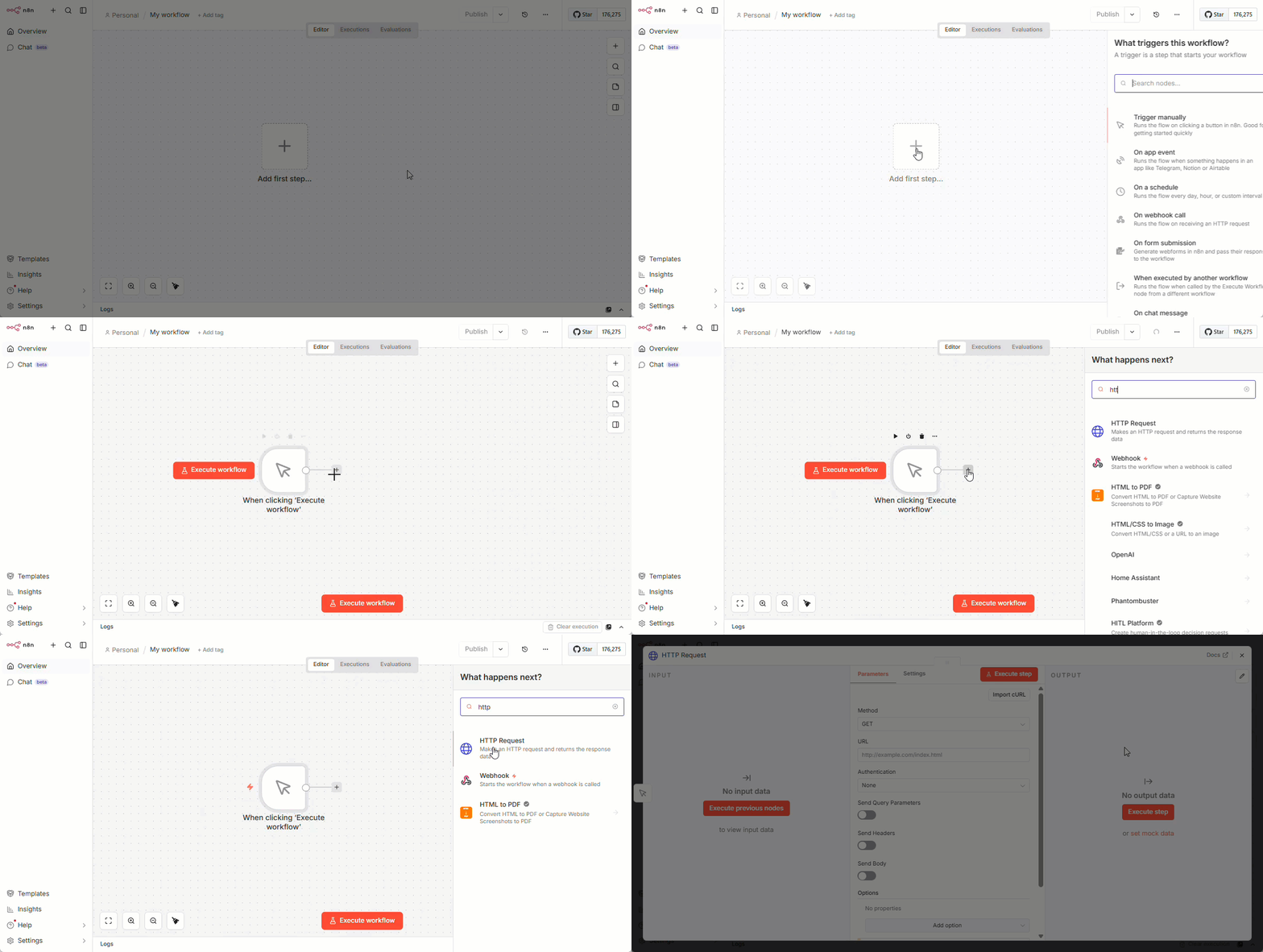
- In the HTTP Request node, set Method to POST.
- Enter the Xtract Universal.iQ service endpoint URL into URL, e.g.,
https://sap-link.example.com:8175/services/[service-name]. You can find the URL in the Run menu of your service. - If Xtract Universal.iQ uses access restrictions:
- Set Authentication to Generic Credential Type.
- Set Generic Auth Type to Basic Auth.
- In Basic Auth, click Create new credential and enter your Xtract Universal.iQ username and password or select an existing credential.
- Activate Send Headers to define input and output formats. Example:
Content-Type: application/jsonspecifies that the data you send in the request body is formatted as JSON. Use this when passing parameters as a JSON object.Accept: application/jsonspecifies that you want to receive the response data in JSON format. Most n8n nodes expect and work better with JSON data.
- Optional: use Send Body or Send Query Parameters to pass parameters to your service, see Pass Parameters.
- Click [Execute step] to test the service call. If successful, the panel on the right displays the service output.
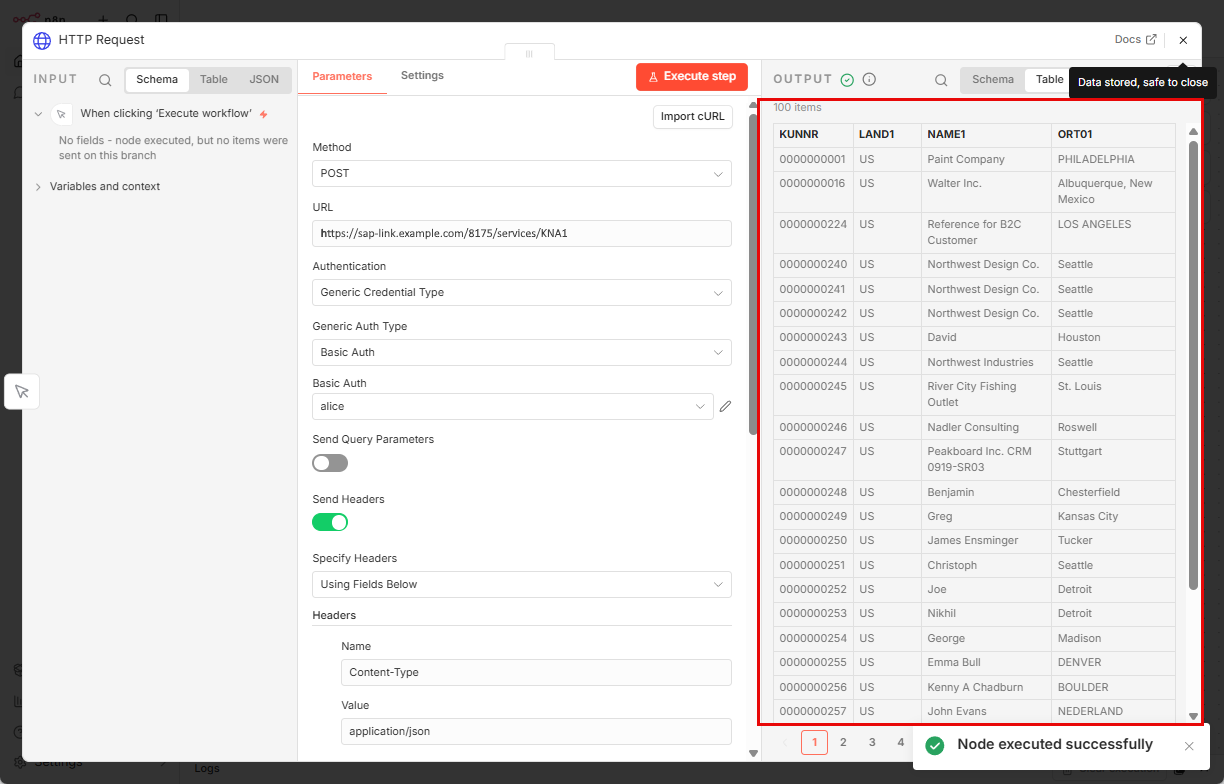
You can now fetch SAP data via Xtract Universal.iQ and pass it to other nodes for further processing.
Pass Parameters
There are multiple ways to pass parameters to your service in n8n's HTTP node:
- using the input fields in the n8n node UI, see Configure Body Using Fields.
- using the JSON payload of the service, see Configure Body Using JSON.
- using the Send Query Parameters option to pass query parameters, see Parameter Overview.
Configure Body Using Fields
The following workflow is recommended for services with few parameters:
- In the HTTP Request node, set the header to
Content-Type: application/json. This specifies that the data you send in the request body is formatted as JSON. - Activate Send Body.
- Set Body Content Type to JSON.
- Set Specify Body to Using Fields Below.
- Click [Add Body Field]. This creates a new pair of input fields: Name and Value.
- Enter the name of the Xtract Universal.iQ service parameter in the Name field, e.g.,
whereClause. You can find a list of all parameter names in the Run menu of your service. - Enter the value you want to pass to the parameter in the Value field, e.g.,
LAND1 = 'US'. To map parameters to the output of previous nodes, drag-and-drop the data from the left side panel into the input fields, see Data Mapping.
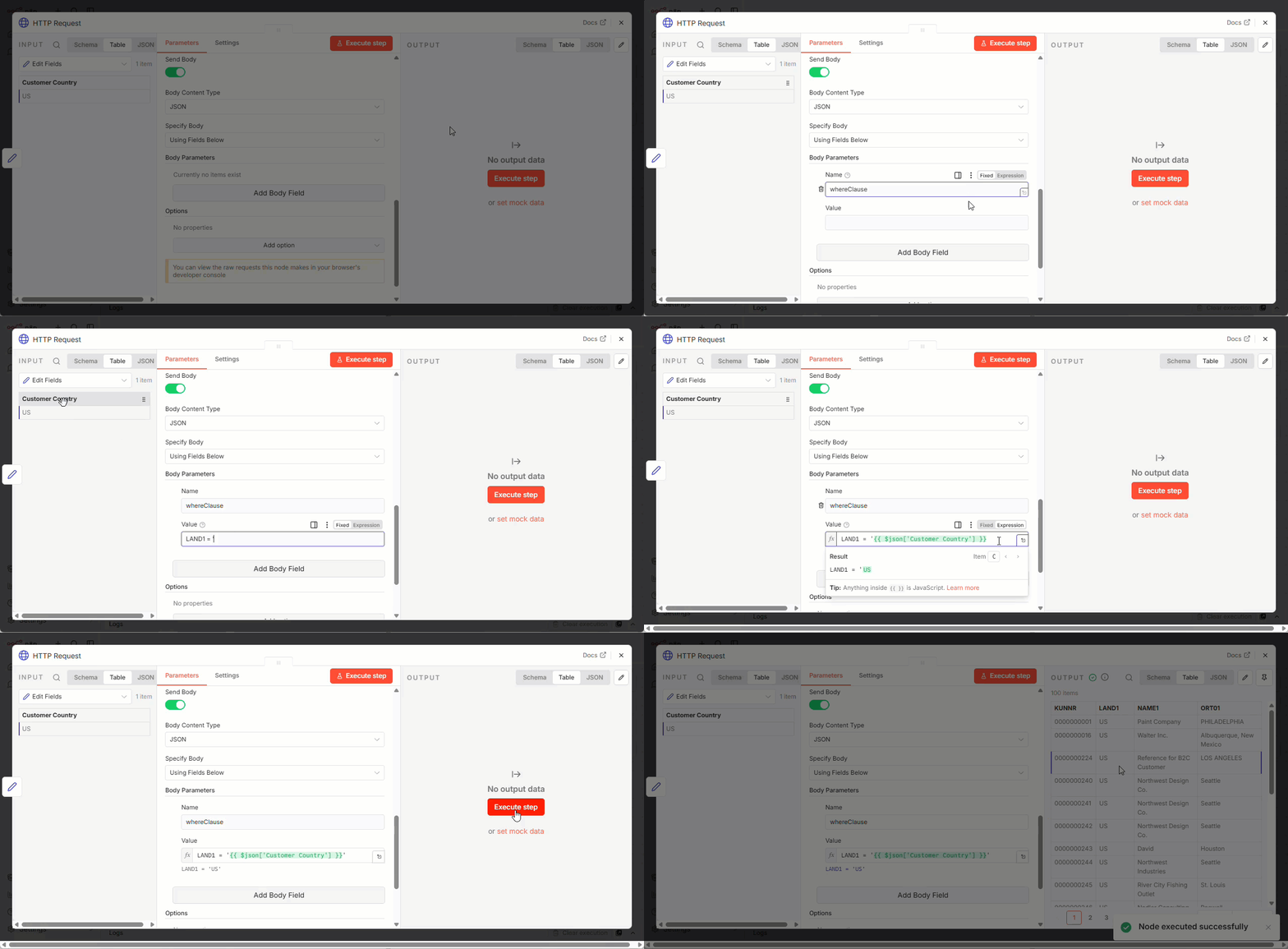
- Repeat steps 5 to 7 for all parameters you want to pass to your service.
- Click [Execute step] to test the service call. If successful, the right side panel displays the service output.
You can now pass parameters to your service and fetch specific data from SAP.
Configure Body Using JSON
The following workflow is recommended for services with many parameters and/or nested parameters:
- In the HTTP Request node, set the header to
Content-Type: application/json. This specifies that the data you send in the request body is formatted as JSON. - Activate Send Body.
- Set Body Content Type to JSON.
- Set Specify Body to Using JSON.
- Open Xtract Universal.iQ, select your service and click Run > Service > Run. The "Run" menu opens.
- In the Parameters section, click Save. The parameters are downloaded as a
[service name]_input_payload.jsonfile to your machine. The file contains all parameters and their structure in JSON format. If you assign parameters in the "Run" menu before downloading the payload, they are included in the file. -
Copy the content of the
[service-name]_input_payload.jsonfile into the JSON field.Tip
For better reusability, use a Read/Write Files from Disk node to load the payload or use an HTTP Request node to fetch the file from a URL. In the HTTP Request node, you can use an expression to reference it:
{{ $json.fileContent }} -
If your parameters do not have values yet, add values directly in the JSON body or use n8n expressions to map parameters to output from previous nodes, see Data Mapping.
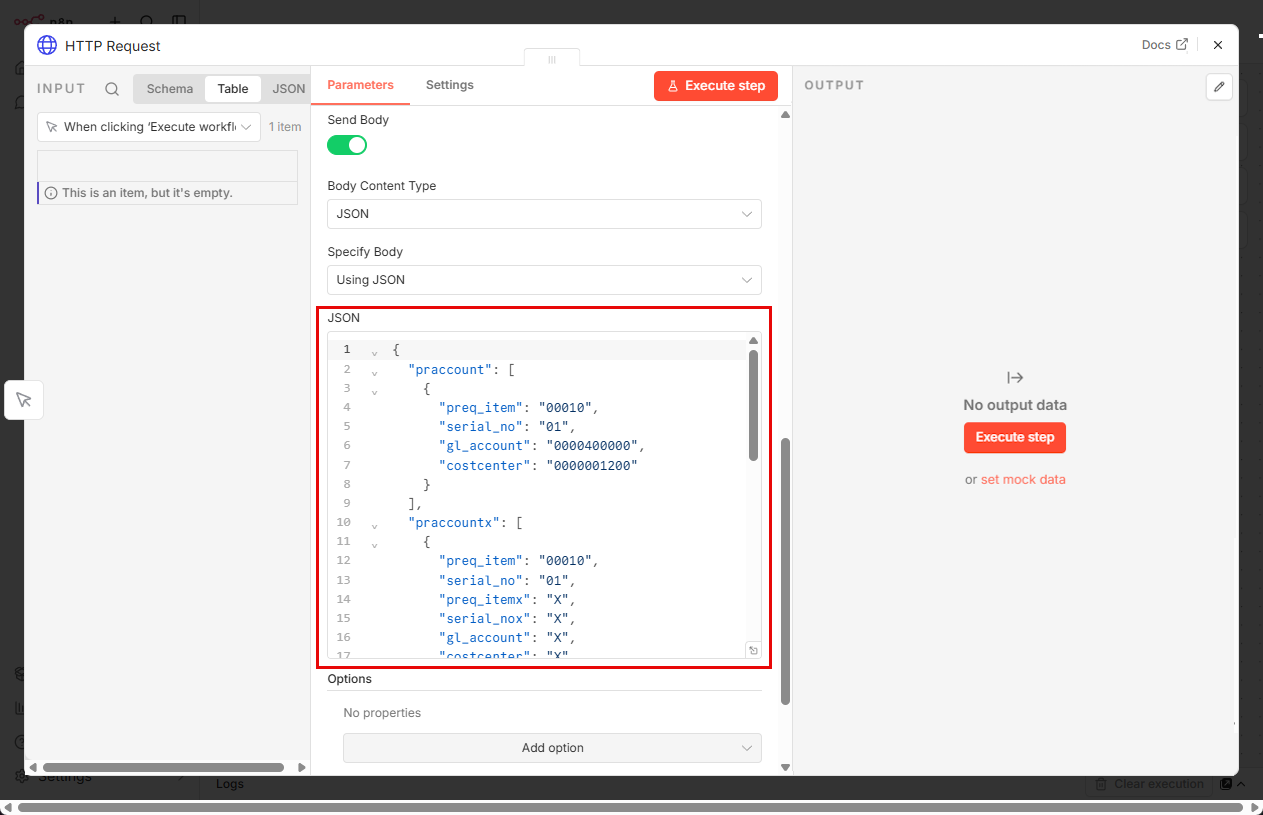
- Click [Execute step] to test the service call. If successful, the right side panel displays the service output.
You can now pass parameters to your service and fetch specific data from SAP.
Data Mapping
Reference Output from Previous Nodes
To dynamically pass data from previous nodes in your workflow, use n8n expressions to reference node outputs, see n8n Documentation: Referencing Other Nodes. Alternatively, use the drag-and-drop function of the node UIs to map the data, see n8n Documentation: Referencing Data in the UI.
Custom Variables
On self-hosted Enterprise and Pro Cloud plans of n8n, instance owners and admins can create custom variables to dynamically pass data between nodes and workflows, see n8n Documentation: Custom Variables.
Tip
If custom variables are not available in your n8n version, you can:
- use an Edit Fields (Set) node at the beginning of your workflow to define a list of values that are accessible across all nodes in the workflow.
- use the n8n-nodes-globals community node to create n8n variables that are accessible across all workflows.
Related Links
- n8n Documentation: HTTP Request Node
- n8n Documentation: HTTP Request Node Common Issues
- n8n Documentation: Expressions for Transformation
- Xtract Universal.iQ Documentation: Run Services
- Xtract Universal.iQ Documentation: Parameters
Written by: Valerie Schipka