Integrate a Service with Power Automate
The following article shows how to integrate an Xtract Universal.iQ service with Microsoft Power Automate.
Power Automate is a cloud-based process automation service provided by Microsoft. The platform can be used to create automated workflows between different cloud apps and services that synchronize and collect data, get notifications, start approvals, and more. For more Information on Power Automate see Microsoft Power Automate Documentation.
Note
When integrating services from a local Xtract Universal.iQ installation with a cloud hosted platform like Power Automate / Power Apps and Copilot Studio, a gateway to tunnel the connection is recommended, e.g., the Microsoft On-premises data gateway.
Setup in Xtract Universal.iQ
Before integrating Xtract Universal.iQ with third-party tools:
- Create a service in Xtract Universal.iQ. For this example we use the BAPI SD_RFC_CUSTOMER_GET to search and extract customer data from SAP. The service has the following settings:
- Set the Import Parameter NAME1 to Supplied by Caller.
- Select all fields in the Table CUSTOMER_T for the output.
- Testrun the service in Xtract Universal.iQ to make sure it works, see Documentation: Run Services in Xtract Universal.iQ.
- Click [ Run > Service > Copy URL] to copy the service URL to your clipboard.
The service definition can now be used to integrate the service with third-party tools.
Configure an Xtract Universal.iQ Custom Connector in Power Automate
To configure a Custom Connector that uses Xtract Universal.iQ services:
- Open the section Custom Connectors in Power Automate and click + New custom connector.
- Click Import an OpenAPI file and give the connector a name of your choice. Select the service definition from Setup in Xtract Universal.iQ from your hard drive and click Continue.
- In the General tab you can define general information for the custom connector.
- If you use an on-premises data gateway, activate the checkbox Connect via on-premises gateway.
- Scheme: If Xtract Universal.iQ uses Transport Layer Securits select HTTPS.
- Host: Enter the server address for the Xtract Universal.iQ service consumption, e.g.,
example.com:8177. - Base URL: Enter
/services.
- If you use an on-premises data gateway, activate the checkbox Connect via on-premises gateway.
- In the Security tab, select the authentication type for service consumption.
- Select No authentication if access control in Xtract Universal.iQ is set to Anonymous.
- Select Basic authentication if access control in Xtract Universal.iQ is set to Authenticated or if Request credentials from callers when running services is enabled in the connection settings.
- The Definition tab contains an overview about the Xtract Universal.iQ service definition. No changes are necessary. This also applies to the Code (Preview) tab.
- Click Create connector to publish the connector.
The Power Automate Custom Connector is now set up.
Test the Service
To testrun Xtract Universal.iQ services in a Power Automate Custom Conenctor:
- Navigate to the Test tab of the custom connector.
- Create a connection with + New connection.
- Enter the credentials of the SAP user you have defined in the Xtract Universal.iQ connection settings. If you select to connect via an on-premises gateway in the General tab, select your gateway instance.
- Confirm the settings with Create connection.
- Enter valid import values for the parameters you defined as Supplied by caller in the Xtract Universal.iQ service settings .
- Click Test operation .
- Check the SAP response displayed in the request body of the custom connector .
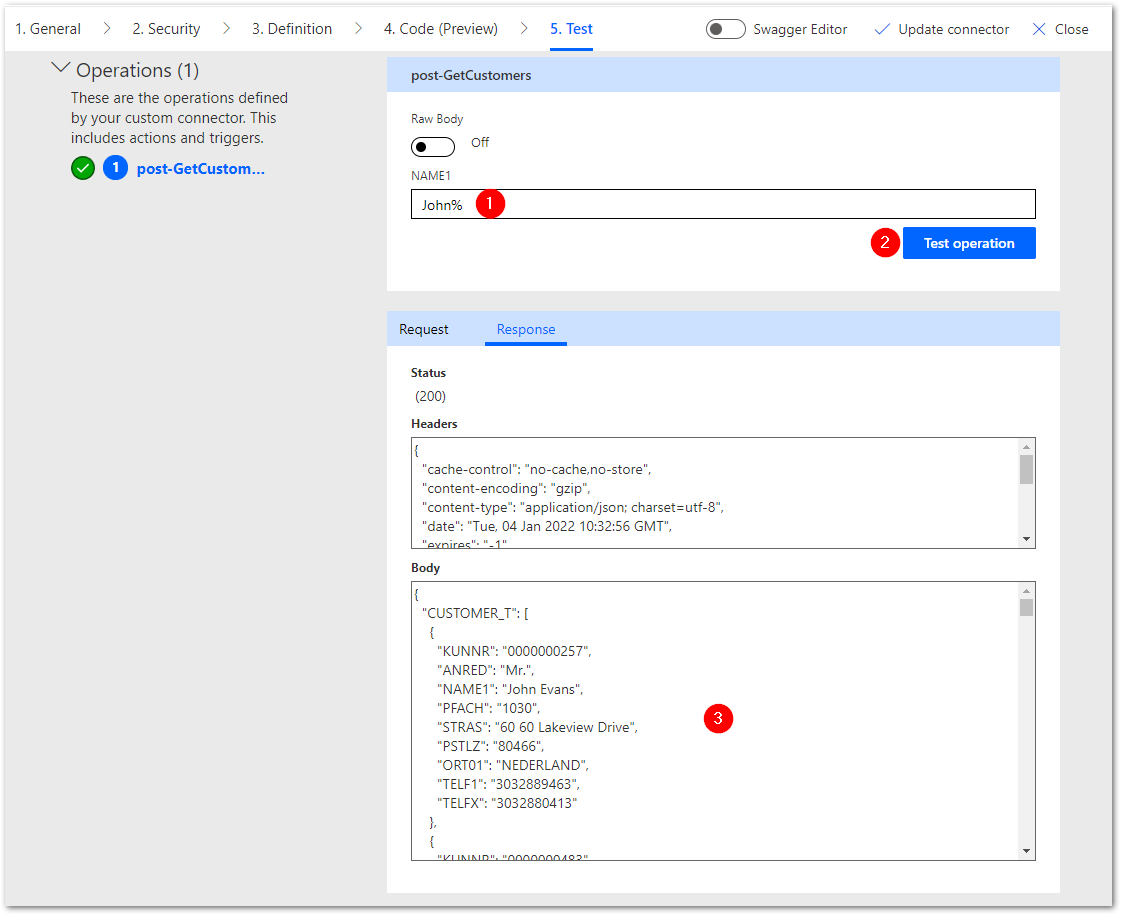
Tip
For services calling Function Modules or BAPIs that use tables or structured input information, switch Raw Body off to get a better structured input screen.
The custom connector is now ready to use in Power Automate flows.
Use the Service in a Power Automate Flow
To run Xtract Universal.iQ services in a Power Automate flow:
- Add a new action to the Flow and search for the name of the custom connector.
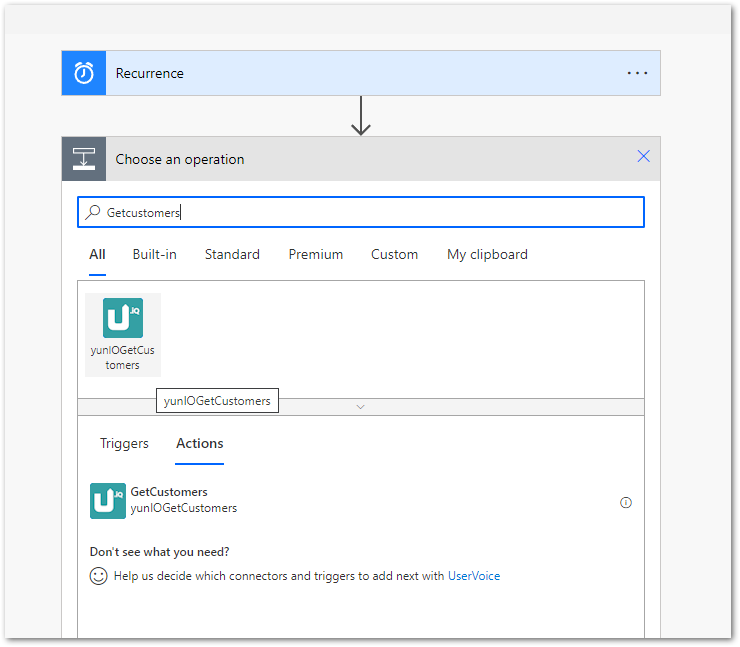
- Enter values in the input fields of the custom connector.
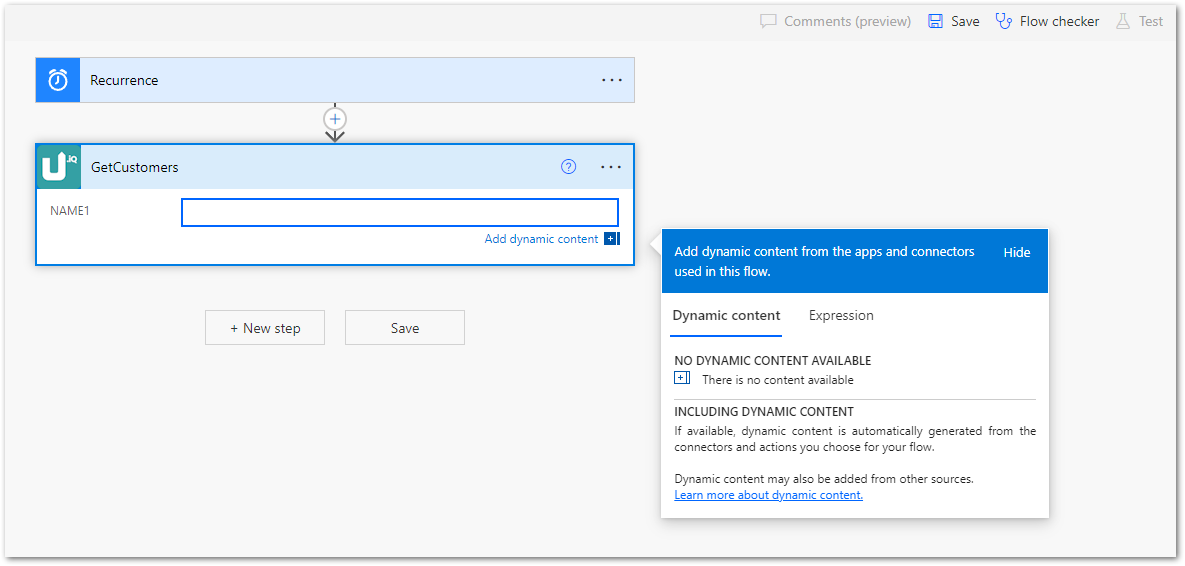
- Run the flow and check the output of the custom connector action.
The Xtract Universal.iQ service runs and returns data in the output of the Power Automate custom connector.
Related Topics
- Xtract Universal.iQ Documentation: Run Services
- Formats and Conversions in Power Automate
- Sync Copilot with SAP using Power Automate and Xtract Universal.iQ