Xtract Universal.iQ MCP Integration with ambersearch
This article shows how to integrate the Xtract Universal.iQ MCP server with ambersearch to enable natural language access to live SAP data. With this setup, users can retrieve and interact with SAP data without direct SAP access, transaction code knowledge, or SAP GUI experience.
General Workflow
To integrate Xtract Universal.iQ with ambersearch via the MCP server:
- Create Xtract Universal.iQ services that access relevant SAP data.
- Expose the services via MCP to ambersearch.
- In ambersearch, create an integration to connect to the remote MCP server.
- Use the exposed MCP tools in:
- Agents for dynamic, LLM-driven interactions and decision-making.
- Workflows for structured, multi-step automation and processes.
This setup allows ambersearch to securely access and execute Xtract Universal.iQ services in SAP through MCP, enabling both interactive use cases and automated business processes.
Prerequisites
- Access to an ambersearch account with an Administrator or Developer role.
- Xtract Universal.iQ services must be enabled for MCP and have meaningful MCP descriptions, see Documentation: MCP Server - Expose Services via MCP.
- The MCP endpoint of Xtract Universal.iQ is exposed to the internet, see Documentation: MCP Server - Activate MCP.
Note
When integrating services from an on-premise Xtract Universal.iQ installation with a cloud hosted platform like ambersearch, it is recommended to use a gateway to tunnel the connection.
MCP Server Integration in ambersearch
To use Xtract Universal.iQ services in ambersearch, connect your Xtract Universal.iQ MCP server as an Action:
- Open https://platform.ambersearch.de/.
- Open the User Settings in the bottom left corner of the screen.
- Go to Connectors > Actions.
- Click Add Action > Create new (Developer).
- Optional: Upload an icon for the MCP Server and add a description.
- Enter a unique name for the MCP server in the Name field.
- Enter the MCP endpoint of Xtract Universal.iQ in the MCP Server URL field, e.g.,
https://example.com:8177/mcp.
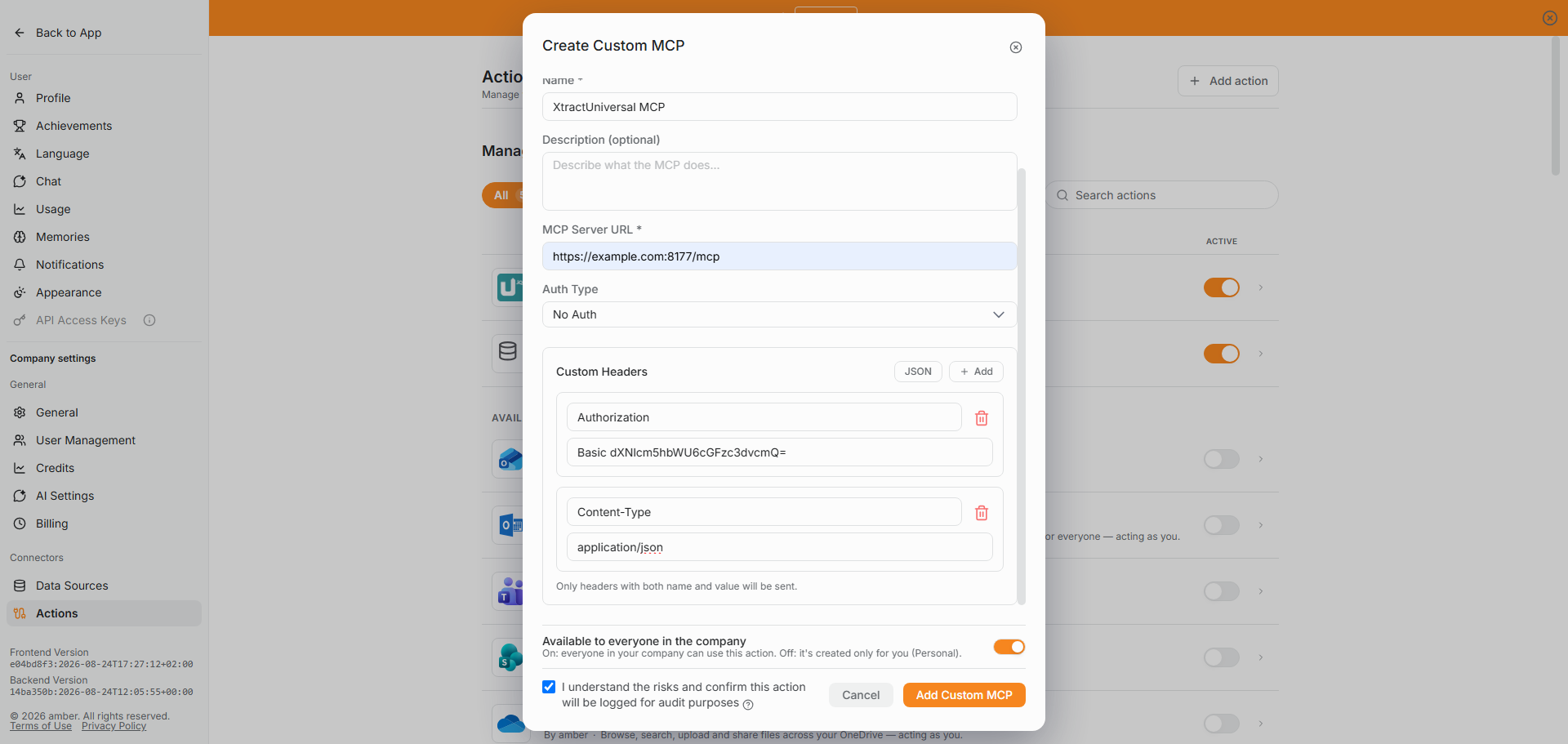
- Select the authentication method NoAuth from the Auth Type dropdown.
-
Add the following custom headers:
Header name Header value Description AuthorizationBasic [base64 encoded username:password]Authentication against Xtract Universal.iQ. If Xtract Universal.iQ uses access restrictions, enter Basicfollowed by your base64 encoded Xtract Universal.iQ credentials in the formatusername:password.Content-Typeapplication/jsonSpecifies that the data you send in the request body is formatted as JSON. -
Enable the checkbox I understand the risks and confirm this action will be logged for audit purposes.
- Click [Add Custom MCP].
The Xtract Universal.iQ MCP server is now added to the list of available Actions.
MCP Connection Settings in ambersearch
ambersearch allows you to:
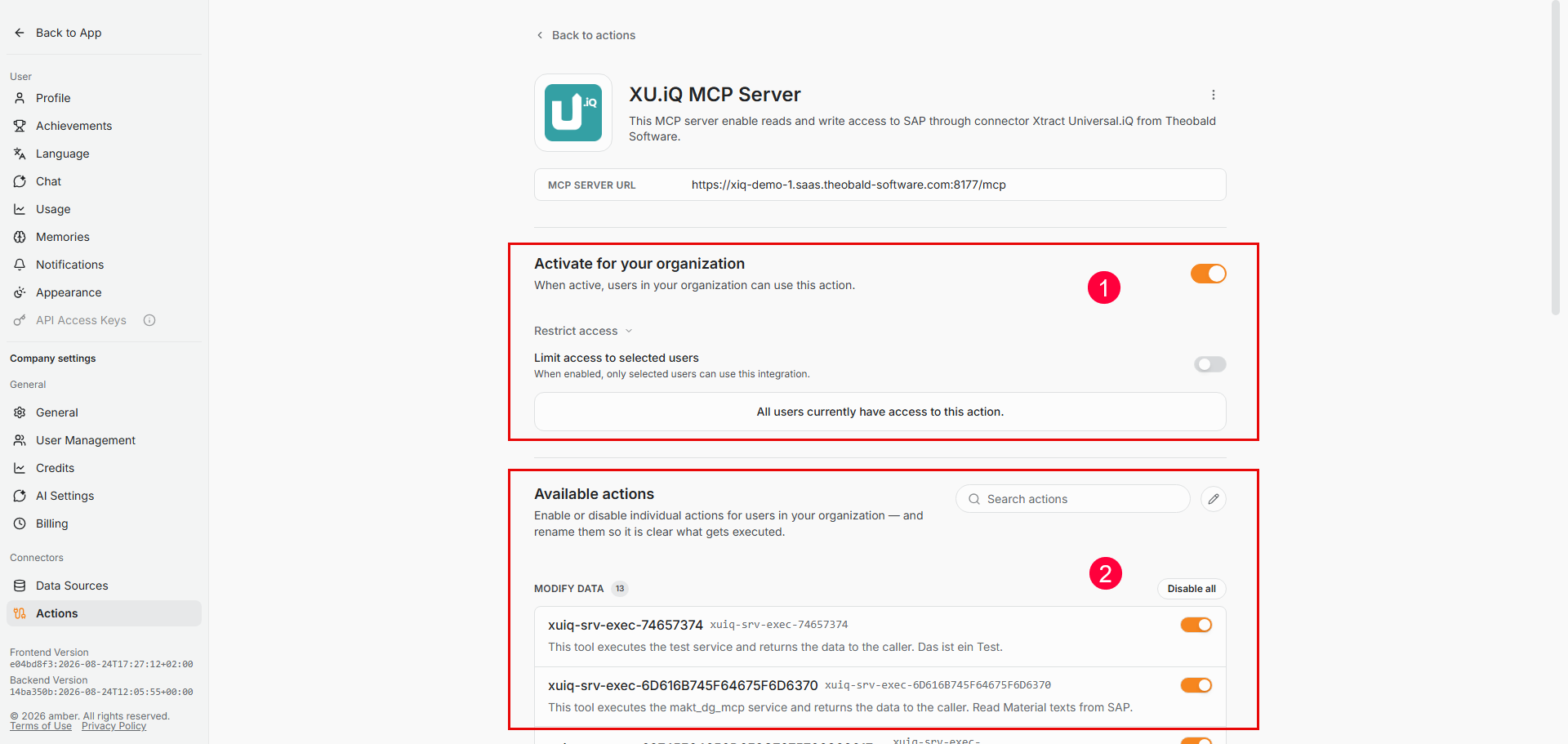
- Share the MCP server connection with your organization: Restrict access to users that actually require access to SAP data.
- Limit available actions: Only expose the MCP tools required for your purpose to reduce risk and improve accuracy.
To open the MCP connection settings, go to User Settings > Connectors > Actions > [your-MCP-connector].
Use the MCP Connection in Chats
To make the Xtract Universal.iQ MCP server Action available in your ambersearch chats:
- Open https://platform.ambersearch.de/.
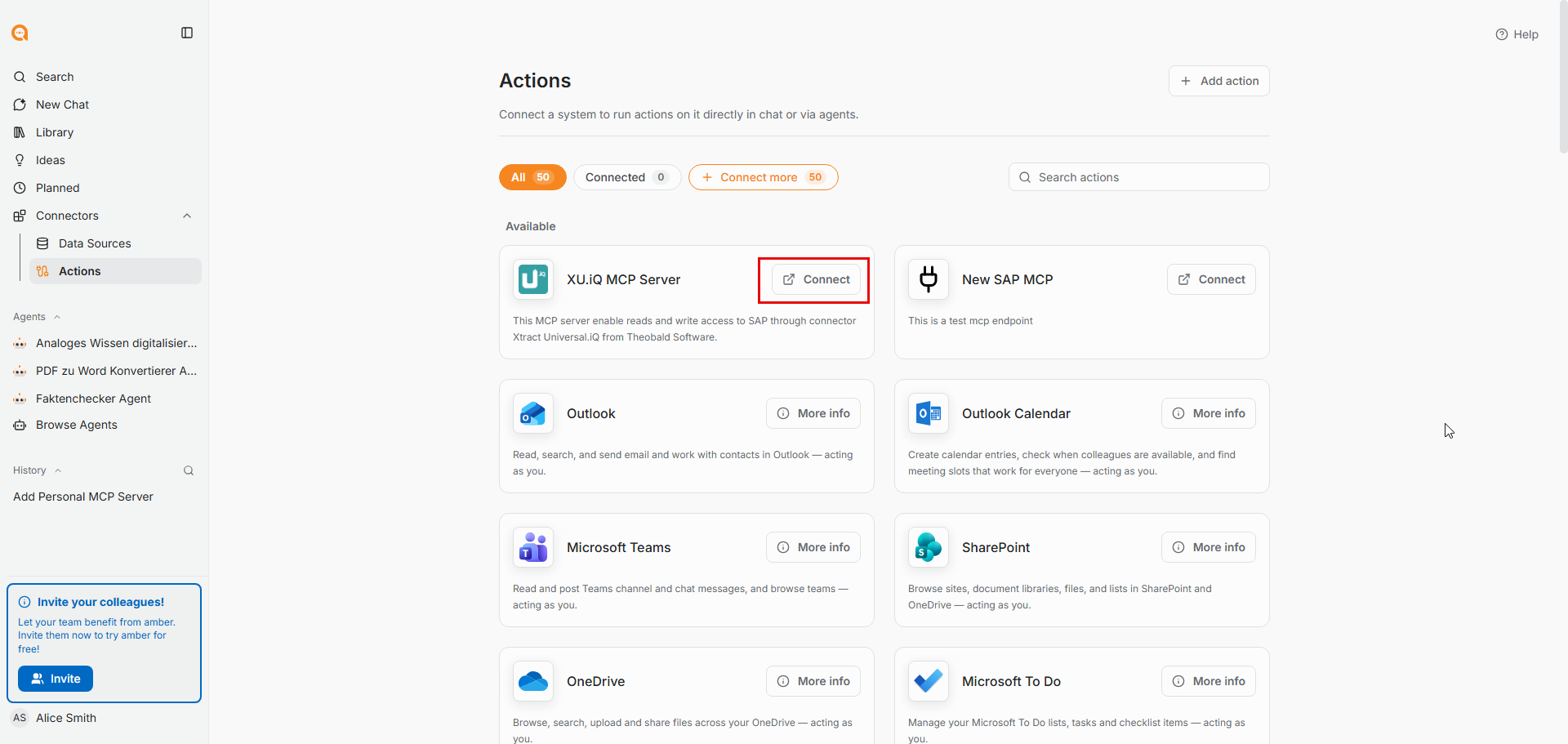
- Go to Connections > Actions.
- Click [Connect] to connect to the MCP server.
- Go to New Chat.
- Check if the MCP server Action is available by clicking Settings > Actions.
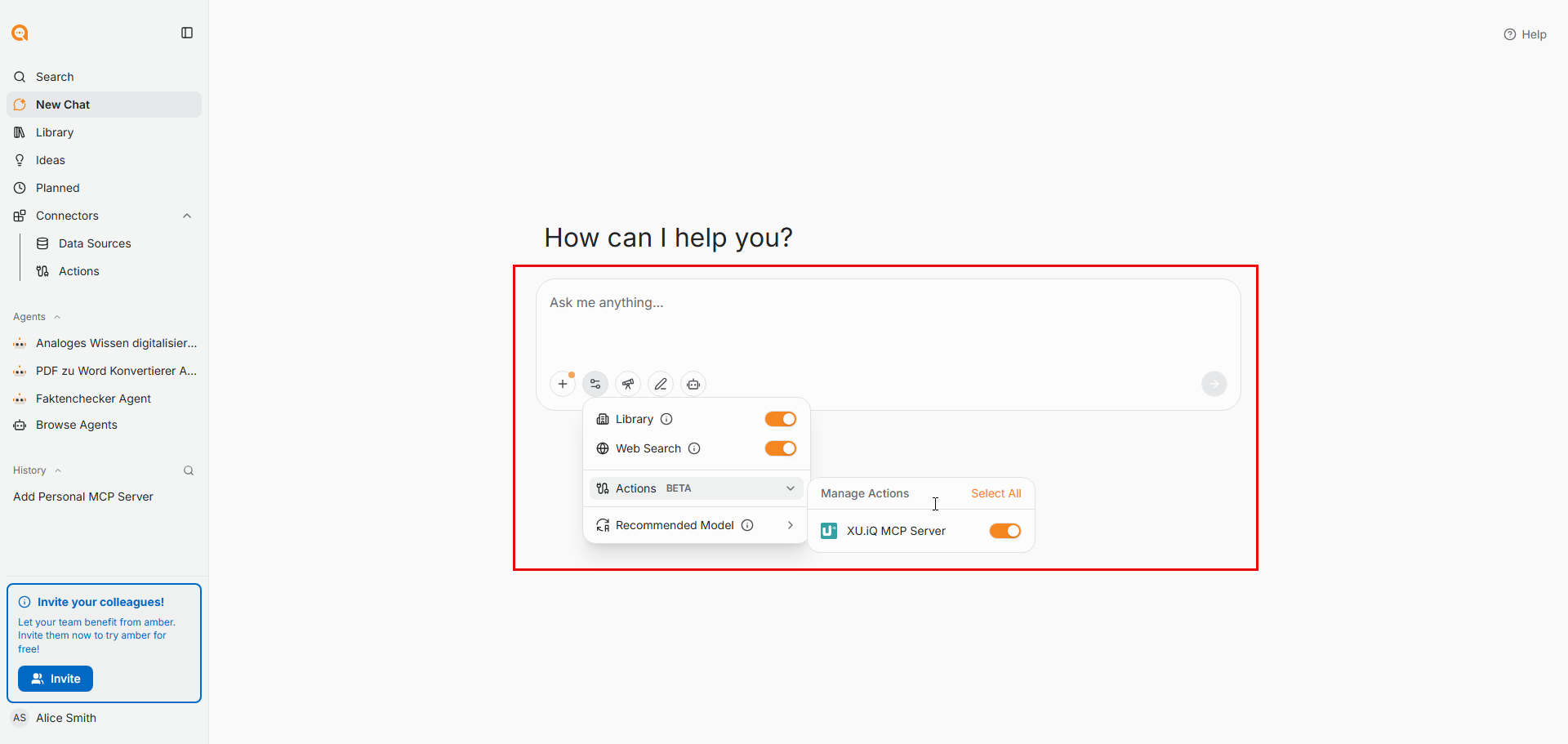
You can now chat and request live data from SAP.
Related Topics
Written by: Christian Tauchmann, Valerie Schipka