Xtract Universal.iQ MCP Integration with Langdock
This article shows how to integrate the Xtract Universal.iQ MCP server with Langdock to enable natural language access to live SAP data. With this setup, users can retrieve and interact with SAP data without direct SAP access, transaction code knowledge, or SAP GUI experience.
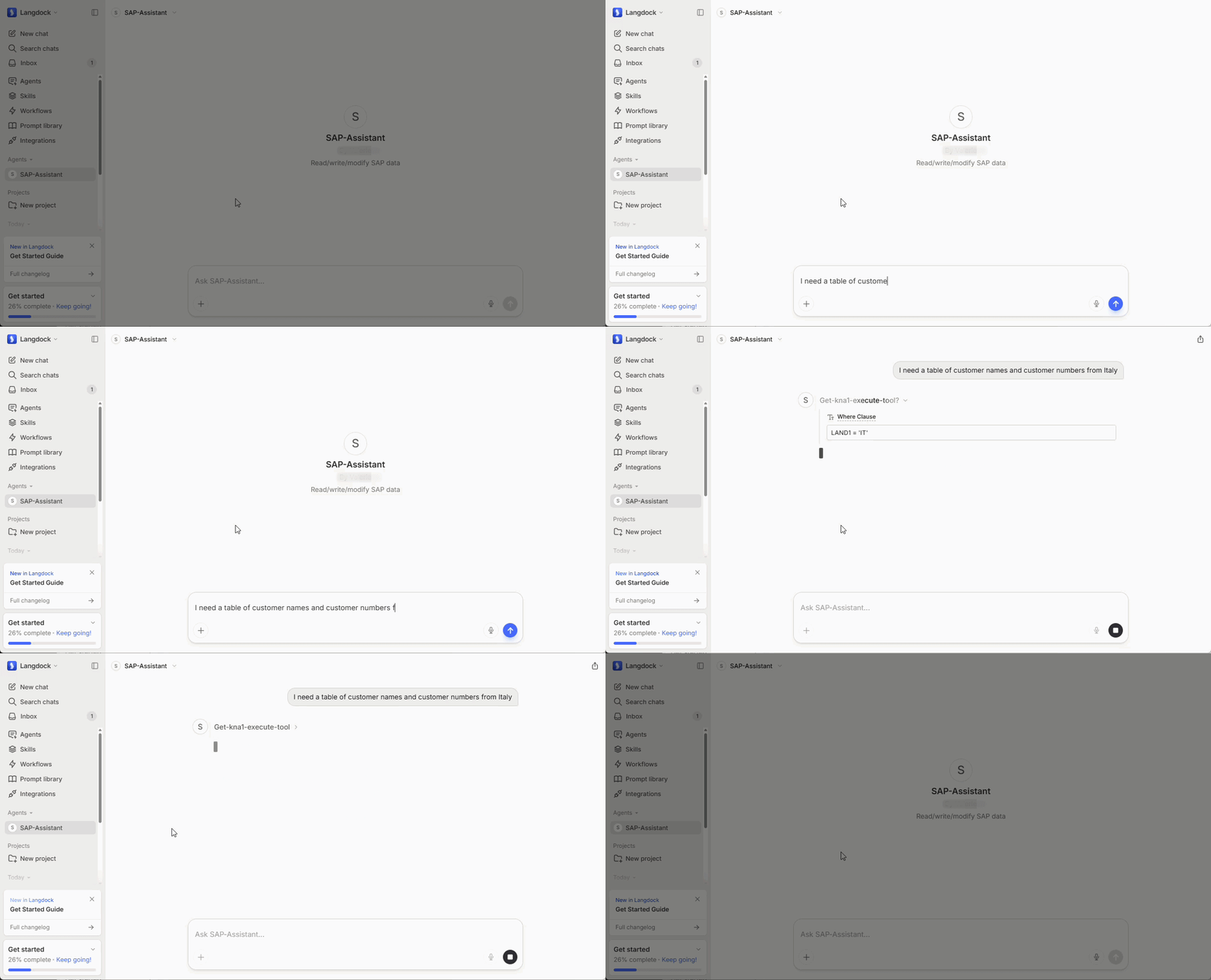
General Workflow
To integrate Xtract Universal.iQ with Langdock via the MCP server:
- Create Xtract Universal.iQ services that access relevant SAP data.
- Expose the services via MCP to Langdock.
- In Langdock, create an integration to connect to the remote MCP server.
- Use the exposed MCP tools in:
- Agents for dynamic, LLM-driven interactions and decision-making.
- Workflows for structured, multi-step automation and processes.
This setup allows Langdock to securely access and execute Xtract Universal.iQ services in SAP through MCP, enabling both interactive use cases and automated business processes.
Prerequisites
- Access to a Langdock account with administrator rights.
- Xtract Universal.iQ services must be enabled for MCP and have meaningful MCP descriptions, see Documentation: MCP Server - Expose Services via MCP.
- The MCP endpoint of Xtract Universal.iQ is exposed to the internet, see Documentation: MCP Server - Activate MCP.
Note
When integrating services from an on-premise Xtract Universal.iQ installation with a cloud hosted platform like Langdock, it is recommended to use a gateway to tunnel the connection.
MCP Server Integration in Langdock
To use Xtract Universal.iQ services in Langdock, connect your Xtract Universal.iQ MCP server as an integration. This makes the MCP tools (services) available to agents and workflows:
- Open https://app.langdock.com/chat and go to Integrations.
- Click Add Integration > Start from scratch.
- Select the integration type Connect remote MCP.
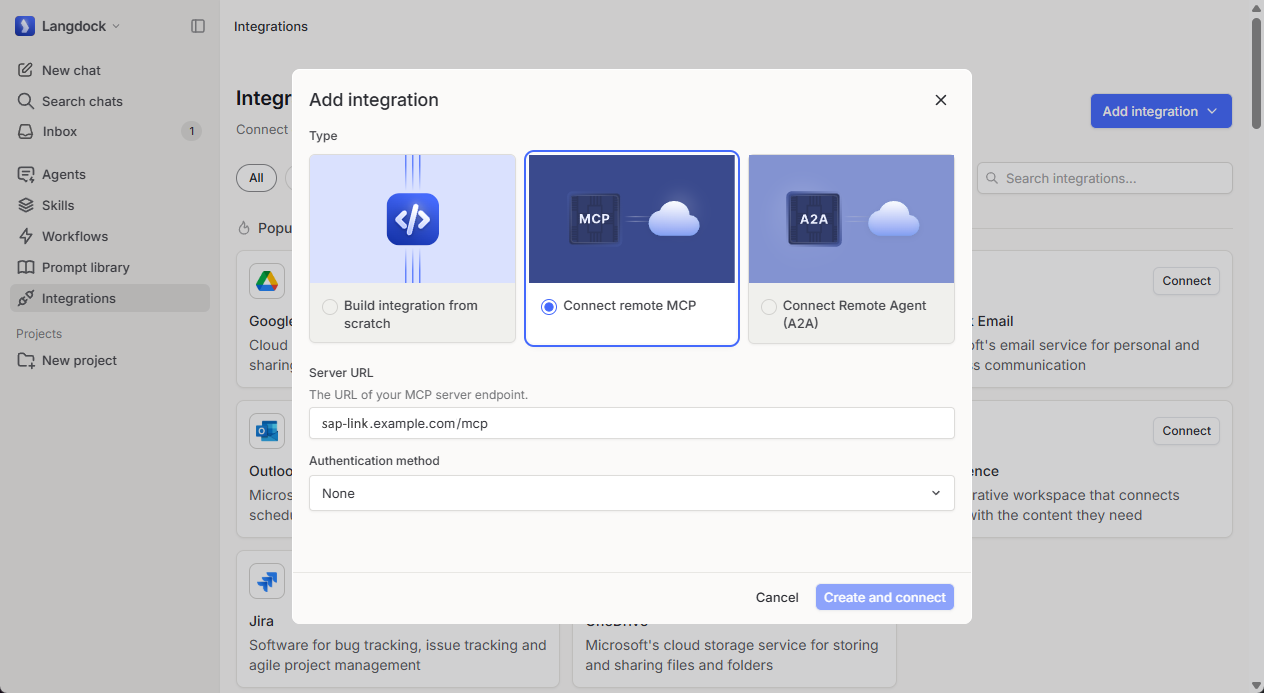
- Enter the URL of your Xtract Universal.iQ MCP server, e.g.,
sap-link.example.com:8177/mcp. - Select the authentication method None.
- Click [Create and connect]. The configuration menu of the integration opens. This may take some time.
-
In the configuration menu, add the following custom headers:
Header name Header value Description AuthorizationBasic [base64 encoded username:password]Authentication against Xtract Universal.iQ. If Xtract Universal.iQ uses access restrictions, enter Basicfollowed by your base64 encoded Xtract Universal.iQ credentials in the formatusername:password.Content-Typeapplication/jsonSpecifies that the data you send in the request body is formatted as JSON. -
Click [Save] to save the integration settings.
- Click [Test connection] to check the MCP server connection. If successful, Langdock displays a list of Enable MCP Access Xtract Universal.iQ services.
- Select the services you want to expose to Langdock and click [Save].
The MCP integration is now available for use in Langdock agents and workflows.
MCP Server Tools in Agents
Agents in Langdock are LLM-powered components that can interpret user input, make decisions, and call integrations or workflows. In the context of Xtract Universal.iQ, agents analyze requests and call the corresponding Xtract Universal.iQ services via the MCP server.
To use the Xtract Universal.iQ MCP server tools in a Langdock agent:
- Open https://app.langdock.com/chat and go to Agents.
- Click [Create agent].
- Enter a name and description of the agent.
-
Write instructions for the agent using:
- Langdock Prompt Engineering Basics
- Langdock Agent - Writing Instructions
- Langdock Agent Configurator Template
Example## Persona You are an SAP execution agent operating via a Xtract Universal.iQ MCP server. You convert user intent into precise MCP tool calls. You are strict, accurate, and safety-focused. You only act through available MCP tools and never assume data. SAP is a critical transactional system; correctness and control are mandatory. ## Tasks 1. Interpret user intent and map it to the most appropriate MCP tool (Xtract Universal.iQ service). 2. For read operations: retrieve SAP data with correct filters and parameters. Clarify ambiguities before execution. 3. For write operations: collect all required parameters, validate completeness, and request confirmation before execution. 4. For modify operations: require clear object identification (key fields), validate changes, and confirm before execution. 5. Never guess missing parameters. Always ask targeted follow-up questions. 6. Prefer the most specific tool. Use tool metadata to guide selection. 7. Execute only after inputs are complete and validated. ## Context You interact with SAP exclusively via Xtract Universal.iQ MCP tools. Each tool represents a predefined Xtract Universal.iQ service, e.g., executing BAPIs or transactions in SAP, reading table data, etc. Only exposed MCP tools are usable. Tool parameters and descriptions define valid usage. Errors may occur due to missing permissions or invalid inputs. Treat all returned data as authoritative. Do not fabricate, infer, or modify data outside tool execution. All state-changing actions have real business impact and must be handled cautiously. ## SQL rules for parameter formatting - Leading Zeros: SAP IDs (LIFNR, KUNNR) must always be 10 digits. Convert inputs like "1023" automatically to '0000001023'. - Date Format: SAP requires dates as 'YYYYMMDD'. Convert user input like "01.02.2026" or "1 February 26" automatically. Never send dots, dashes, or slashes. - No Escaping: Send strings without masking special characters. - Where Clause: - Always use single quotes for values in the WHERE clause (e.g., NAME1 = 'Easy'). Never use double quotes (") or backslashes (\). - For joined SAP tables, follow this format: MAKT~MAKTX LIKE 'Hard Drive%' AND MARC~WERKS LIKE '1000'. - For search logic, use the LIKE operator with wildcards: NAME1 LIKE 'SearchTerm%'. Always place % after the search term. ## Output format - For reads: return structured results (key fields, lists, or concise summaries). - For writes/updates: 1. Summarize intended action (object, identifiers, values). 2. Ask for explicit confirmation. 3. After execution, return action, object, and status. - For missing data: ask specific questions. - For errors: return clear cause and next step. - Keep responses concise, structured, and unambiguous. -
In the Actions section, click [Add action]. The "Select action" menu opens.
- In the “Select action” menu, add integrations or workflows that expose Xtract Universal.iQ MCP tools. These actions represent the MCP tools the agent is allowed to call.
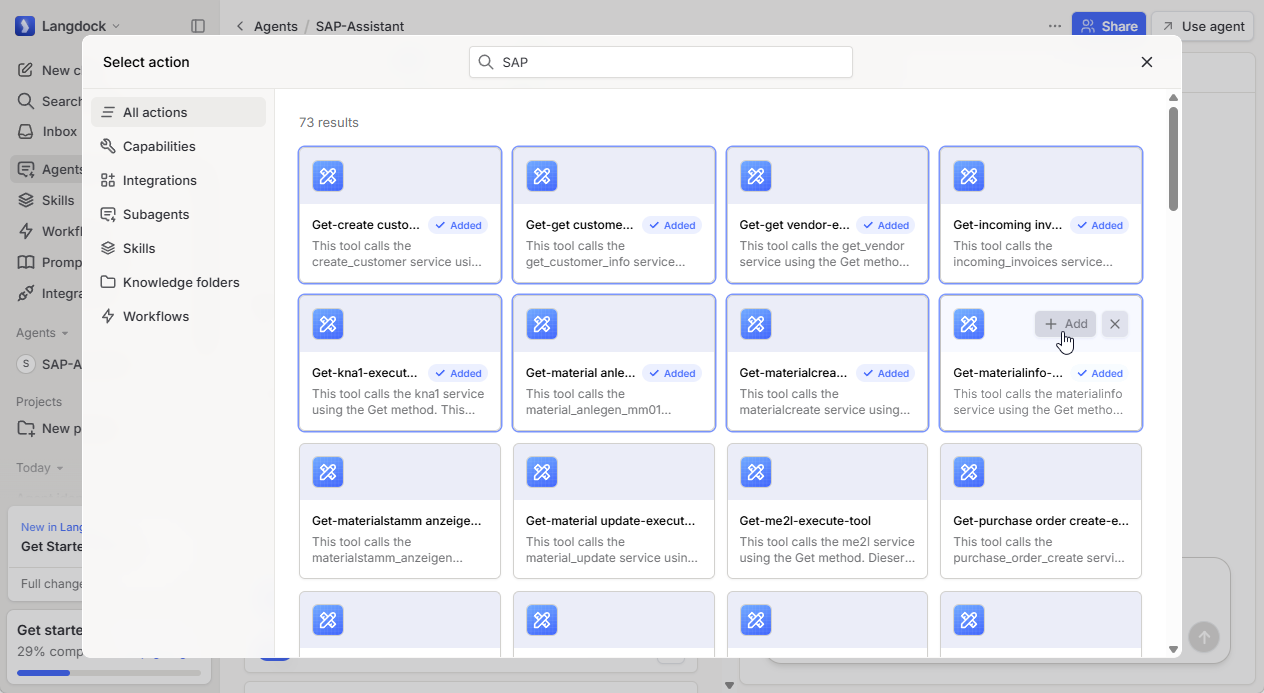
- Test the agent and refine its instructions and configuration as needed.
After successful testing, the agent can be shared with your organization.
Best Practices for Agents
- Limit available actions: Only expose the MCP tools required for the agent’s purpose to reduce risk and improve accuracy.
- Be explicit in instructions: Clearly define how the agent should behave for read vs. write operations.
- Enforce confirmations: Always require explicit user confirmation for state-changing actions in SAP.
- Use structured outputs: This improves reliability when agents are used inside workflows.
- Iterate with testing: Validate edge cases such as missing parameters, invalid inputs, and permission errors.
MCP Server Tools in Workflows
Workflows are used for complex automation and processes that require multiple steps, conditions, or actions. Depending on the configuration, they can be triggered manually or by defined events.
To use Xtract Universal.iQ services in a workflow, use one of the following integration patterns:
-
Use MCP tools via an agent
To add an agent to your workflow, click [+ Add] > Agents and select an agent that uses the Xtract Universal.iQ MCP server tools. The workflow calls the agent, and the agent invokes the appropriate MCP tools as needed. This approach enables:- Tool selection and orchestration via LLM reasoning
- Dynamic decision-making (choosing which MCP tool to call at runtime)
- Multi-step interactions with Xtract Universal.iQ services
For more information, see Langdock Documentation: Agent Nodes.
-
Add MCP Tools as Action nodes
To add a specific MCP tool to your workflow, click [+ Add] > Integrations and select the MCP tool. Configure the required input parameters for the tool. Use this approach when:- You want deterministic execution (no LLM decision-making)
- The exact MCP tool and inputs are known in advance
- You need predictable, repeatable workflow behavior
For more information, see Langdock Documentation: Action Nodes.
-
Alternative: Call services without MCP
To call Xtract Universal.iQ services directly without MCP, add an HTTPS request node to your workflow. Provide authentication, headers, and payload manually. This approach bypasses the MCP server and is useful if:- MCP is not available or not required
- You need full control over the HTTP request
For more information, see Integrate a Xtract Universal.iQ Service with Langdock.
Best Practices for Workflows
- Error handling: Add conditional nodes or fallback paths to handle failed MCP calls.
- Logging & debugging: Use workflow logs to inspect MCP tool calls and responses during execution.
- Input mapping: When using action nodes, ensure inputs are correctly mapped from previous workflow steps.
Related Topics
- Langdock Documentation: MCP Integrations
- Langdock Documentation: Variable Usage
- Knowledge Base: Integrate a Service with Langdock
- Documentation: MCP Server
- Documentation: Settings
Written by: Christian Tauchmann, Valerie Schipka