Run a Service in Postman
The following article shows how to run an Xtract Universal.iQ service in Postman.
Postman is an API platform for building and using APIs. You can use Postman as a Desktop App or in your browser. For more information on Postman, see Postman Documentation.
Setup in Xtract Universal.iQ
Before integrating Xtract Universal.iQ with third-party tools:
- Create a service in Xtract Universal.iQ. The depicted example uses the BAPI SD_RFC_CUSTOMER_GET to search and extract customer data from SAP. The service has the following settings:
- Set the Import Parameter NAME1 to Supplied by Caller.
- Select all fields in the Table CUSTOMER_T for the output.
- Testrun the service in Xtract Universal.iQ to make sure it works, see Documentation: Run Services in Xtract Universal.iQ.
- Click Run > Run > Copy URL to copy the service URL to your clipboard.
The service URL can now be used to integrate the service with third-party tools.
Import an Xtract Universal.iQ Service in Postman
To use an Xtract Universal.iQ service in Postman:
- Open Postman in your browser or on your desktop.
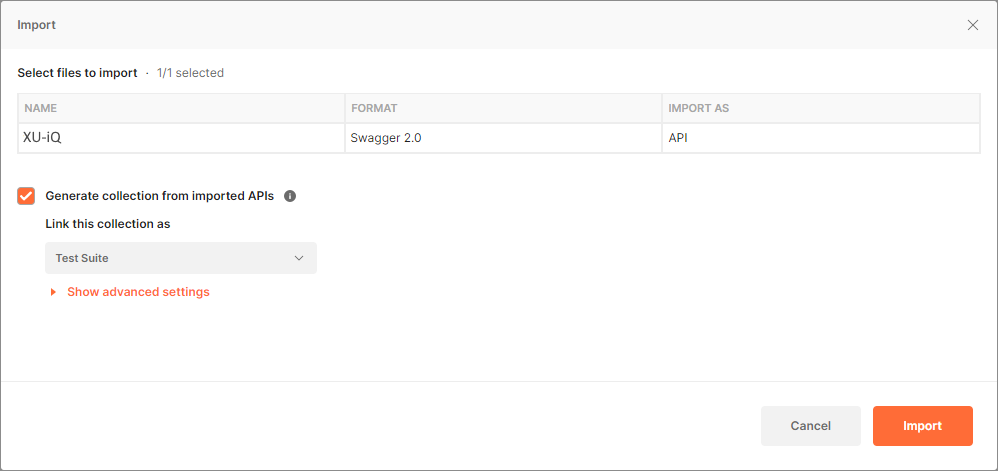
- To load a service definition in Postman, navigate to your workspace and click [Import].

- There are 2 ways to import an Xtract Universal.iQ service definition:
- Paste the URL of the service definition in the tab Links.
- Upload a service definition from your hard drive in the tab File.
- Click [Import] to import the service definition. The service definition is now available in your workspace.
The Xtract Universal.iQ service is now available in Postman.
Tip
If you don not have any authentication, headers, or parameters to add to the service, open a new tab and paste the URL of your Xtract Universal.iQ service endpoint into the main URL input line. Select POST from the method drop-down list and click [Send] to execute the service.
Parameterize the Service
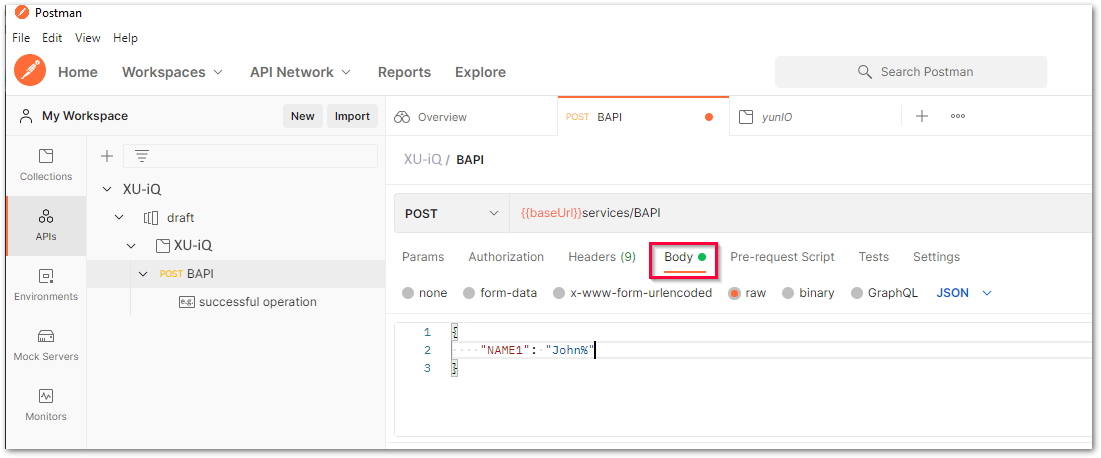
All parameters defined in Xtract Universal.iQ are accessible in the request body of the service.
To set parameters, edit the Body accordingly e.g., set the input parameter NAME1 to "John%" to get all data of customers whose names starts with "John".
There are multiple ways to set the parameter:
- Enter the parameter value directly into the request body:
"NAME1": "John%" - Use a variable to set the parameter:
"NAME1": "{{my_variable}}"
For more information on variables in Postman, see Using Variables in Postman.
Run the Service
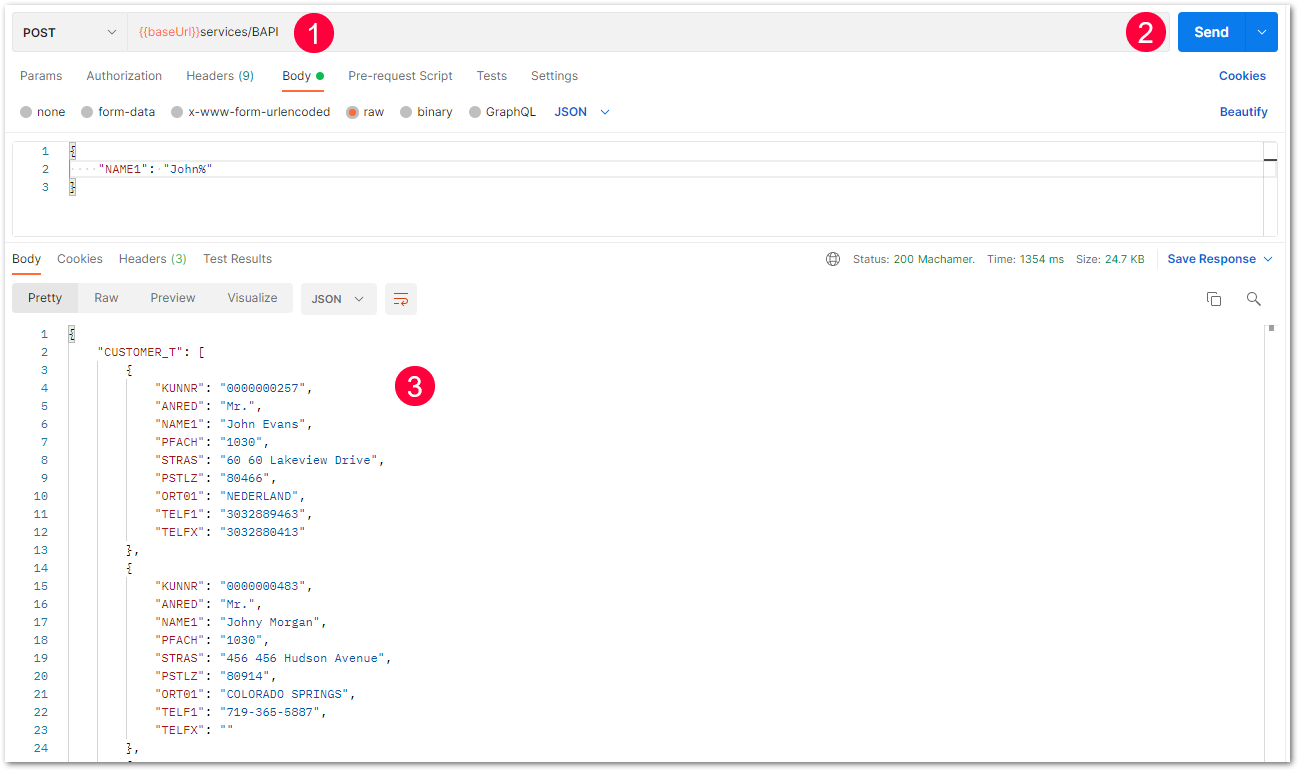
After importing the service definition, the URL of the service endpoint is available in the main URI input line. If not, enter the URL and select the POST method . Click [Send] to execute the service . The results are displayed in the Response section of Postman .
Note
If the option Request credentials from callers when running services is active in the connection settings in Xtract Universal.iQ, you have to select Basic Authentication in the Authentication tab of Postman and enter your SAP credentials before running the service.
Related Topics
- Web Version of Postman
- Postman Documentation: Using Variables in Postman
- Getting Started: Run and Automate Services