SNC Authentication with SAP Application Servers
This page shows how to use Secure Network Communication (SNC) between Xtract Universal.iQ and an SAP application server using the SAP Common Crypto Library. For more information on SNC, see SAP Help: Secure Network Communication (SNC)
Prerequisites
- Secure Network Connection (SNC) is configured in your SAP system, see SAP Help: Configuring the Application Server.
- Download the same SAP Cryptographic Library that is used for the encryption in your SAP system (
sapgenpseandlibsapcrypto.so) from the SAP Service Marketplace. To check which library is used in SAP, go to transaction RZ10 and check the SAP profile parameter snc/gssapi_lib in SAP transaction RZ10. - It is recommended to enable Transport Layer Security in Xtract Universal.iQ.
Set Up a Personal Security Environment
SNC communication between the Xtract Universal.iQ container and SAP requires setting up a Personal Security Environment (PSE).
Note
The following instructions describe how to set up a PSE using a new client certificate. To use a custom certificate or a certificate signed by a Certification Authority (CA), generate the PSE and certificate request with sapgenpse, then import the CA-issued certificate into the PSE using the sapgenpse import_own_cert command.
To set up the PSE with a local certificate:
-
Use the sapgenpse tool to create a PSE file:
When prompted, enter a PIN or passphrase for the PSE and provide a distinguished name for the PSE, e.g.,
CN=COMPUTER.example, C=DE, S=BW, O=ACME, OU=QA. For more information, see SAP Help: Creating a PSE for the Server Using SAPGENPSE. -
In SAP, go to transaction STRUST and export the SNC SAPCryptolib certificate, e.g.,
s4h.crt. -
Use the sapgenpse tool to add the SAPCryptolib certificate to the PSE:
-
Export your own certificate from the PSE:
-
In SAP, go to transaction STRUST and import the new certificate (
local.crt) into SAP.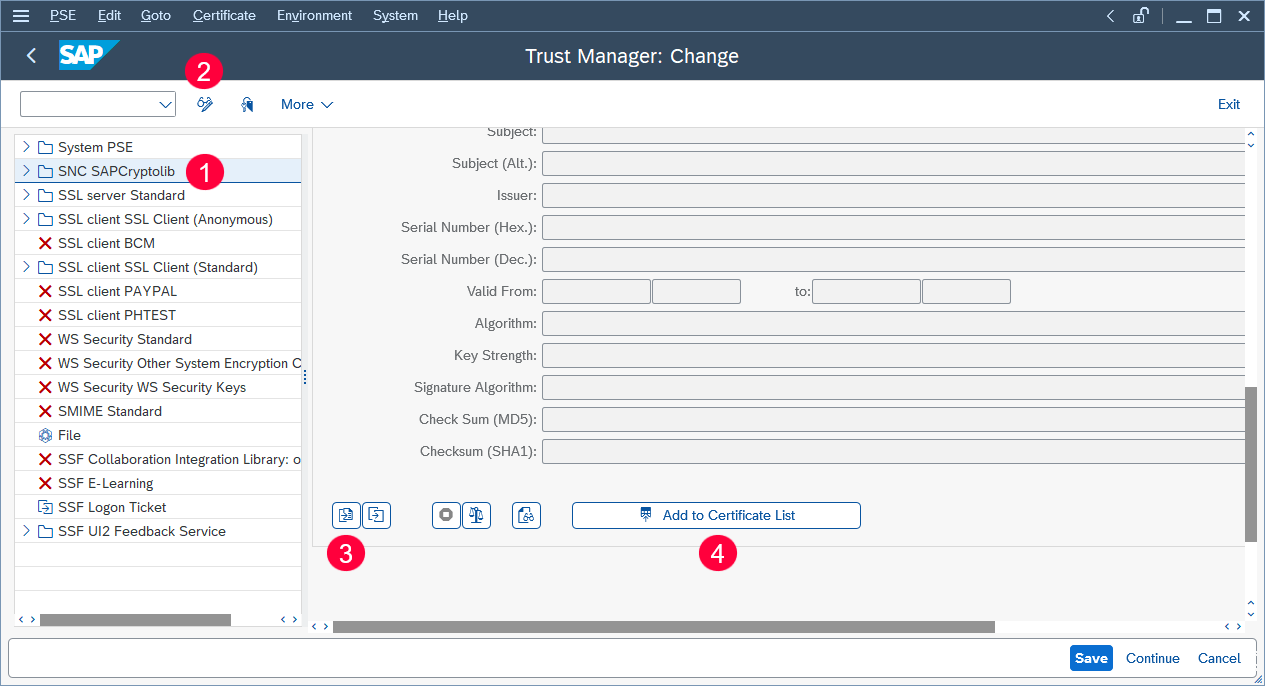
The Personal Security Environment is set up for your SAP system.
Next, import the PSE into Xtract Universal.iQ.
Import the PSE to Xtract Universal.iQ
To import the Personal Security Environment (PSE) into an Xtract Universal.iQ container:
-
If it does not exist, create the following directory inside the Xtract Universal.iQ container:
-
Copy your PSE file into the
/XtractUniversaliQ/data/private/psedirectory of the Xtract Universal.iQ container. -
Copy
sapgenpseandlibsapcrypto.sointo the following directory inside the Xtract Universal.iQ container: -
Create a credentials file (cred_v2) using sapgenpse. Run the following sapgenpse command as the same operating system user that runs Xtract Universal.iQ. SNC authentication may fail if it is created by a different user. The standard username is
xuiq. It has the UID 1000.The cred_v2 file allows applications to access the PSE without requiring user interaction.
The Personal Security Environment is set up in Xtract Universal.iQ.
Next, create an SAP connection in Xtract Universal.iQ that uses SNC.
Xtract Universal.iQ Setup
To set up an SAP SNC connection in Xtract Universal.iQ:
- Open the Connections menu.
- Click [Add Connection].
- Enter a unique name in the Connection Name field, e.g., the name of your SAP system.
- Select SAP RFC from the Connection Type dropdown. The corresponding settings open.
- Enter your SAP system details in the system settings. You can find input values in the SAP Logon Pad properties, or request them from your SAP Basis team.
- Enter the credentials of an SAP system or dialog user in the authentication settings.
- Set the toggle in the authentication settings to Secure Network Communication (SNC).
- Enter the name of the SAP cryprographic library in the input field SNC library path, e.g.,
libsapcrypto.so. - Enter the SNC partner name configured for the SAP application server in the field SNC partner name, e.g.,
p:CN=S4H, OU=QA, O=ACME. - Click [Test Connection] to validate the connection parameters.
A status message opens in the bottom right corner. - If the connection is successful, click [Save].
The SNC connection is now listed in the Connections menu and can be used as a source for services.