Transaction IE01 - Create Equipment
The following article shows how to use the Transaction service type to automate transaction IE01.
The depicted example application uses transaction IE01 to create new equipment in SAP. For more information on creating equipment, see SAP Help: Creating a Piece of Equipment.
Prerequisites
The SAP connection assigned to a Transaction service must use an SAP dialog user with enough access rights to create new equipment.
Create Equipment in SAP
To create a service that creates new equipment in SAP:
- Create a new service that uses the Transaction service type.
- In the transaction service enter the transaction IE01 and press [Start]. Xtract Universal.iQ starts recording you actions and loads a replication of the SAP GUI that corresponds to the transaction.
- Edit the fields according to the kind of equipment you want to create.
- Click [Submit] to execute the action and continue to the next screen.
-
Edit the data of your equipment or open screens that contain settings you want to parameterize.
Note
The parameters needed to create new equipment are dependent on your customized SAP settings.
-
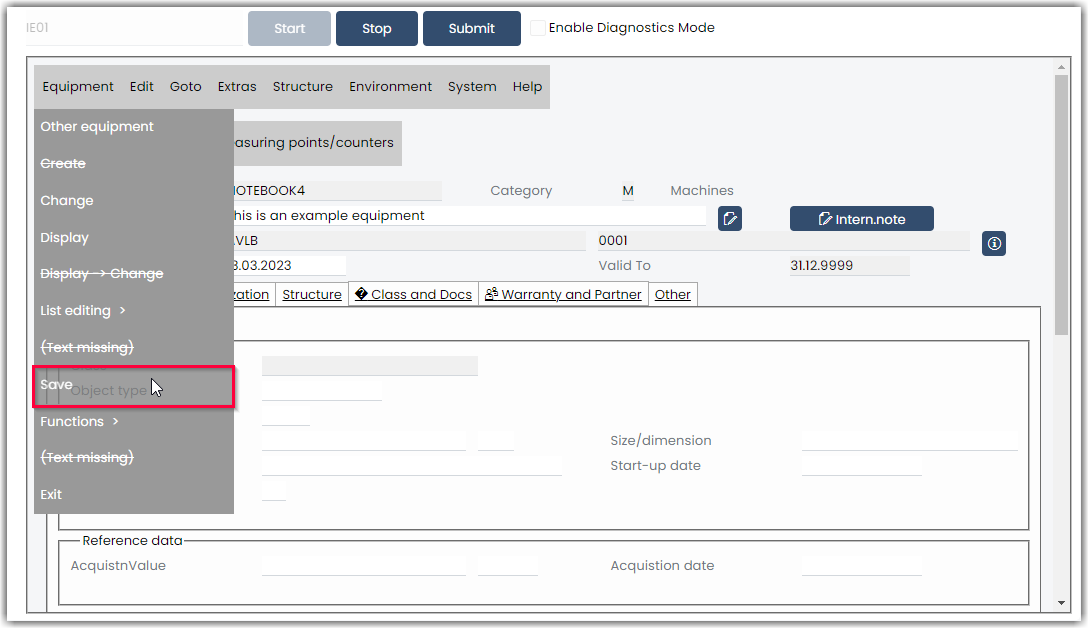
Click [Equipment] > [Save] to save the new equipment in SAP.
- Click [Stop] to start parameterizing, see Documentation: Parameterize Transactions.
- After defining the parameters, click [Save] to save the service.
- In the Services menu, click Run > Service > Run to test the service and copy the service URL.
The service can now be integrated with third-party tools.
Note
When using Transaction services, warnings and error messages from SAP are displayed in Xtract Universal.iQ, e.g., "Equipment number... not in external number interval". These messages are not Xtract Universal.iQ specific and should be treated accordingly.