Table Parameters in SAP Transactions
This article shows how to pass tables as input parameters to Transaction services.
The depicted example application uses the transaction VA02 to change a sales order in SAP, see Transaction VA02 - Change Sales Order.
Prerequisites
Use an SAP dialog user with sufficient access rights to edit sales orders for the SAP connection assigned to the service.
Tables as Input Parameters
To parameterize tables inside an SAP transaction in Xtract Universal.iQ:
- Create a transaction service that uses tables.
The depicted example uses a service that changes sales orders via transaction VA02, see Transaction VA02 - Change Sales Order. - After recording all actions, open the screen that contains the table in the Transaction Recording section.
- Click the table that you want to parameterize. The window “Parameterize Element” opens.
- In the window “Parameterize Element”, select Input to override the content of the table when running the service.
- Enter a custom name for the parameter, e.g., ITEMS.
- Click [OK] to save the parameter. The window “Parameterize Element” closes.
- Click [Save] to save the service.
- In the Services menu, click Run > Service > Run to test the service and copy the service URL.
The service can now be integrated with third-party tools.
Note
When defining input parameters, make sure to parameterize fields before they are submitted in the GUI steps. If you define an input parameter after a submit, the input is not submitted to SAP.
Format of Input Tables
Table parameters are passed to the service in the http request body.
In the request body, the columns of the table are represented by their SAP technical name, e.g., RV45A-MABNR = Material column, RV45A-KWMENG = Order Quantity column, etc. You can look up the description of the SAP technical names in the OpenAPI/Swagger definition, e.g., Swagger Editor.
Tip
Test the service and pass parameters in Xtract Universal.iQ before integrating the service, see Documentation: Run Services in Xtract Universal.iQ.
| Table structure in the http request body | Table structure in OpenAPI/Swagger definition |
|---|---|
"ITEMS": [
    {
        "selected": false,
        "cells": {
            "VBAP-POSNR": "",
            "RV45A-MABNR": "",
            "RV45A-KWMENG": "",
            ...
        }
    },
    {
        "selected": false,
        "cells": {
            "VBAP-POSNR": "",
            "RV45A-MABNR": "",
            "RV45A-KWMENG": "",
            ...
        }
    }
    ]
| ITEMS:
type: array
items:
type: object
properties:
selected:
type: boolean
cells:
type: object
properties:
VBAP-POSNR:
description: Item
type: string
RV45A-MABNR:
description: Material
type: string
RV45A-KWMENG:
description: Order Quantity
type: string
...
|
Add new Items to a Table
When adding new items to a table, the existing table rows must be passed as empty to avoid overwriting existing content.
The depicted example adds a new item at the 4th row of the table:
"ITEMS": [
    {
        "selected": false,
        "cells": { }
    },
    {
        "selected": false,
        "cells": { }
    },
    {
        "selected": false,
        "cells": { }
    },
    {
        "selected": false,
        "cells": {
            "VBAP-POSNR": "40",
            "RV45A-MABNR": "M-01",
            "RV45A-KWMENG": "5",
            "VBAP-VRKME": "PC"
         }
    }
]
Run a Service with Table Parameters
To pass table parameters to a service:
- Load the service in a tool that supports OpenAPI/Swagger definitions, e.g., SwaggerHub.
- Ensure that the service uses the
POSTmethod. TheGETmethod does not support table parameters. - Open the request body of the service. All input parameters are listed in the request body.
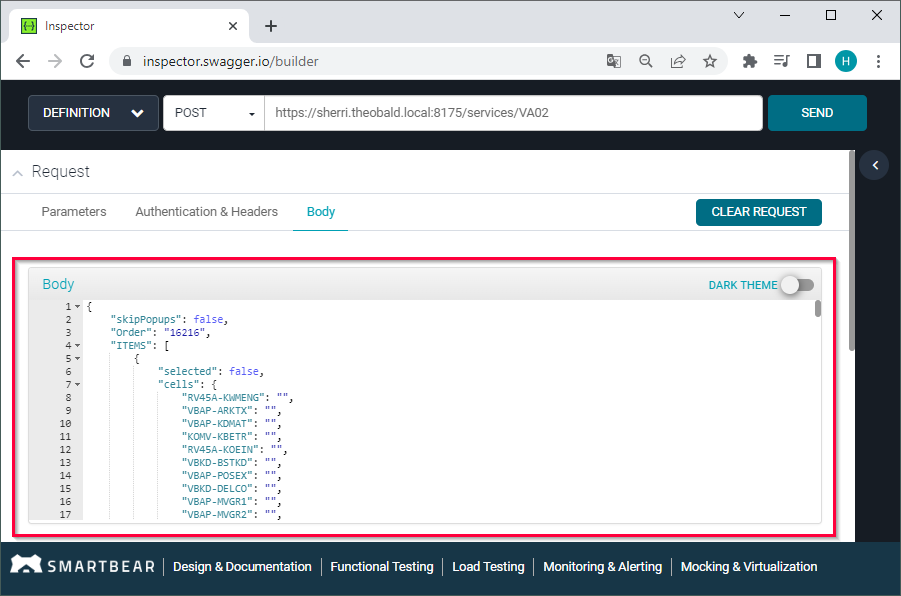
- Enter values for all fields that you want to overwrite, e.g.,
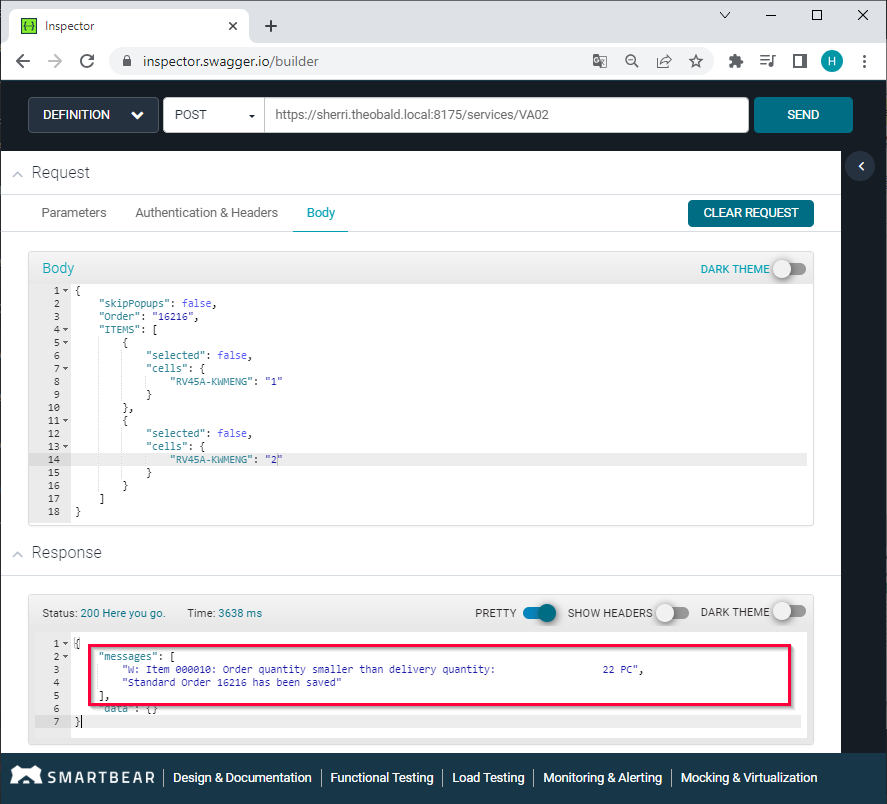
"RV45A-MABNR": "M-01","RV45A-KWMENG": "5", etc. - Run the service. If the service run is successful, the response body contains a confirmation that the order was saved.
- Open SAP to check if the changes in the sales order.
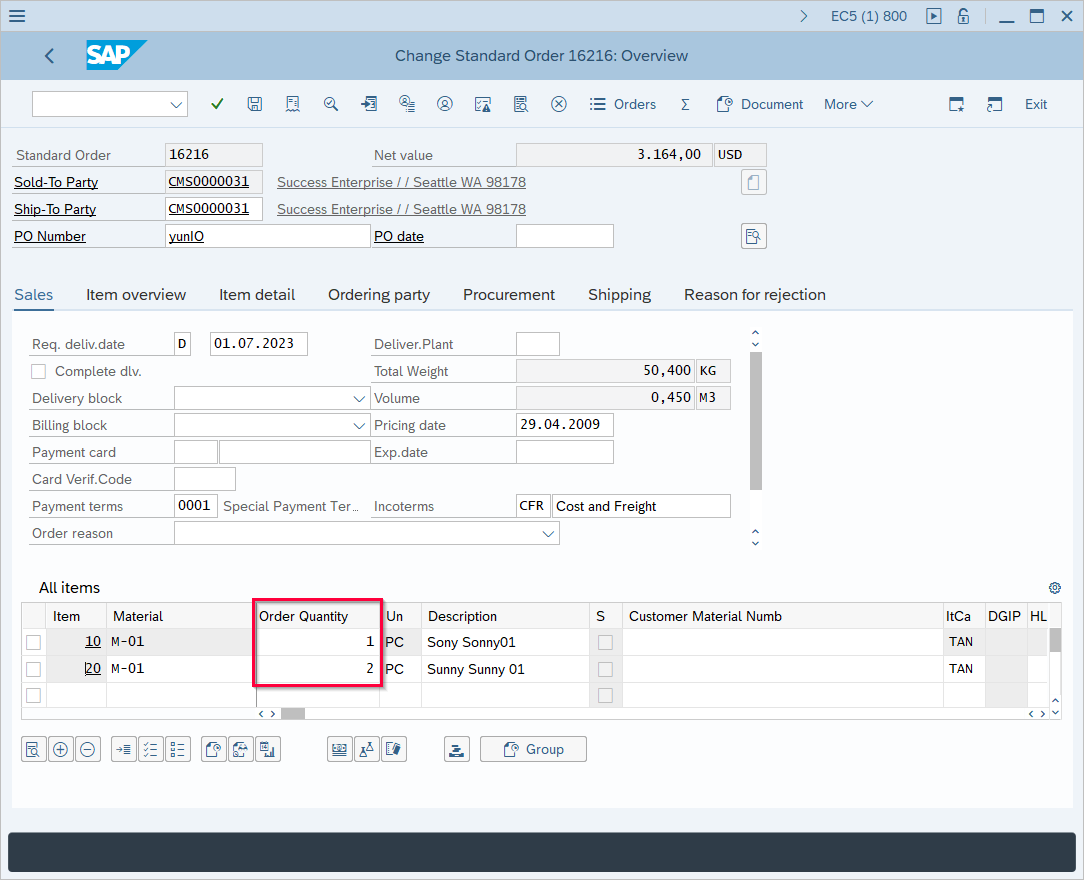
The values for the table parameter are passed to the service and the changes are visible in SAP.