SQL Parameters
In Xtract Universal you can define custom runtime parameters that can be set dynamically when calling extractions. When using an SQL destination, these parameters are available for SQL commands.
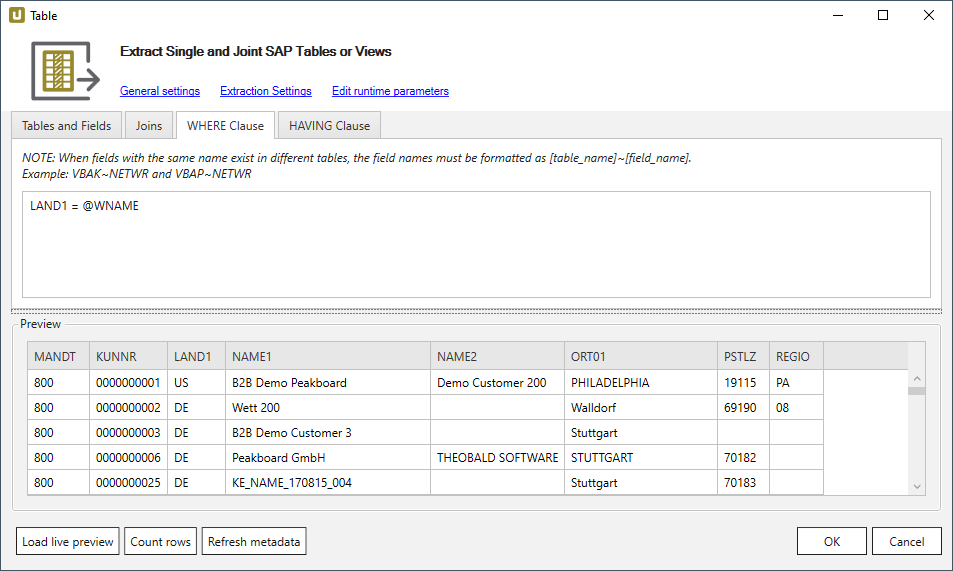
A typical use case is the dynamization of WHERE clauses in the Table extraction type. The following table extraction has a custom parameter WNAME in the WHERE-Clause:
Custom SQL Statement
Follow the steps below to use a custom SQL statement for the three database process steps in the Destination Settings of an extraction:
- In the main window select an extraction with a custom parameter in the WHERE-Clause .
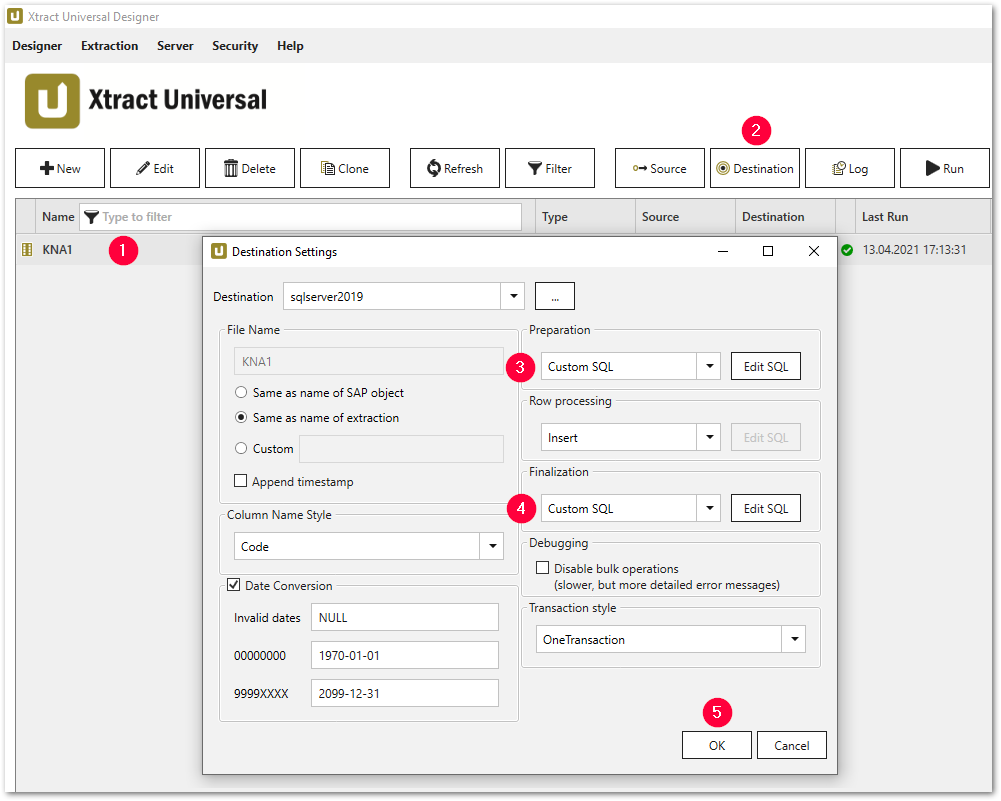
- Click [Destination] . The window "Destination Settings" opens.
- Select the option Custom SQL from the drop-down-menus in the following sections:
- Preparation
- Finalization
- Click [Edit SQL]. The window "Edit SQL" opens.
- Define an SQL statement and click [OK] to confirm your input .
Custom SQL statements are applied to the extraction.
Custom SQL Example for Custom Parameters
You can use custom parameters within custom SQL statements.
In the following example the SAP table KNA1 is expanded by adding the column Custom_Parameter of the type NATIONAL CHARACTER VARYING(10). The column is filled dynamically by runtime parameters.
In the section Row Processing the column values from SAP are written into the previously created SQL target table. This SQL statement is therefore used as the default Insert statement. When rows are processed, only NULL values are written into the Custom_Parameter column.
In the section Finalization these NULL values are replaced using the SQL statements of the runtime parameter WNAME and the T-SQL command UPDATE.
Note
The data types that can be used in SQL statements depend on your SQL database version.
To set up the example scenario:
- Open the Destination Settings and select the option Custom SQL in the section Preparation. Click Edit SQL.
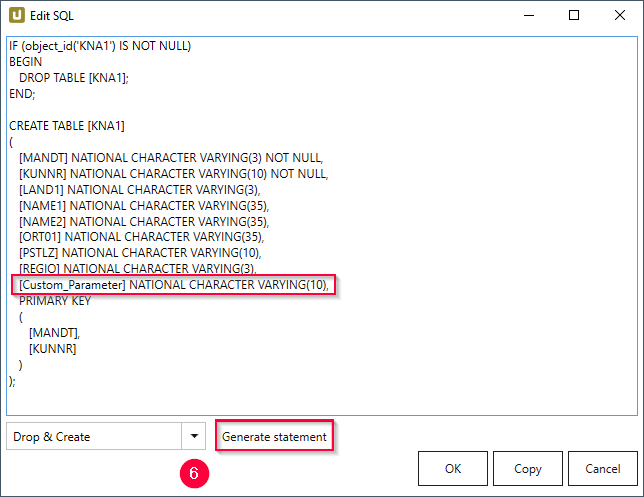
- Select Drop & Create from the drop-down-menu and click [Generate Statement] .
- Add the following line to the generated statement:
- Click [OK] to confirm your input.
- In the window "Destination Settings", select the option Custom SQL in the section Finalization. Click Edit SQL.
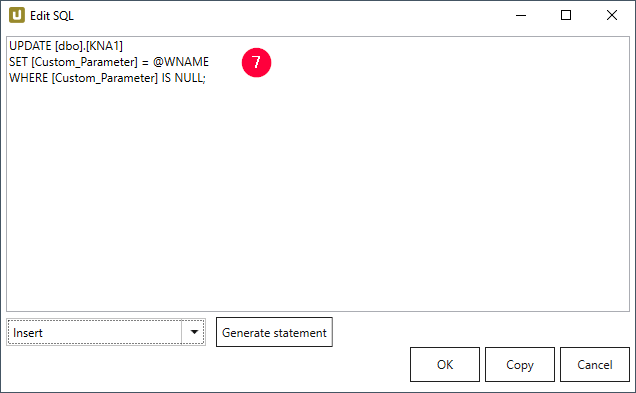
- Select Insert from the drop-down-menu and add the following SQL statement :
- Click [OK] to confirm your input .
The custom SQL statements are applied and update the custom parameter columns.
Set the Custom Parameter WNAME
To pass a value to the custom parameter WNAME:
- Select the extraction in the main window of the Designer and click [Run]. The window "Run Extraction" opens.
- In the Runtime Parameters section, select the checkbox next to the WNAME parameter.
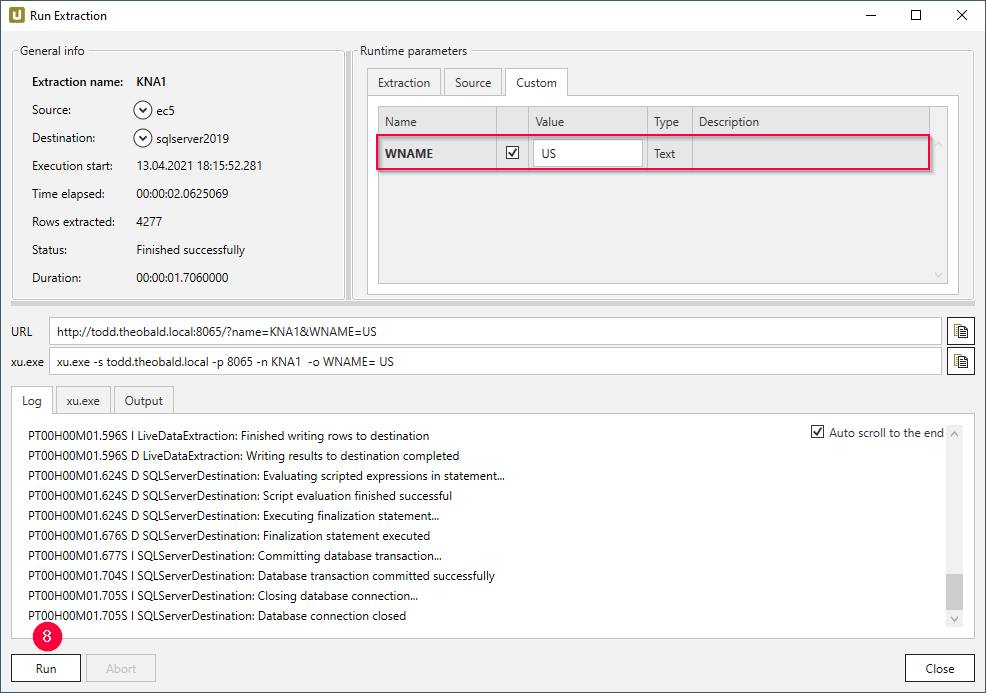
- Enter the new value US and confirm your input by pressing enter.
- Click [Run] to run the extraction.
The extraction runs with the custom parameter and the result is updated in the database.
Related Topics
Last update: June 24, 2026