Connect to the Qlik Sense Cloud via Direct Access Gateway
This article shows how to connect Xtract Universal to Qlik Sense Cloud using a REST connection via a Qlik Direct Access Gateway. In this scenario, Xtract Universal runs on one Windows server and the Qlik gateway runs on a different Windows server. The Qlik destination generates a script that triggers the extraction and streams SAP data to Qlik.
Prerequisites
The Qlik Direct Access Gateway must be installed on a separate Windows server, different from the server that runs Xtract Universal. This ensures proper communication, avoids resource conflicts, and provides a stable and supported configuration.
Install the Qlik Direct Access Gateway
To install the Qlik Direct Access Gateway:
- Install the Qlik Direct Access Gateway on a separate Windows server and log in with your Qlik Cloud tenant during setup, see Qlik Help: Qlik Data Gateway - Direct Access.
- Ensure the Windows service of the gateway is running.
- In the Qlik Cloud console, navigate to Administration > Data gateway and verify that the status of the gateway is Connected.
- Verify that the server that runs the gateway can access the server that runs Xtract Universal.
The Qlik Direct Access Gateway is now installed and can be used to connect Xtract Universal to Qlik Sense Cloud.
Setup the Connection in Qlik Sense Cloud
To connect and load data from Xtract Universal in Qlik Sense Cloud:
- Open the Qlik Cloud console and navigate to Analytics > Create > Data connections > REST (via Direct Access gateway).
- Enter the following information:
- Select the Direct Access Gateway.
- Enter the Xtract Universal server URL, e.g.,
http://example.com:8065. - If needed, increase the timeout.
- Enable Allow response headers.
- Enable Allow WITH CONNECTION.
- Save the connection and verify it using Test connection.
- Provide a connection name.
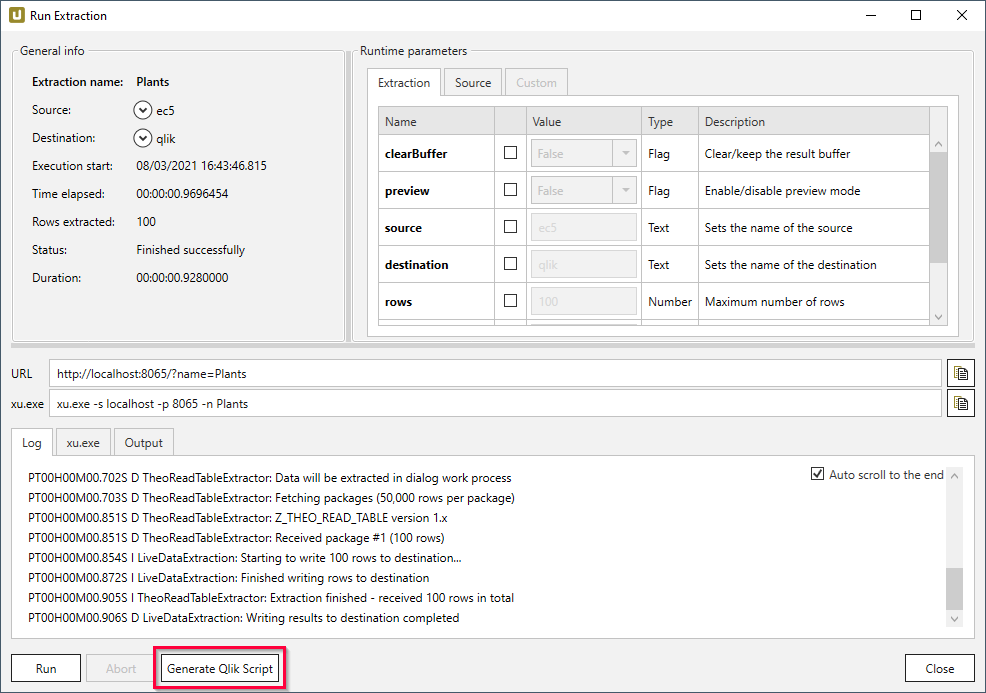
- In Xtract Universal, create a new extraction and assign the QlikSense & QlikView destination.
- Run the extraction and generate the Qlik script, see Generate a Data Load Script.
- In Qlik Sense Cloud, navigate to Analytics > Create > Application > Data Load Editor.
- Paste the generated Qlik script from Xtract Universal into the Data Load Editor.
- Replace the line
LIB CONNECT TOwith the connection string inserted by Qlik from the Data connections panel. The connection string follows the formatLIB CONNECT TO '<GroupName>:<RESTConnectionName>'
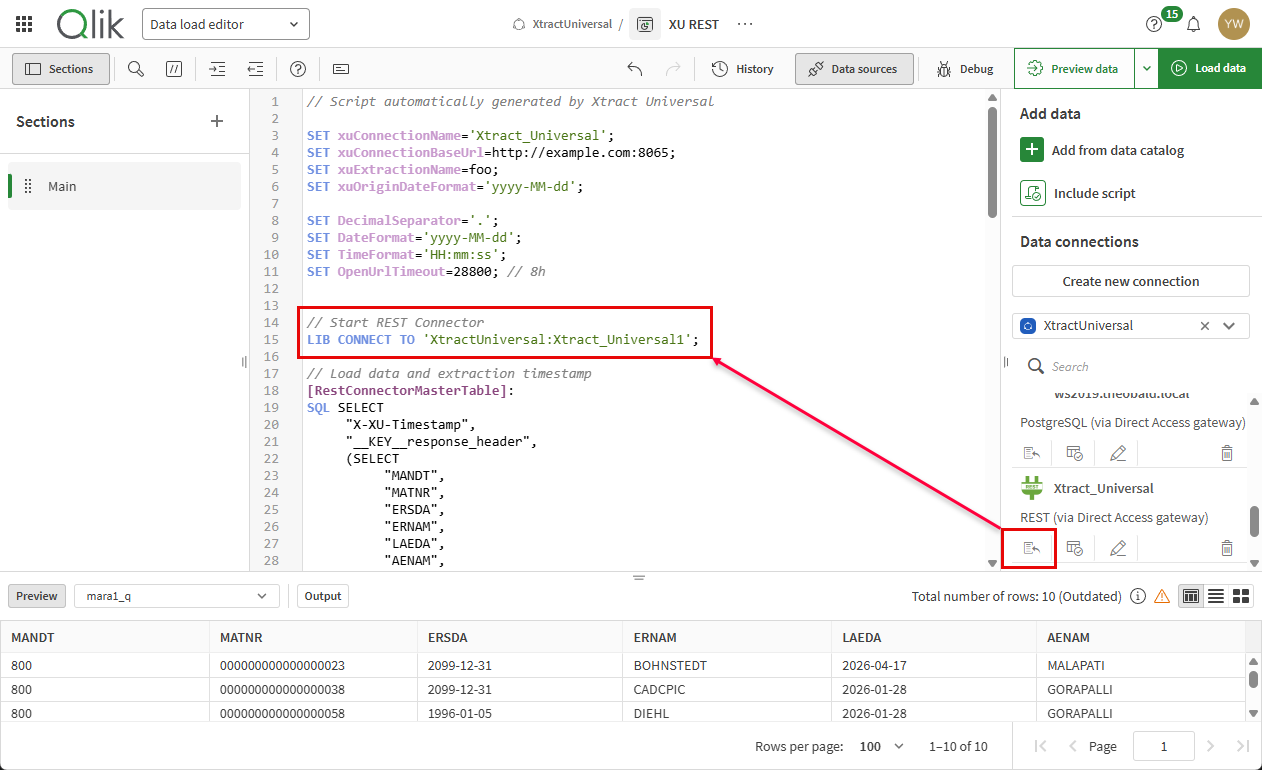
- Ensure the connection name matches the internal Qlik identifier. Do not modify other parts of the generated script.
- Click Preview to validate the setup and confirm that data is returned.
- Click Load data to load the dataset into the app. This triggers the extraction in Xtract Universal and loads the SAP data into Qlik.
- Verify the loaded data in the Qlik data model or preview grid.
Xtract Universal is now connected to Qlik Sense Cloud and can be used to load SAP data.
Related Links
- Qlik Help: Setting up Qlik Data Gateway - Direct Access
- Documentation: Qlik Sense & Qlik View Destination
Last update: August 25, 2026
Written by: Bharath Gorapalli, Valerie Schipka