MCP Server
The built-in MCP server of yunIO enables SAP data integration with AI platforms that support the Model Context Protocol. It exposes yunIO services as tools to AI clients. The MCP server can be used to create chatbots that query live SAP data or as part of agentic workflows that interact with SAP data.
Note
The MCP server is still in beta phase. This means, the MCP server is subject to change.
How It Works
By using the yunIO MCP endpoint, an AI agent can execute yunIO web services to access real-time SAP data, such as customer master data or sales order information. This integration allows users to request and receive current SAP data in natural language while the system handles all connectivity and authorization tasks in the background.
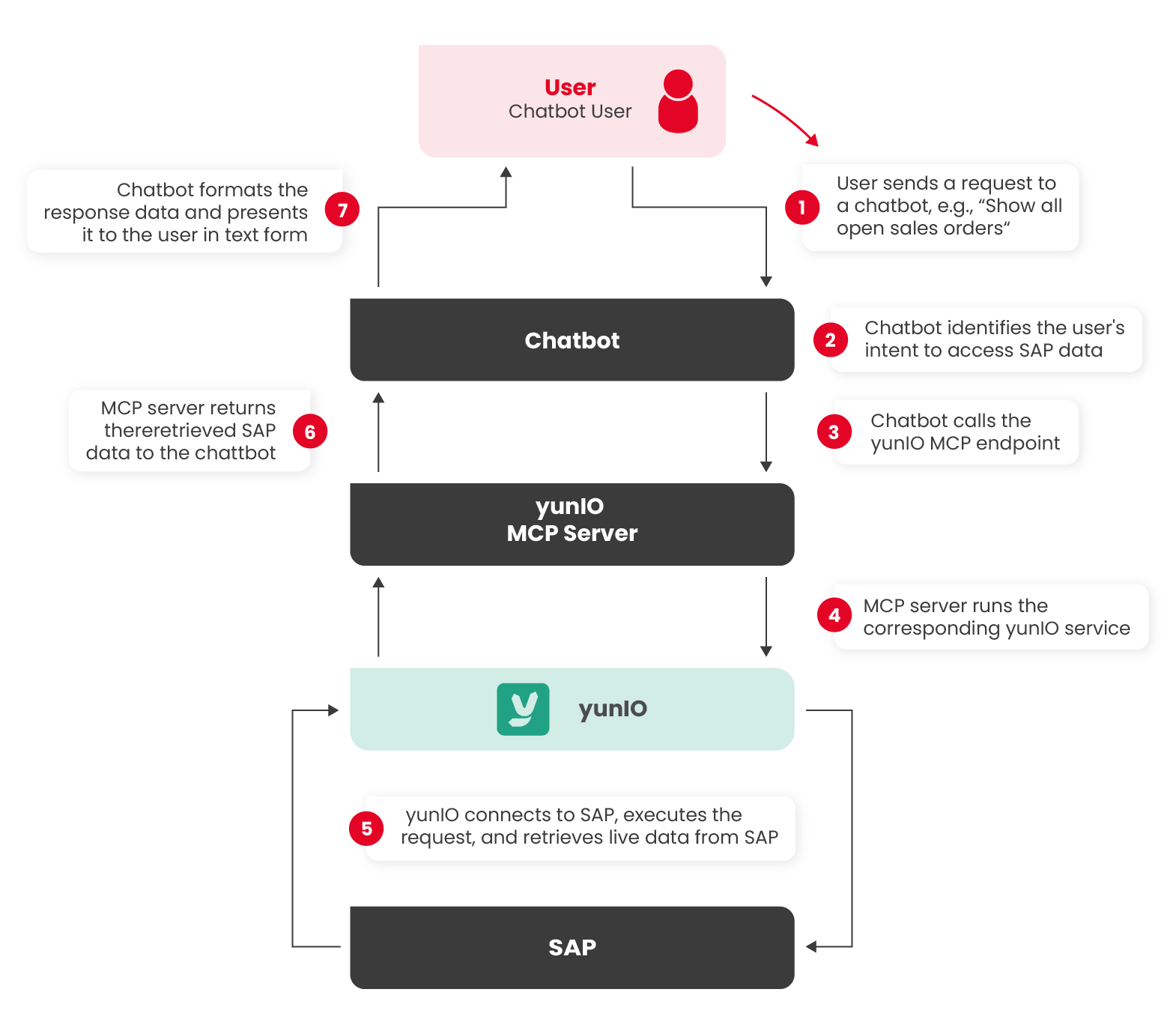
When an AI agent uses the yunIO MCP endpoint, the following process applies:
- A user sends a request in natural language, e.g., “Show all open sales orders."
- The agent identifies the user's intent to access SAP data.
- The agent calls yunIO's MCP endpoint at
https://<hostname>.com:8177/mcp. - The MCP server identifies and executes the corresponding service.
- yunIO connects to SAP, executes the request, and retrieves live data.
- The MCP endpoint returns the retrieved SAP data to the agent.
- The agent formats the response data and presents it to the user in text form.
Chatbot Example
Activate MCP
To make yunIO services accessible to AI platforms, the MCP endpoint of yunIO must be exposed to the internet. To enable the MCP endpoint:
- Set up Transport Layer Security to ensure secured communication to the MCP server.
- Enable the MCP endpoint in the Settings menu.
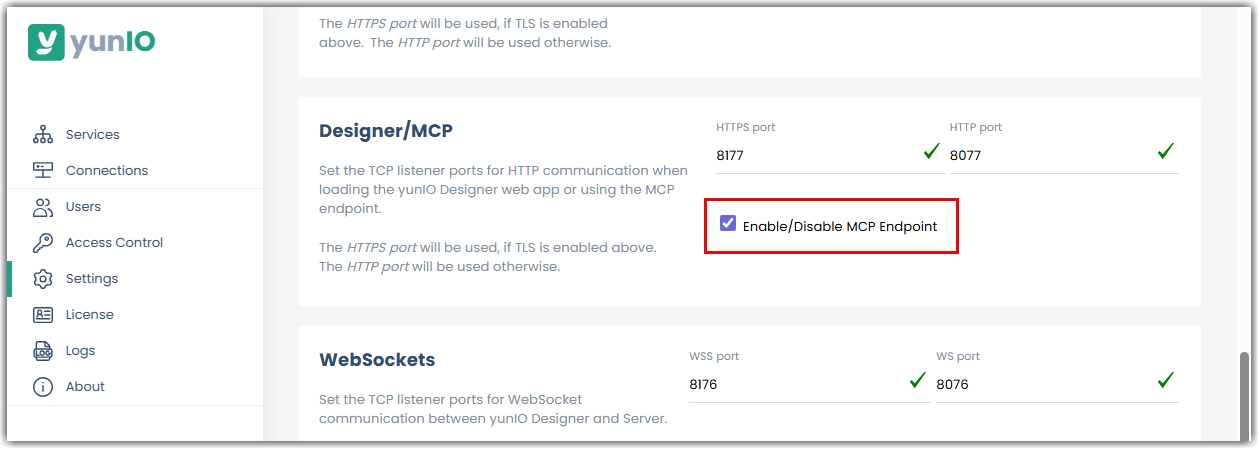
- Open the MCP HTTPS port (default is 8177), e.g., using open port services.
Once the MCP endpoint is accessible, you can configure your chatbot / AI agent to consume the MCP endpoint.
Expose Services via MCP
By default, not all yunIO services are exposed via the MCP endpoint. Services have to be explicitly enabled for MCP:
- In the service settings, activate the checkbox MCP enabled. This option exposes the service to the yunIO MCP server.
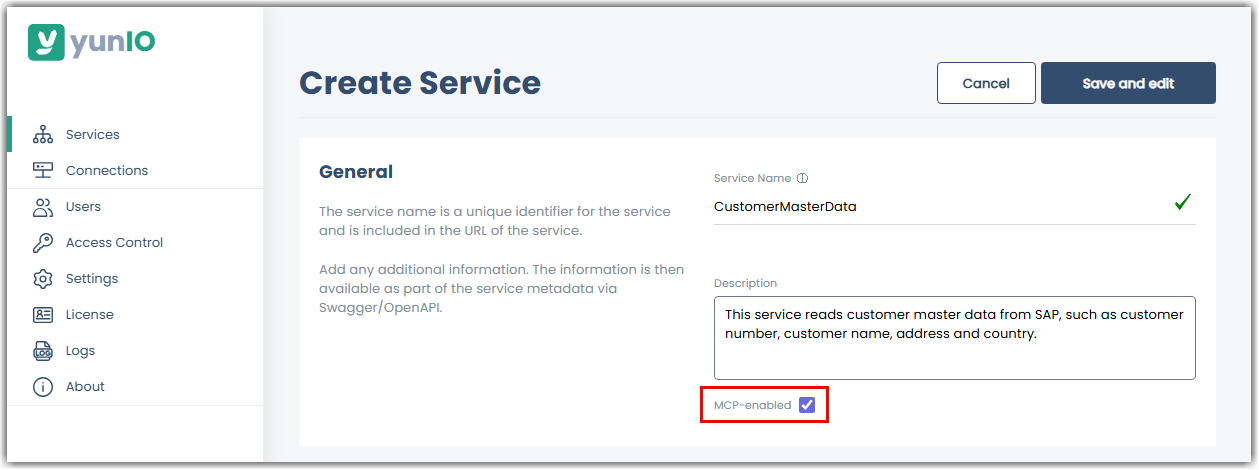
- Service Descriptions:
Provide clear and meaningful service descriptions when creating a service. The MCP server uses this description to match user intents to the correct service. A precise description improves recognition accuracy and response quality. - Parameter Naming:
Assign clear, self-explanatory names to all service parameters, e.g.,for input parameters in SAP transactions. Clear parameter names ensure consistent mapping between user input and service fields.
Example Integrations
Refer to the following Knowledge Base Articles for step-by-step instructions on how to integrate the yunIO MCP server with 3rd party AI platforms: