Services
This page shows how to create and manage services in Xtract Universal.iQ. Services are the core components of Xtract Universal.iQ. They enable you to read and write data to and from SAP systems.
Integration Types
Integration Types supports multiple service types, each designed for different SAP data interactions and operations. yunIO offers the following integration types to support a wide range of integration scenarios:
| Integration Type | Description |
|---|---|
| Function module / BAPI | Run BAPIs and Function Modules to collect specific data from SAP. |
| SAP Table and View | Read data directly from SAP tables and views. |
| Transaction | Run SAP transactions automatically, without using the SAP GUI. |
| Report | Execute SAP ABAP reports and retrieve their results. |
Create a Service
To create a new web service:
- Navigate to the Services menu at the left side navigation of the Designer.
- Click [Add Service] to create a new web service.
- Enter a name and a short description of the service .
- Select an existing SAP connection under Connection .
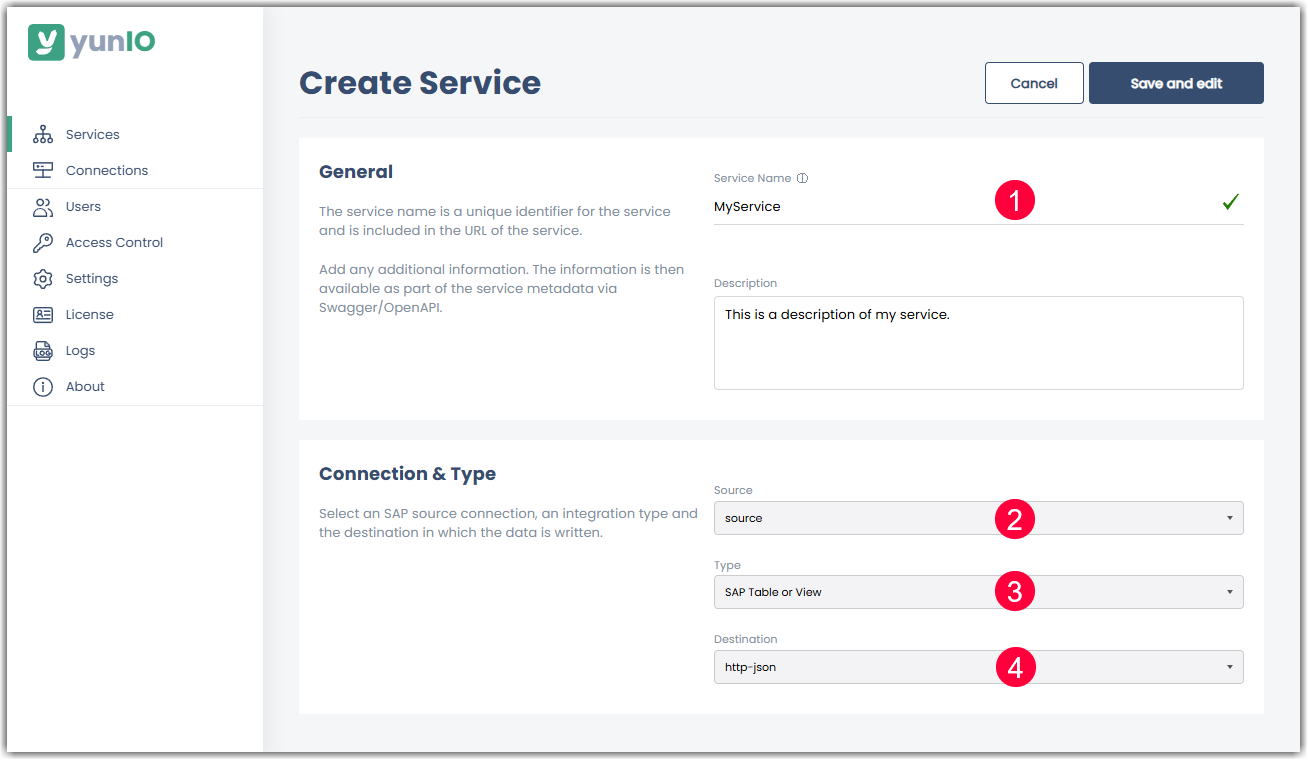
- Select an integration types under Type .
- Optional: To write SAP data to a specific target environment, select an existing destination connection under Destination .
- Click [Save and edit]. The settings of the selected integration type open.
The service is now listed in the Services menu.
Edit a Service
To modify the integration type settings of an existing service:
- Navigate to the Services menu at the left side navigation of the Designer.
- Select a service.
- Click :edit:. The settings of the integration type open.
- Make the necessary changes.
- Click [Save].
The service is updated.
Edit General Service Settings
To change the name, description, SAP source system and / or the destination of an existing service:
- Navigate to the Services menu at the left side navigation of the Designer.
- Select a service.
- Click . The general service settings open.
- Make the necessary changes.
- Click [Save].
The service is updated.
Delete a Service
To delete a service that is not in use anymore:
- Navigate to the Services menu at the left side navigation of the Designer.
- Select a service.
- Click . A confirmation window opens.
- Click [OK] to delete the service.
The service is removed from the Services menu. 3rd-party tools that still use the service stop working.
Restrict Access to Services
You can set up access restrictions to a service to ensure that it can only be modified by trained users. For more information, see Service Level Access.