yunIO MCP Integration with Microsoft Power Platform
This article shows how to integrate yunIO's MCP server as a Custom Connector with Power Automate / Power Apps.
The Custom Connector can be used as a tool in Microsoft Copilot Studio to create chatbots that enable users to retrieve and interact with SAP data without direct SAP access, transaction code knowledge, or SAP GUI experience.
Prerequisites
- A Microsoft account with access to Microsoft Power Automate or Microsoft Power Apps.
- yunIO services must have meaningful descriptions and be enabled for MCP, see Documentation: MCP Server - Expose Services via MCP.
- The MCP endpoint of yunIO is exposed to the internet, see Documentation: MCP Server - Activate MCP.
Note
When integrating services from an on-premise yunIO installation with a cloud hosted platform like Microsoft Copilot Studio, it is recommended to use a gateway to tunnel the connection, e.g., the Microsoft On-premises data gateway.
Setup in Power Automate
To create a Custom Connector in Microsoft Power Automate / Power Apps that connects to the yunIO MCP endpoint:
- In Power Automate, open the section Custom Connectors.
- Click + New custom connector > Create from blank.
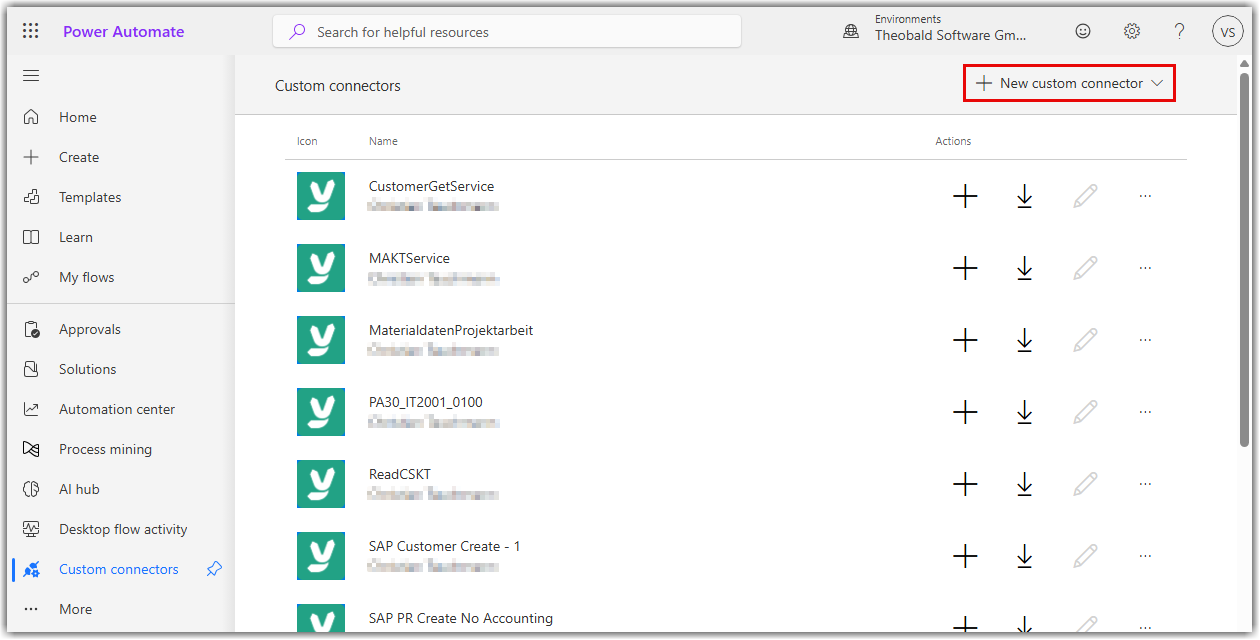
- Give the connector a name of your choice and click Continue.
- In the General tab, enter the connection details of your yunIO instance.
- If you use an on-premises data gateway to expose the MCP endpoint of yunIO, activate the checkbox Connect via on-premises gateway.
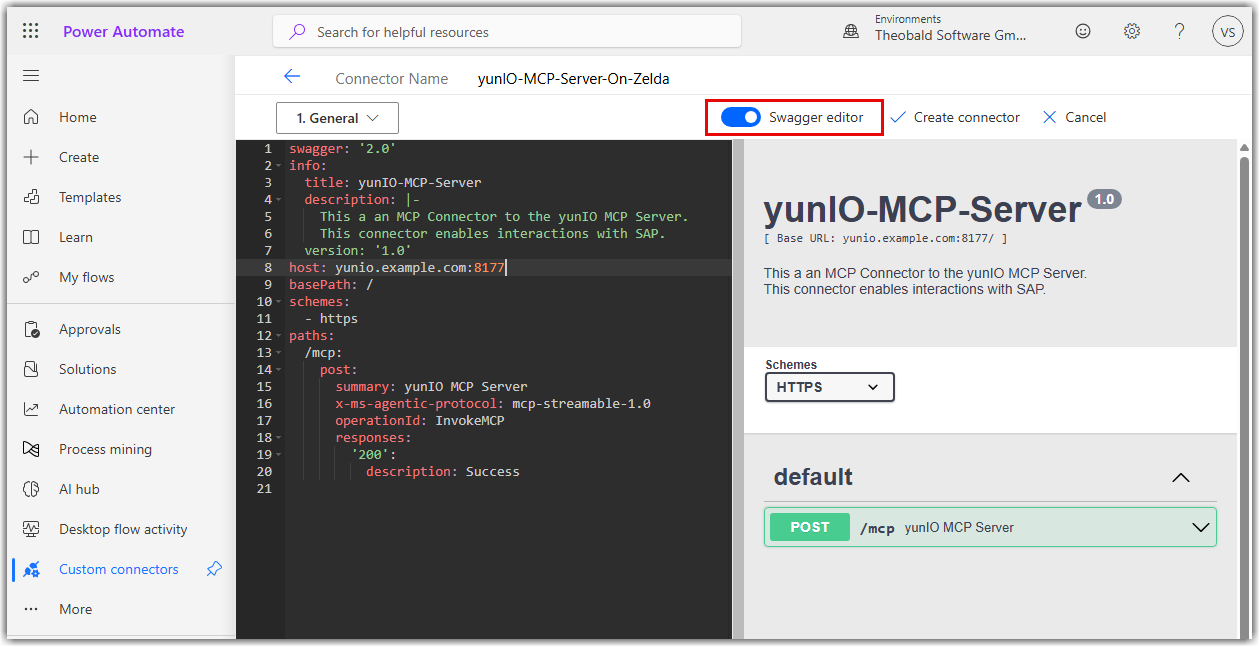
- Click Swagger editor to open the swagger view of the general connector settings.
-
Copy the MCP server schema (the
pathsection) of the following template into the swagger editor:MCP Server Connection Details Exampleswagger: '2.0' info: title: SAP-MCP-Server description: |- This is an MCP Connector to the MCP Server. This connector enables interactions with SAP. version: '1.0' host: sap-link.example.com:8177 basePath: / schemes: - https paths: /mcp: post: summary: SAP MCP Server x-ms-agentic-protocol: mcp-streamable-1.0 operationId: InvokeMCP responses: '200': description: SuccessFor more information, see Microsoft Documentation: MCP server schema example.
-
In the Security tab, select the authentication type for the MCP server.
- If Anonymous access is enabled in yunIO, select No authentication. When using the custom connector, no authentication is required.
- If Authenticated access is enabled in yunIO, select Basic authentication. When using the custom connector, provide the credentials of a yunIO user.
- If Request credentials from callers when running services is enabled in the SAP connection, select Basic authentication. When using the custom connector, provide the credentials of an SAP dialog user.
- If Anonymous access is enabled in yunIO, select No authentication. When using the custom connector, no authentication is required.
- Click Create connector.
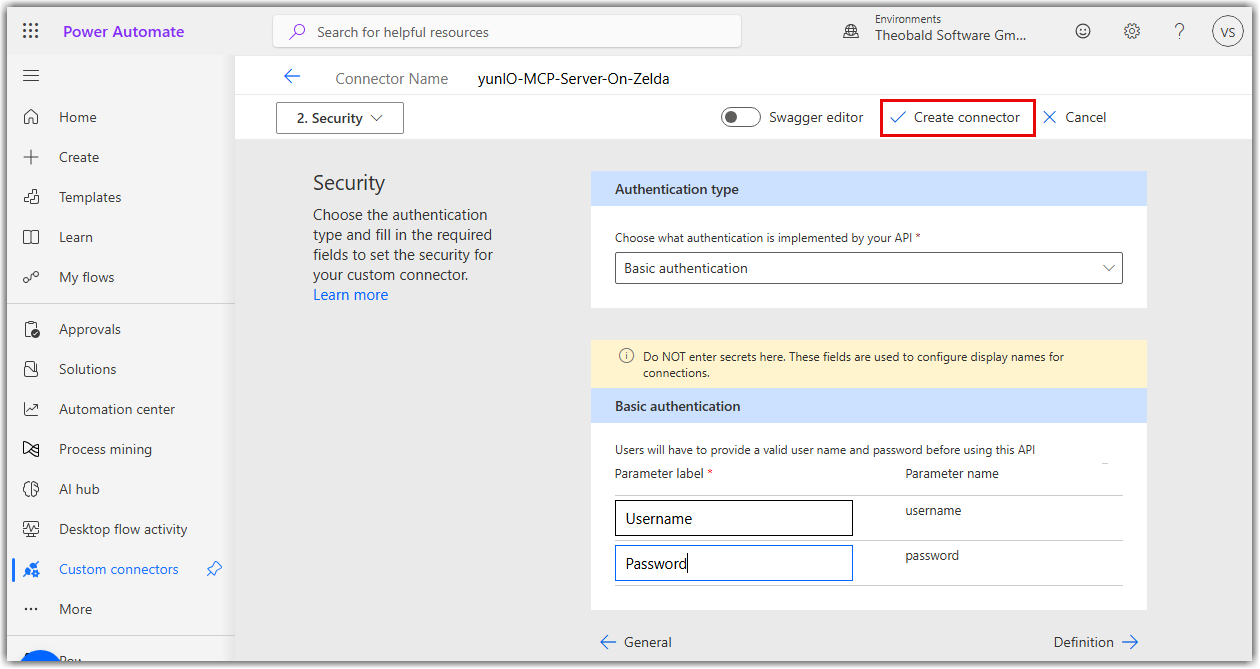
The custom connector for the yunIO MCP server is now ready to use.
Related Topics
- Microsoft Documentation: Copilot Studio - Extend your agent with Model Context Protocol
- Knowledge Base Article: Establish an Azure Relay Hybrid Connection to yunIO
- Documentation: MCP Server
- Documentation: Server Settings
Written by: Ron Brütsch, Valerie Schipka