SAP SNC Authentication in yunIO
This page shows how to use encrypted communication via Secure Network Communication (SNC) between yunIO and SAP.
Prerequisites
- Secure Network Connection (SNC) is configured in your SAP system, see SAP Help: Configuring the Application Server.
- Download the same SAP Cryptographic Library that is used for the encryption in your SAP system (
sapgenpseandsapcrypto.dll) from the SAP Service Marketplace. To check which library is used in SAP, go to transaction RZ10 and check the SAP profile parameter snc/gssapi_lib in SAP transaction RZ10.
SNC Authentication
To set up an SAP connection that uses SNC:
- Navigate to the Connections menu at the left side navigation area of the Designer.
- Click [Add Connection] to create a new SAP connection or click to edit an existing SAP connection.
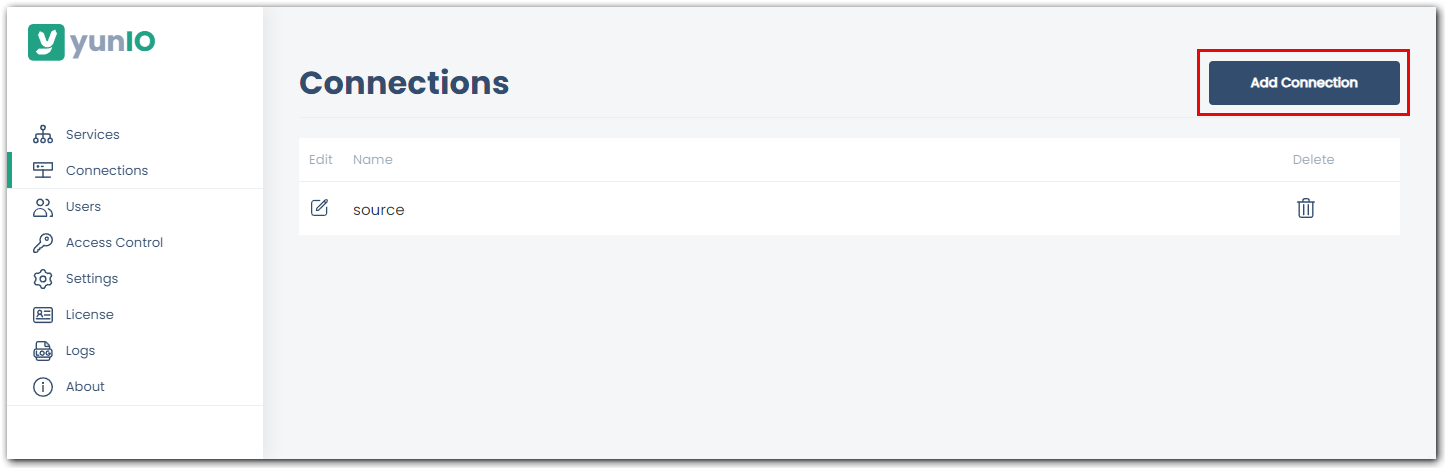
- Enter the system details of your SAP system in the subsection System.
- Set the toggle in the subsection Authentication to Secure Network Communication authentication.
- Enter the complete path to the library location in the field SNC library path, e.g.,
C:\Program Files\SAP\FrontEnd\SecureLogin\lib\sapcrypto.dll.
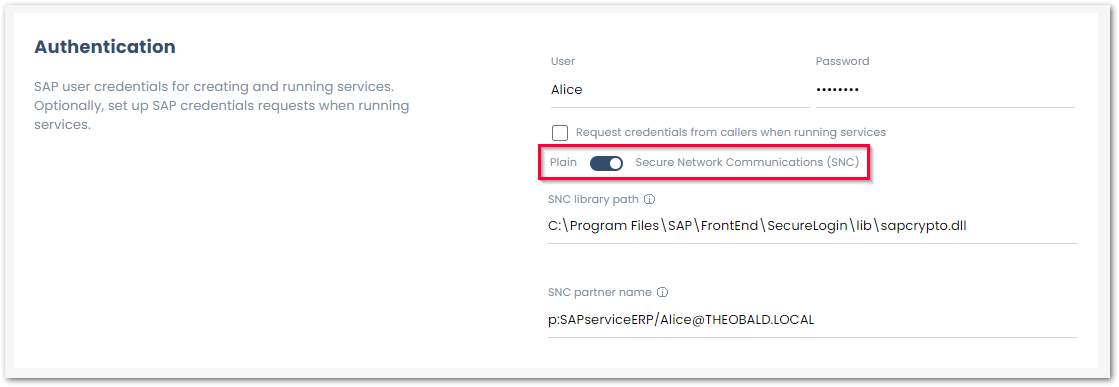
- Enter the SAP partner name configured for the SAP application server in the field SNC partner name, e.g.,
p:SAPserviceERP/Alice@THEOBALD.LOCAL. - Click [Test Connection] to validate the connection parameters.
A window with a status message opens in the bottom right corner of the window. - Click [Save] to save the connection settings.
Last update: June 8, 2026