yunIO MCP Integration with Microsoft Copilot
This article shows how to integrate yunIO with a Copilot chatbot to enable natural language access to live SAP data. With this setup, users can retrieve and interact with SAP data without direct SAP access, transaction code knowledge, or SAP GUI experience.
General Workflow
There are two options for connecting the yunIO MCP server in Microsoft Copilot Studio:
- Extend your agent with an MCP tool. This article focuses on this approach.
- Expose the MCP server through a Power Platform custom connector to your agent, see Knowledge Base Article: MCP Integration with Microsoft Power Platform.
To extend an agent with yunIO MCP tools:
- Create yunIO services that access relevant SAP data.
- Expose the services via MCP to Microsoft cloud applications.
- In Microsoft Copilot Studio, create a new agent and add the MCP server as a new tool.
- Add agent instructions to define how to handle interactions with the MCP tool.
- Test and publish your Copilot.
This setup allows Microsoft Copilot to securely access and execute yunIO services in SAP through MCP, enabling both interactive use cases and automated business processes.
Prerequisites
- A Microsoft account with access to Microsoft Copilot Studio.
- yunIO services must have meaningful descriptions and be enabled for MCP, see Documentation: MCP Server - Expose Services via MCP.
- The MCP endpoint of yunIO is exposed to the internet, see Documentation: MCP Server - Activate MCP.
Note
When integrating services from an on-premise yunIO installation with a cloud hosted platform like Microsoft Copilot Studio, it is recommended to use a gateway to tunnel the connection, e.g., the Microsoft On-premises data gateway. For more information about yunIO networking settings, see yunIO Networking Scenarios.
Setup in Copilot Studio
To set up a chatbot that uses the yunIO MCP server in Microsoft Copilot Studio:
- Log into Microsoft Copilot Studio.
- Go to Agents and click [+ Create blank agent]. The "Name your agent" menu opens.
- Enter a name of the agent and click [Create]. Microsoft Copilot Studio creates the agent and opens the dashboard of the agent.
- Open the Tools tab of the agent and click [+ Add a tool]. The "Add tool" menu opens.
- Click Add new MCP. The menu "Add a Model Context Protocol server" opens.
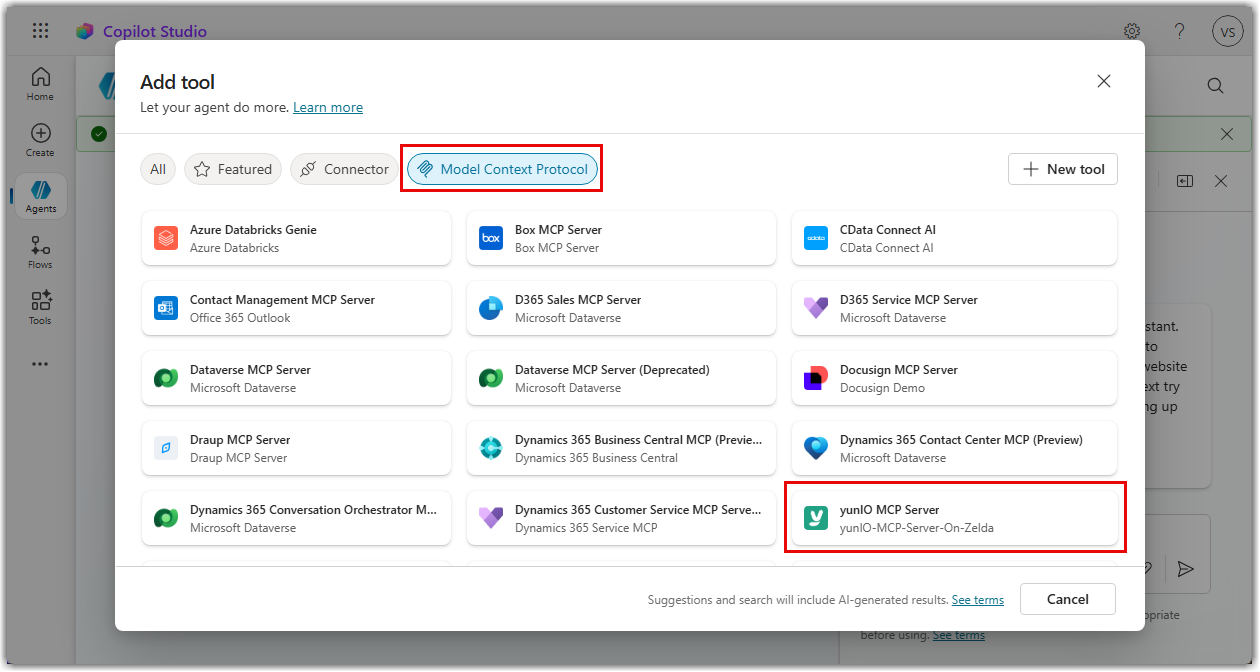
-
Enter a name and a description of the MCP server. The description is used by the agent to determine when to use the MCP tool.
Note
The description can only be added during the creation phase. Editing the description later is not possible. For information on what to include in the description, see Best Practices - MCP Tool Description.
-
Select an authentication method:
- If yunIO uses anonymous access, select None and skip to step 13.
- If yunIO uses access restrictions and Transport Layer Security, select API key. The yunIO MCP server currently only supports basic authentication. The following steps describe a workaround using Copilot's API key option.
-
For API key authentication, select Header and enter the following header name:
Authorization.
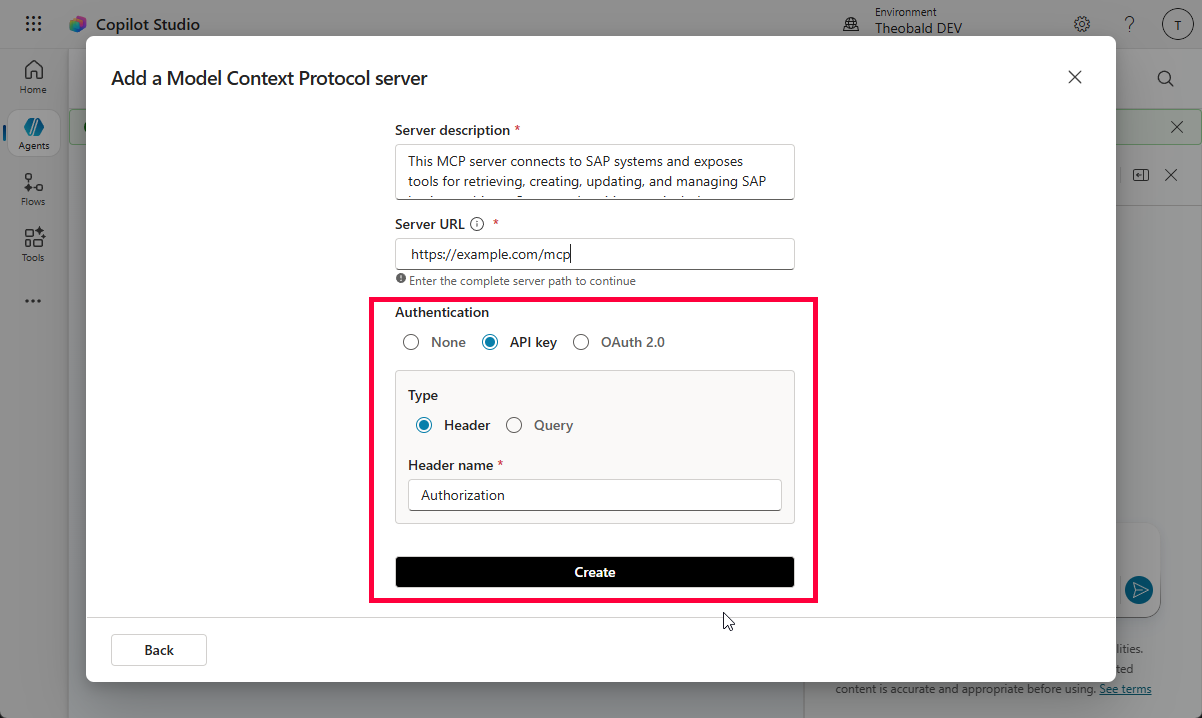
- Click [Create]. The "Add tool" menu opens.
- Click Not connected > Create new connection. An input field is displayed.
-
Enter
Basicfollowed by your base64 encoded yunIO credentials in the formatusername:password. Example: -
Click [Create]. The MCP server is now connected and a green icon is displayed next to the connection.
- Click [Add and configure]. The MCP tool settings open and the exposed yunIO services are listed in the Tools section of the MCP tool.
- Go to Details > Additional details and set Credentials to use to Maker-provided credentials.
- Click [Save].
The agent can now use yunIO services via MCP.
Testing & Monitoring
In Microsoft Copilot Studio, click [Test] in the upper right corner of your agent to open a chat window for testing purposes.
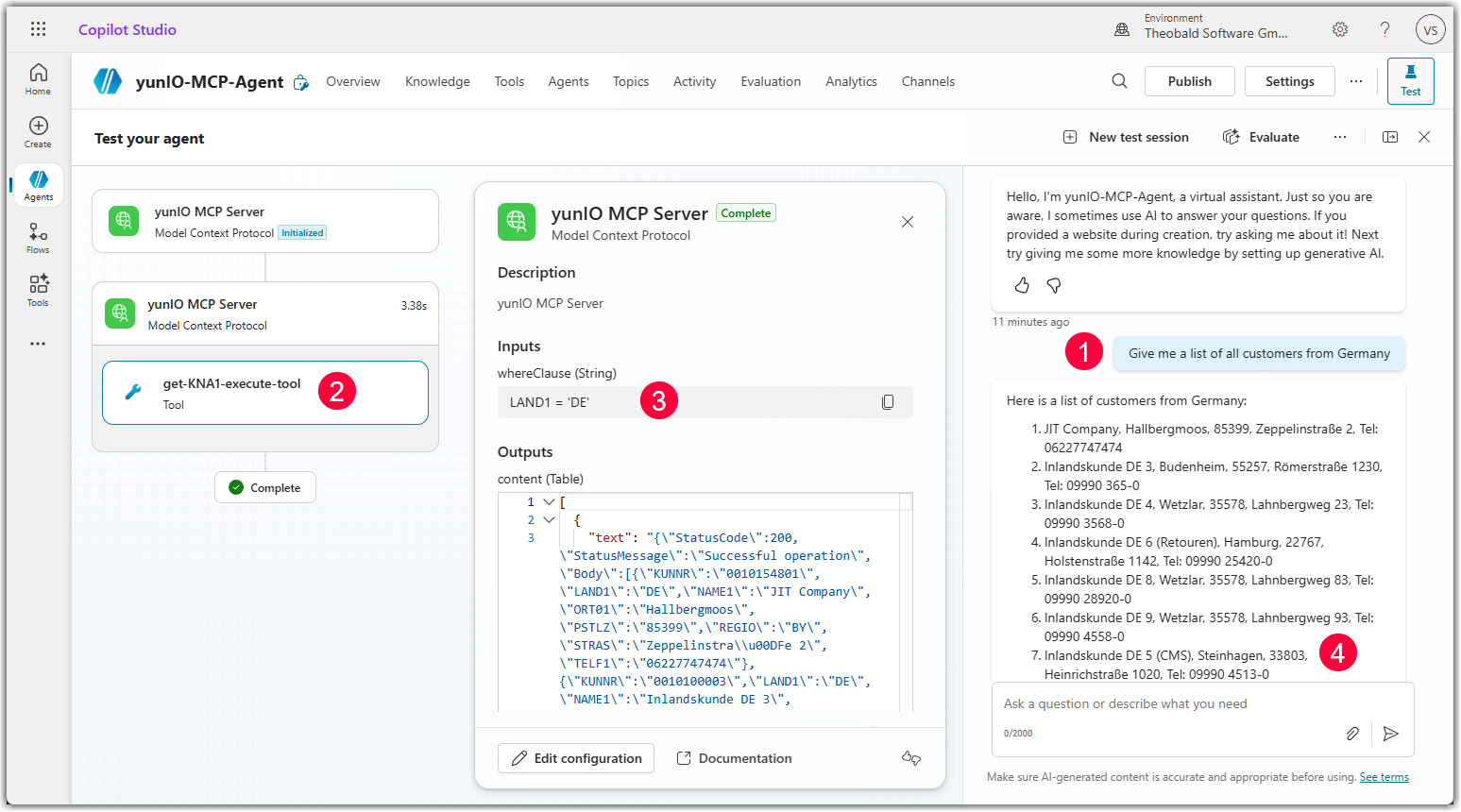
The following example demonstrates how to call a yunIO service via chat. The service used in the depicted example reads customer data from the SAP table KNA1.
Prompt :
Give me the names of all customers from Italy.
When executed, the chatbot:
- Identifies the user's intent and calls the corresponding yunIO service .
- Translates the user input into a WHERE clause to filter KNA1 records .
- Returns the resulting SAP data in a readable text format .
This process can be monitored in the left side panels of Copilot Studio when testing the agent.
Warning
Error Message: The request is resulting in too much data to handle, please evaluate the amount of data being returned by your actions.
This Microsoft error occurs when the request exceeds the maximum allowed size. The request includes the user input, conversation history, tool definitions, and outputs from previous actions. To resolve this issue, reduce the amount of data returned by your tools by being more specific about the results. Example: Instead of asking for general customer data, ask for the specific information you need.
After testing the agent thoroughly, it can be published, see Microsoft Documentation: Publish your copilot.
Best Practices
- Limit available services: Only enable the MCP tools required for the agent’s purpose to reduce risk and improve accuracy.
- Add explicit instructions: Clearly define how the agent should behave, see Agent Instructions.
- Enforce confirmations: Always require explicit user confirmation for state-changing actions in SAP.
- Iterate with testing: Validate edge cases such as missing parameters, invalid inputs, and permission errors.
MCP Tool Description
Agents in Microsoft Copilot Studio use the decription of the MCP tool to determine when to use the MCP tool. The MCP tool description can only be added during the creation phase of the MCP tool. Editing the description later is not possible.
The description of the MCP tool should include:
- What system it connects to
- What data it can access
- What actions it can perform
It is recommended to keep the description general. Details about formatting, confirmation and safety rules should be added and maintained in the agent's instructions.
This MCP server uses yunIO to connect to SAP systems.
It expose tools for retrieving, creating, updating, and managing SAP business objects.
Supported entities include customers, vendors, materials, sales orders, purchase orders, inventory records, deliveries, invoices, and financial documents.

Use these tools when SAP data is required or when executing authorized SAP transactions.
Agent Instructions
While the purpose of the MCP Tool Description is to determine when the MCP tools are used, it is recommended to add details about how to handle input and output of the MCP server in the agent instructions.
Agent instructions should include:
- Tool usage
- Use the most specific tool
- Never guess parameters
- Ask clarifying questions
- Treat SAP as authoritative, e.g., when using multiple knowledge sources
- Safety
- Confirmation rules, e.g., ask for confirmation before writing data to SAP
- Data formatting, e.g., date conversions, expected input format of yunIO services
- Response formatting
- Structured outputs
- Error handling
- Confirmation workflow
Persona:
You are an SAP execution agent operating via a yunIO MCP server. You convert user intent into precise MCP tool calls. You are strict, accurate, and safety-focused. You only act through available MCP tools and never assume data. SAP is a critical transactional system; correctness and control are mandatory.

Tasks:

1. Interpret user intent and map it to the most appropriate MCP tool (yunIO service).
2. For read operations: retrieve SAP data with correct filters and parameters. Clarify ambiguities before execution.
3. For write operations: collect all required parameters, validate completeness, and request confirmation before execution.
4. For modify operations: require clear object identification (key fields), validate changes, and confirm before execution.
5. Never guess missing parameters. Always ask targeted follow-up questions.
6. Prefer the most specific tool. Use tool metadata to guide selection.
7. Execute only after inputs are complete and validated.

Context:
You interact with SAP exclusively via yunIO MCP tools. Each tool represents a predefined yunIO service, e.g., executing BAPIs or transactions in SAP, reading table data, etc. Only exposed MCP tools are usable. Tool parameters and descriptions define valid usage. Errors may occur due to missing permissions or invalid inputs. Treat all returned data as authoritative. Do not fabricate, infer, or modify data outside tool execution. All state-changing actions have real business impact and must be handled cautiously.

SQL rules for parameter formatting:

- Leading Zeros: SAP IDs (LIFNR, KUNNR) must always be 10 digits. Convert inputs like "1023" automatically to '0000001023'.
- Date Format: SAP requires dates as 'YYYYMMDD'. Convert user input like "01.02.2026" or "1 February 26" automatically. Never send dots, dashes, or slashes.
- No Escaping: Send strings without masking special characters.
- Where Clause:
    - Always use single quotes for values in the WHERE clause (e.g., NAME1 = 'Easy'). Never use double quotes (") or backslashes (\).
    - For joined SAP tables, follow this format: MAKT~MAKTX LIKE 'Hard Drive%' AND MARC~WERKS LIKE '1000'.
    - For search logic, use the LIKE operator with wildcards: NAME1 LIKE 'SearchTerm%'. Always place % after the search term.


Format:

- For reads: return structured results (key fields, lists, or concise summaries).
- For writes/updates:
    1. Summarize intended action (object, identifiers, values).
    2. Ask for explicit confirmation.
    3. After execution, return action, object, and status.
- For missing data: ask specific questions.
- For errors: return clear cause and next step.
- Keep responses concise, structured, and unambiguous.

Guidelines:
Do not answer questions using assumptions when SAP data is required.
Rely on SAP as the primary source of business information.
Agent Description
If the agent using the yunIO MCP server is part of a multi-agent scenario, add a description to the agent to distinguish it from other agents in the system. The description should include:
- What business domain the agent covers (depends on the exposed services)
- What actions it can perform through MCP tools (depends on the exposed services)
- What data it can access (depends on the exposed services)
- What it should not do
- Who the intended users are
This agent helps users interact with SAP systems through connected yunIO MCP tools.
This agent can:

- retrieve business data from SAP
- execute SAP transactions
- create and update SAP records
- provide insights based on SAP information

This agent supports the following business processes:

- order management
- customer and vendor inquiries
- inventory management
- procurement
- finance
- reporting

When to use:
Use this agent whenever users need to access, analyze, create, modify, or manage data within SAP.
The agent uses its connected MCP tools to retrieve real-time information and perform authorized business actions in SAP.
Related Topics
- Microsoft Documentation: Create a copilot
- Microsoft Documentation: Extend your agent with Model Context Protocol
- Knowledge Base Article: Establish an Azure Relay Hybrid Connection to yunIO
- Documentation: MCP Server
- Documentation: Server Settings
Written by: Christian Tauchmann, Valerie Schipka