yunIO MCP Integration with n8n
This article shows how to integrate the yunIO MCP server with n8n. This setup allows n8n to securely access and execute yunIO services in SAP via MCP, enabling both interactive use cases and automated business processes.
There are two options for integrating the yunIO MCP server with n8n:
- Use the MCP Client node to call the MCP server as a standard step within a workflow, see MCP Client node.
- Use the MCP Client Tool node to integrate the MCP server with an AI Agent that dynamically calls the MCP server as a tool, see MCP Client Tool node.
Prerequisites
- Access to a n8n account with administrator rights.
- yunIO services must be enabled for MCP and have meaningful MCP descriptions, see Documentation: MCP Server - Expose Services via MCP.
- The MCP endpoint of yunIO is exposed to the internet, see Documentation: MCP Server - Activate MCP.
Note
When integrating services from an on-premise yunIO installation with a cloud-hosted instance of n8n, it is recommended to use a gateway to tunnel the connection. yunIO's Azure Relay connection does not support MCP server connectivity.
MCP Client Node
The MCP Client node calls services exposed via the yunIO MCP server as standard steps within a workflow.
General Workflow
- Create yunIO services that access relevant SAP data.
- Expose the services via MCP to n8n.
- In n8n, create a workflow and add the MCP Client node.
- Configure the node to connect to the yunIO MCP server and select the service to execute.
- Add additional nodes to process the results or chain multiple MCP Client nodes for complex interactions.
Tip
Alternatively, you can use the HTTP Request node to call the yunIO services directly without exposing them via MCP, see Integrate a Service with n8n.
MCP Client Node Setup
To execute yunIO services via MCP in n8n:
- Open n8n and create a new workflow.
- Add a trigger node and an MCP Client node.
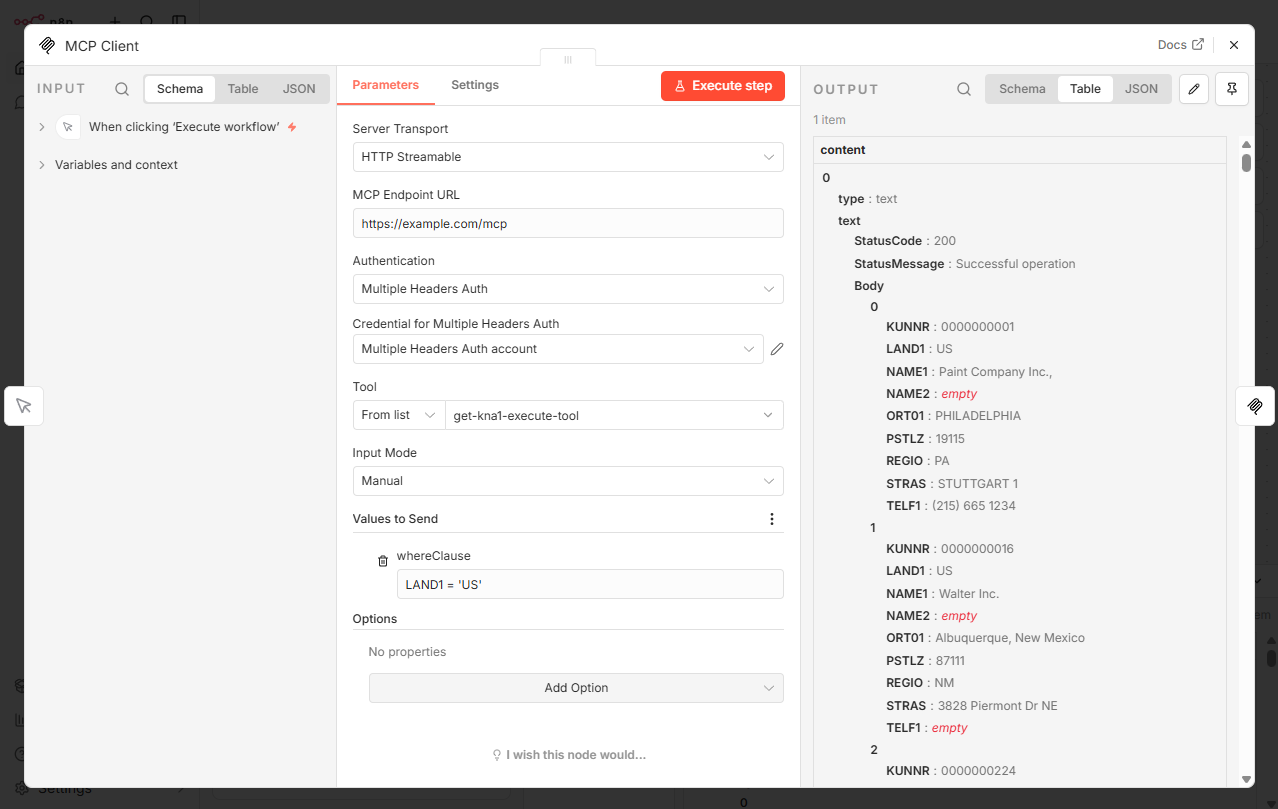
- In the MCP Client node, set MCP Endpoint URL to the URL of your yunIO MCP server, e.g.,
https://example.com:8177/mcp. -
If yunIO uses access restrictions:
- Set Authentication to Multiple Headers Auth.
- Add the following custom headers in the credentials for multiple header authentication:
Header name Header value Description AuthorizationBasic [base64 encoded username:password]Authentication against yunIO. If yunIO uses access restrictions, enter Basicfollowed by your base64 encoded yunIO credentials in the formatusername:password.Content-Typeapplication/jsonSpecifies that the data you send in the request body is formatted as JSON. Acceptapplication/jsonOptional: Specifies that you want to receive the response data in JSON format. Most n8n nodes expect and work better with JSON data. -
Select the yunIO service you want to call from the Tool dropdown. The dropdown lists all services enabled for MCP access in yunIO.
-
Optional: click [+ Add parameter to send] to pass parameters to the service. To pass nested parameters or table structures, set the Input Mode to JSON and enter the parameters in JSON format.
Tip
You can download the payload of a service in the Run menu of yunIO and use it as a template for passing parameters in n8n. The download file
[service-name]_input_payload.jsoncontains all service parameters and their structure in JSON format. If you assign parameters in the Run menu before downloading the payload, they are included in the file.Note
SAP Table and View services only accept parameters using the HTTP GET method. When passing WHERE clauses and other parameters, ensure that the selected SAP Table and View service uses the
get-prefix. -
Click [Execute step] to test the service call. If successful, the panel on the right displays the service output.
- Close the node and add additional nodes to process the results or chain multiple MCP Client nodes for complex interactions.
You can now fetch SAP data and pass it to other nodes for further processing.
Best Practices for Workflows
- Error handling: Add conditional nodes or fallback paths to handle failed MCP calls.
- Logging & debugging: Use workflow logs to inspect MCP calls and responses during execution.
- Input mapping: Ensure inputs are correctly mapped from previous workflow steps.
MCP Client Tool Node
The MCP Client Tool node allows an AI Agent inside n8n to dynamically call the yunIO MCP server as a tool.
General Workflow
- Create yunIO services that access relevant SAP data.
- Expose the services via MCP to n8n.
- In n8n, create a workflow and add the following nodes:
- AI Agent node.
- MCP Client Tool node
- Configure the MCP Client Tool node to connect to the yunIO MCP server and select the services to expose as tools to the agent.
- Attach the MCP Client Tool node to the agent.
MCP Client Tool Node Setup
To add the yunIO MCP server to an AI agent in n8n:
- Open n8n and create a new workflow.
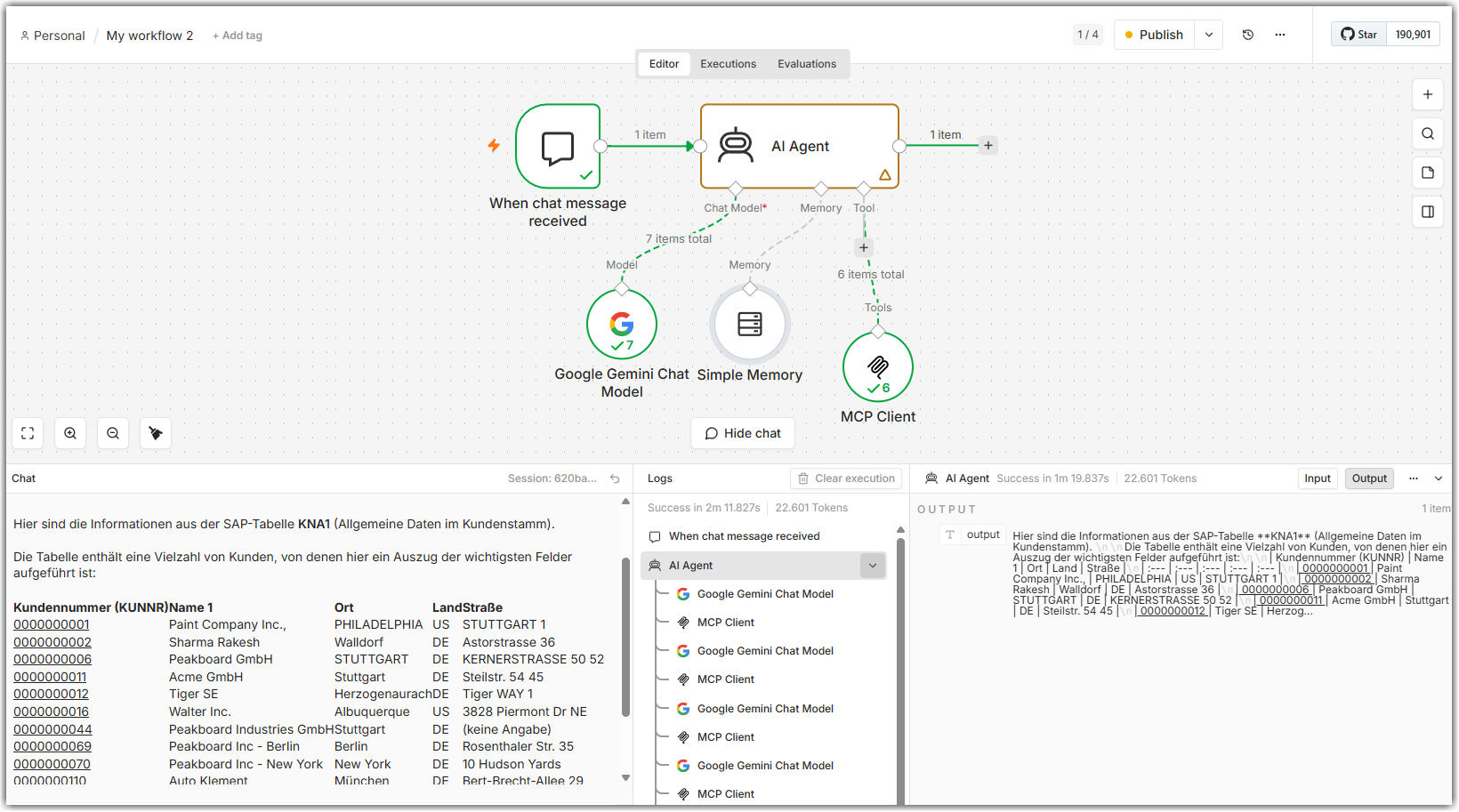
- Add the following nodes:
- On chat message trigger node.
- AI Agent node.
- a chat model node, e.g., Anthropic Chat Model node, Google Gemini Chat Model node, etc.
- MCP Client Tool node.
- optional: a chat memory node, e.g., Simple Memory node.
- Configure the chat model node according to your requirements.
- Set up the AI Agent node by attaching the chat model node, the optional chat memory node and the MCP Client Tool. For more information, see n8n Documentation: AI Agent node.
- In the MCP Client Tool node, set Endpoint to the URL of your yunIO MCP server, e.g.,
https://example.com:8177/mcp. -
If yunIO uses access restrictions:
- Set Authentication to Multiple Headers Auth.
- Add the following custom headers in the credentials for multiple header authentication:
Header name Header value Description AuthorizationBasic [base64 encoded username:password]Authentication against yunIO. If yunIO uses access restrictions, enter Basicfollowed by your base64 encoded yunIO credentials in the formatusername:password.Content-Typeapplication/jsonSpecifies that the data you send in the request body is formatted as JSON. Acceptapplication/jsonOptional: Specifies that you want to receive the response data in JSON format. Most n8n nodes expect and work better with JSON data. -
Use the Tools to include setting to select the yunIO services you want to expose as tools to the agent. Include only the services required for the agent’s purpose to reduce risk and improve accuracy.
- Close the node and run the workflow to test the integration.
The agent can call the selected services during a conversation to fetch real-time SAP data or perform actions in SAP.
Best Practices for Agents
- Limit available actions: Only expose the MCP tools required for the agent’s purpose to reduce risk and improve accuracy.
- Add explicit instructions: Clearly define how the agent should behave for read vs. write operations in the System Message of the AI Agent node.
- Enforce confirmations: Always require explicit user confirmation for state-changing actions in SAP.
- Use structured outputs: This improves reliability when agents are used inside workflows.
- Iterate with testing: Validate edge cases such as missing parameters, invalid inputs, and permission errors.
Related Topics
- n8n Documentation: MCP Client node
- n8n Documentation: MCP Client Tool node
- n8n Documentation: AI Agent node
- Knowledge Base: Integrate a Service with n8n
- Documentation: MCP Server
- Documentation: Settings
Written by: Christian Tauchmann, Valerie Schipka