Designer Overview
This page gives an overview over the main UI of the Board Connector Designer. The Designer features different functionalities to design and configure extractions.
For information on how to connect the Designer to a Server during startup, see Access Restrictions.
Tip
Press F1 to open the documentation page for particular windows.
Main Menu Bar
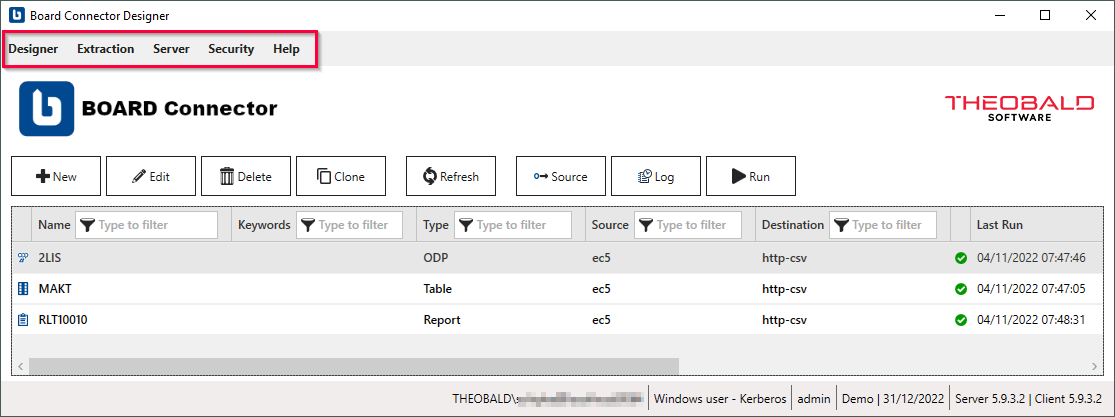
| Icon | Menu Item | Description | Details |
|---|---|---|---|
| Reset Preferences | Reset connection settings to server | Connect the Designer to a Server | |
| Disconnect | Log off the server | - | |
| Exit | Close the Designer | - |
| Icon | Menu Item | Description | Details |
|---|---|---|---|
| New | Create a new extraction | Create an Extraction | |
| Edit | Edit an existing extraction | - | |
| Delete | Delete an existing extraction | - | |
| Clone | Clone an existing extraction | - | |
| Add/Remove Keywords | Define keywords of selected extractions | General Settings | |
| Source | Select an existing SAP source system | [SAP Connection]/connections/sap-connection/index.md) | |
| Log | Open extraction log | Extraction Logs | |
| Run | Run a selected extraction | Run an Extraction | |
| Abort | Abort a selected extraction | - | |
| Clear Result Cache | Clear extraction cache | Cache results | |
| Refresh | Refresh extraction status | - | |
| Filter | Define filters or keywords | Define Keywords |
| Icon | Menu Item | Description | Details |
|---|---|---|---|
| Logs | Open server logs | Server Logs | |
| Settings | Open server settings | Server Settings | |
| Manage Sources | Edit connection to source system | [SAP Connection]/connections/sap-connection/index.md) | |
| Statistics | Open dashboard for usage data (only accessible if usage data collection is enabled in the Server Settings) | Knowledge Base Article: Deactivate Usage Data Collection |
| Icon | Menu Item | Description | Details |
|---|---|---|---|
| Set User Password | Set or change user password | User Managements | |
| Manage Users | Manage user groups | User Groups |
| Icon | Menu Item | Description | Details |
|---|---|---|---|
 |
Online Help (EN) | Open the HelpCenter | - |
| Submit Support Ticket | Open the Ticket Portal | Support Portal | |
| Show Compliance Info | List all ODP extractions affected by SAP Note 3255746. | SAP Note 3255746: How to Achieve Data Integration Without ODP | |
| Download latest version | Link to My Theobald Software | Customer Portal | |
| Info | Product information | - | |
| Version History | List of recent software changes | Changelog |
GUI Buttons
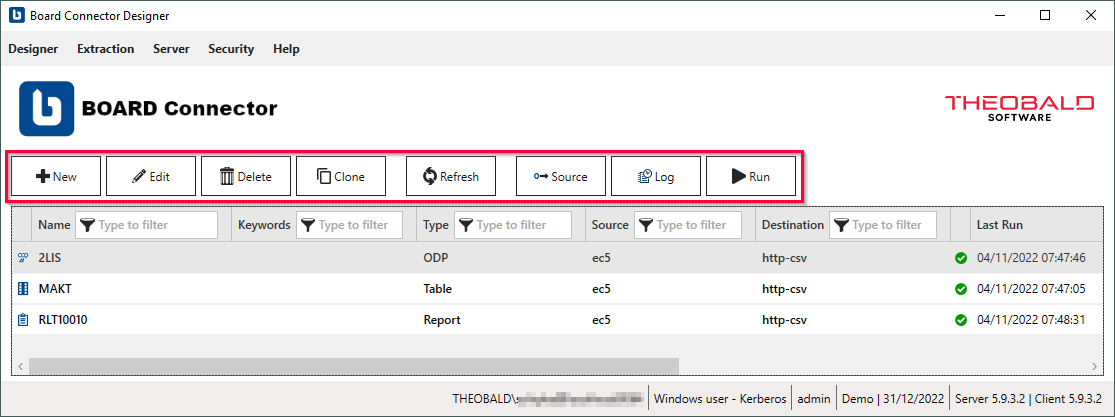
| Icon | Button | Description | Details |
|---|---|---|---|
| New | Create a new extraction | Create an Extraction | |
| Edit | Edit existing extraction | - | |
| Delete | Delete existing extraction | - | |
| Clone | Clone existing extraction | - | |
| Refresh | Update of the extraction status | - | |
| Search | Filter extraction names | List of Extractions | |
| Source | Select existing SAP source system | [SAP Connection]/connections/sap-connection/index.md) | |
| Log | Open extraction log | Extraction Logs | |
| Run | Run a selected extraction | Run an Extraction |
List of Extractions
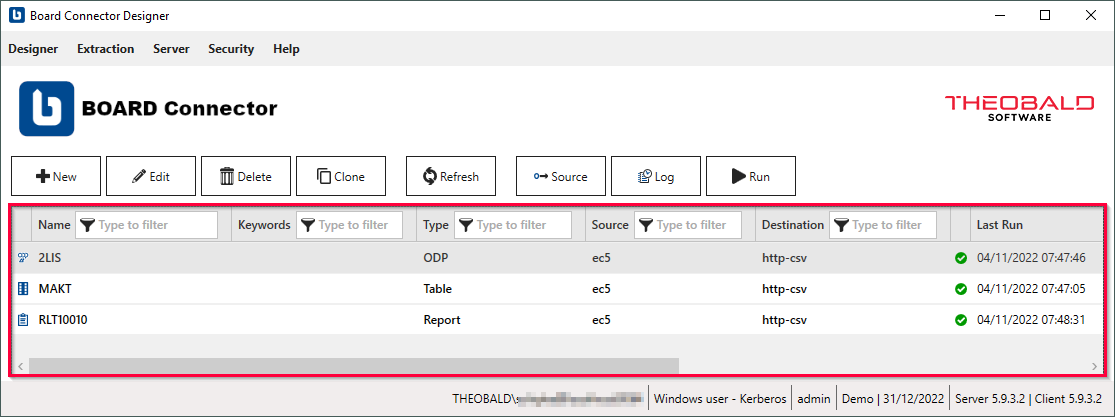
List of all extractions in the currently selected extraction group divided by name, type, modification and creation date etc.
Tip
Use the search bar above the list to filter extractions. Wildcards (*) are not supported.
More extensive filter options are available using the GUI Buttons .
Tip
To adjust the settings of multiple extractions at once, select multiple extractions using Ctrl+Left Button.
You can now adjust the [
Source] settings for all selected extractions, see GUI Buttons.
Double Click: Double-clicking an extraction works as a shortcut to the [
Edit] button.
Right-click: Right-clicking an extraction in the list opens the following menu:
| Icon | Menu Item | Description | Details |
|---|---|---|---|
| Edit | Edit an existing extraction | - | |
| Delete | Delete an existing extraction | - | |
| Clone | Clone an existing extraction | - | |
| Add/Remove Keywords | Define keywords of selected extractions | General Settings | |
| Log | Open extraction log | Extraction Logs | |
| Source settings | Select an existing SAP source system | - | |
| Run | Run a selected extraction | Run an Extraction | |
| Run in browser | Run a selected extraction in the default web browser | - | |
| Abort | Abort a selected extraction | - |
Status Bar
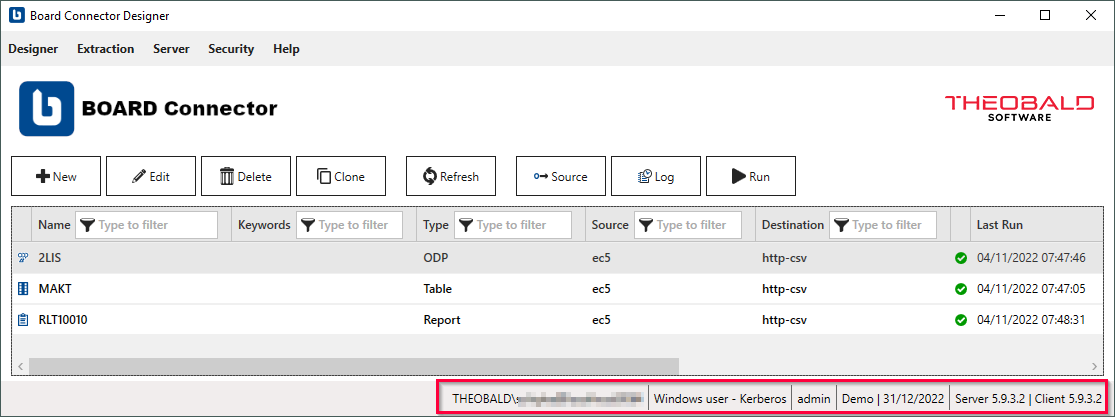
The status bar contains information about the following:
- Login username
- Server authentication method
- Designer access rights
- License type and validity period
- Connected BC server version
- Connected BC client version