Access Data in the SAP Public Cloud
The following article shows how to access data from the SAP S/4HANA Public Cloud. Board Connector can access BAPIs / Function Modules that are available via SAP Communication Scenarios.
About Communication Scenarios
Communication Scenarios are used to exchange data between the SAP Cloud and external systems.
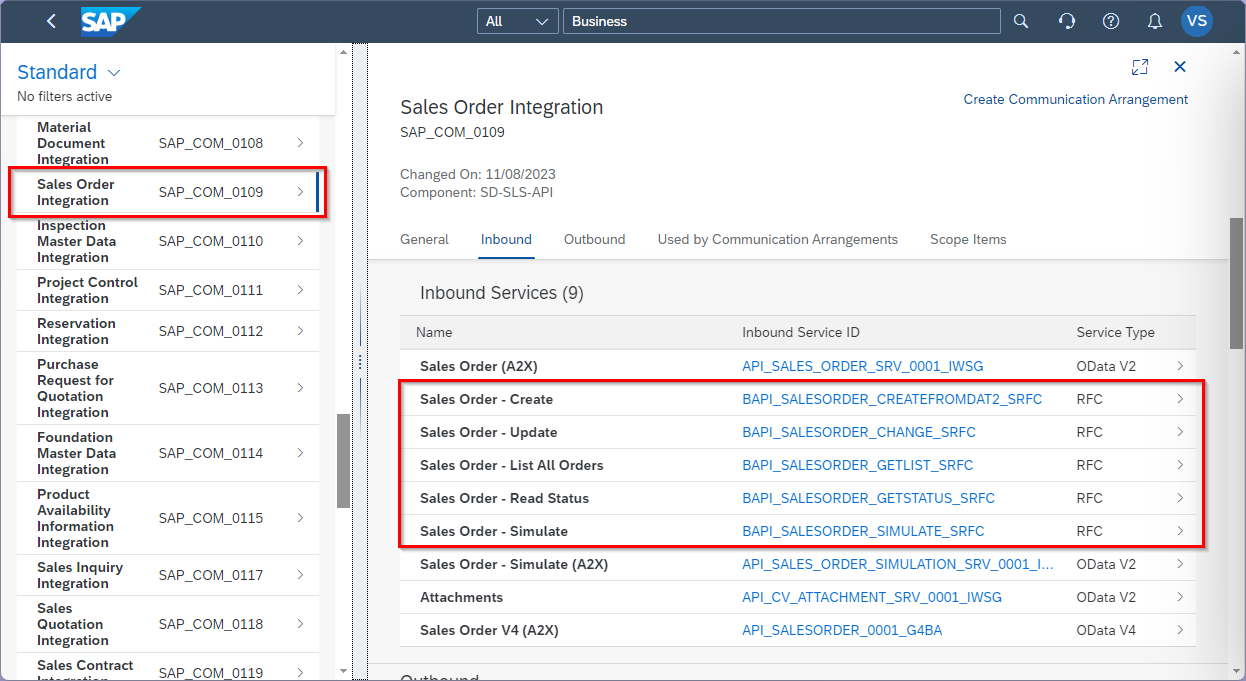
You can use the Display Communication Scenarios app in the SAP Public Cloud to look up available Communication Scenarios that provide access to BAPIs / Function Modules, e.g., the Communication Scenario SAP_COM_0109 includes BAPIS that are used for Sales Order Integration.
In Communication Scenarios BAPIs / Function Modules are listed as Service Type RFC:
Prerequisites
- The Administrator role in the SAP Public Cloud is required to set up communication on the SAP side.
- The Communication Scenario SAP_COM_0636 (Remote Function Call - RFC Metadata Integration) must be accessible in the SAP Public Cloud.
- Download the SAP Cryptographic Library (sapcrypto.dll) from the SAP Service Marketplace.
- Create a Client PSE to connect Board Connector to SAP Cloud Systems.
- Make sure to use Board Connector version 6.3.1.0 (2024-04-19) or higher.
Enable Communication in the SAP Public Cloud
To make BAPIs / Function Modules accessible for external systems using the Communication Management apps in the SAP Public Cloud:
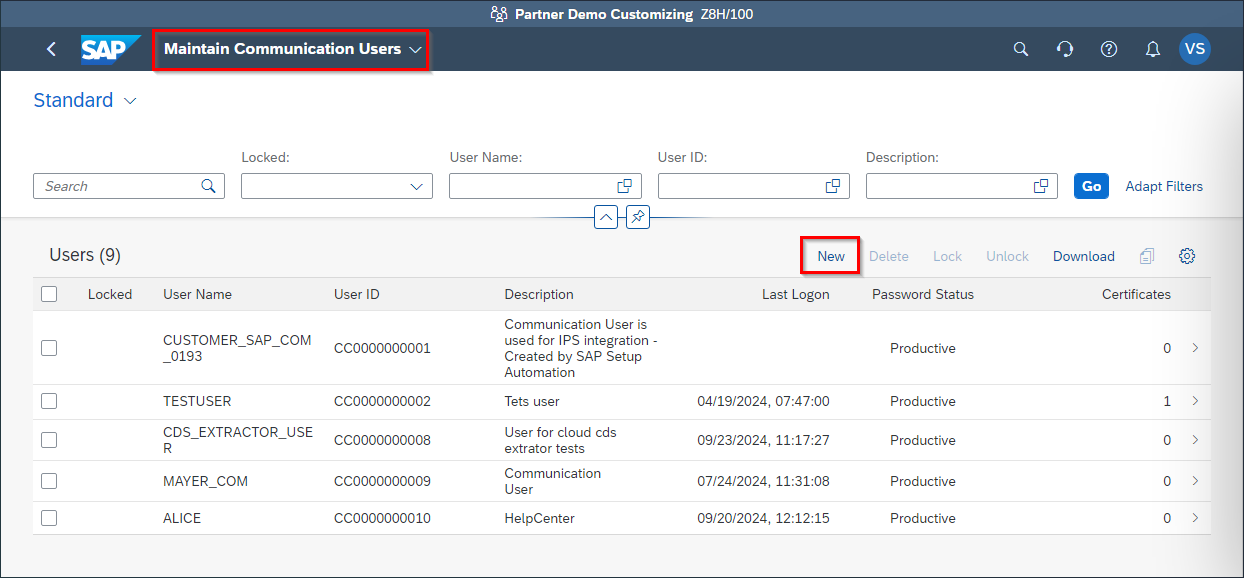
- Create a Communication User in the Maintain Communication Users app.
- Create a Communication System that handles inbound service calls in the Communication Systems app.
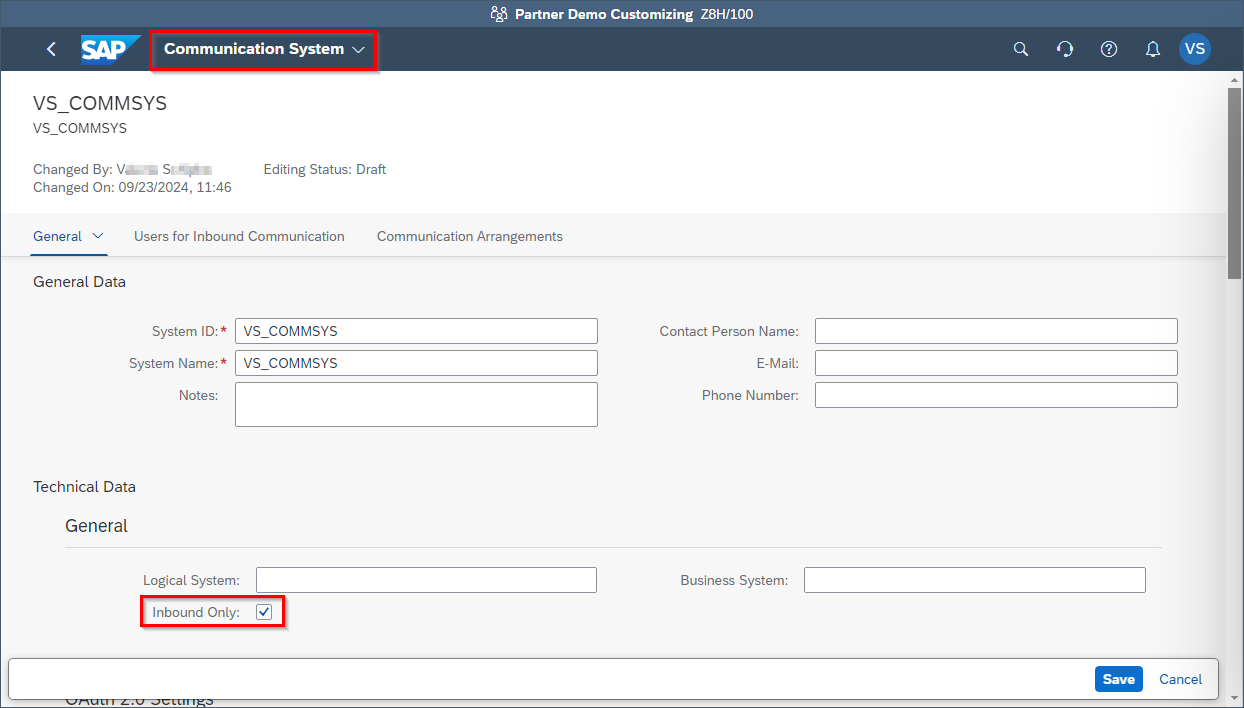
- Assign a Communication User to the Communication System in the subsection Users for Inbound Communication.
- Create Communication Arrangements to define, which Communication Scenarios can be accessed by the Communication System and the Communication User.
The Communication Scenario SAP_COM_0636 (Remote Function Call - RFC Metadata Integration) is mandatory for using the BAPI extraction type in Board Connector.
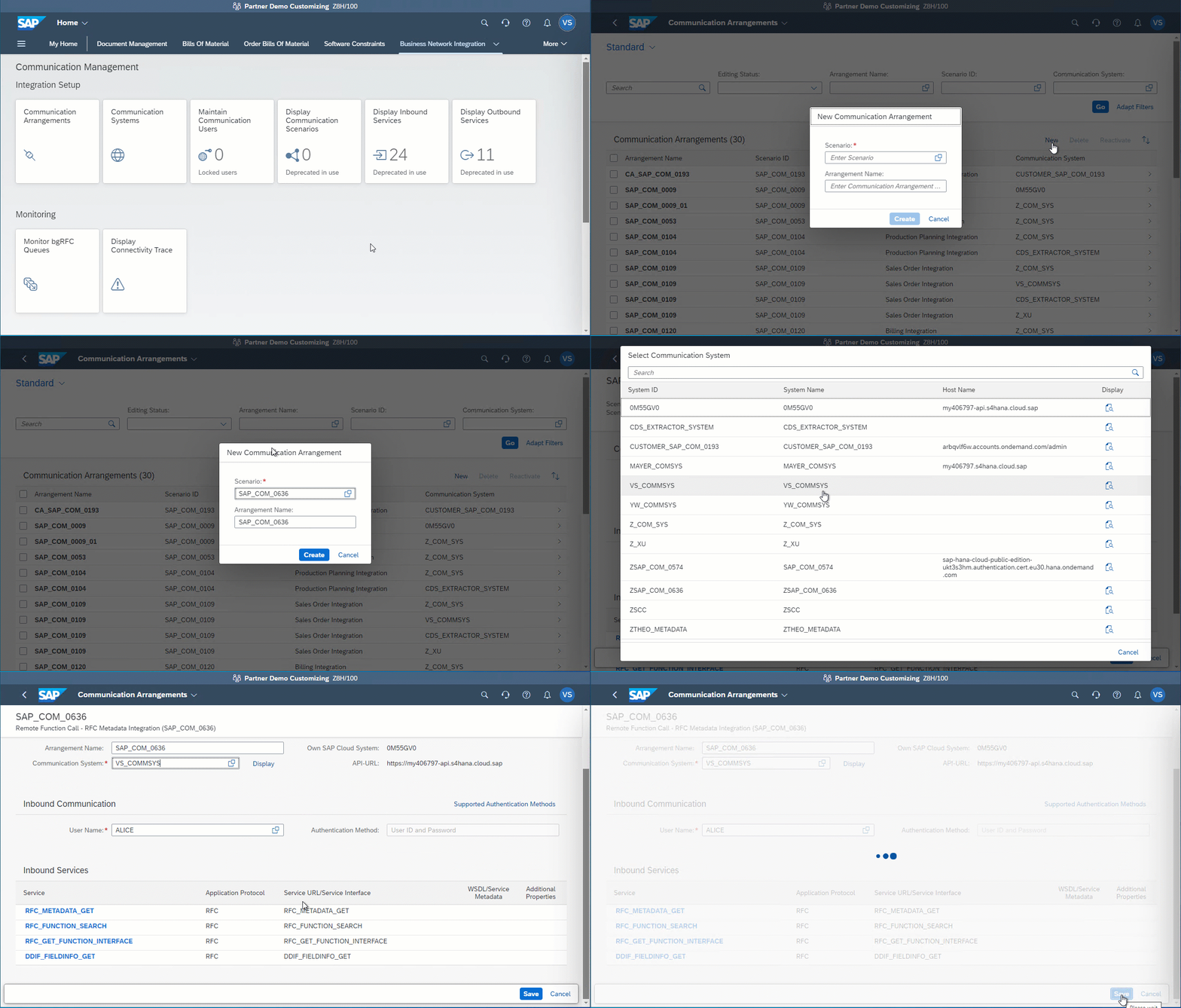
Communication between Board Connector and the SAp Public Cloud is now possible.
For more information, see SAP Help: Setting up Communication Management.
Enable Communication in Board Connector
To create an Board Connector source that connects to an SAP Public Cloud:
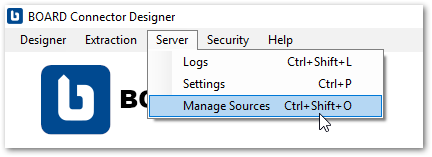
- In the main window of the Designer, navigate to the menu bar and select Server > Manage Sources. The window "Manage Sources" opens.
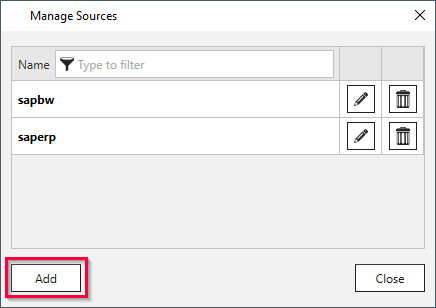
- Click [Add] to add a new SAP connection or click [
] to edit an existing connection. The window "Change Source" opens.
- Enter a name for the SAP connection in the field Name, e.g., SAPCloud.
- In the General tab, select the connection method WebSocket.
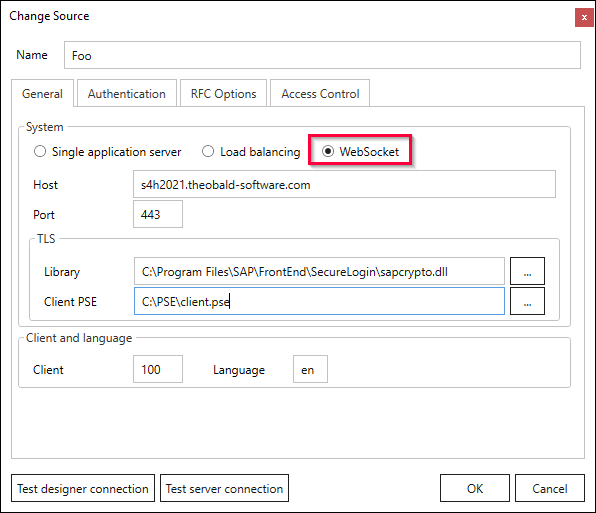
- Fill out the connection details, see Connection Settings.
- In the field Library, enter the path to the SAP Cryptographic Library (sapcrypto.dll).
- In the field Client PSE, enter the path to the client .pse file.
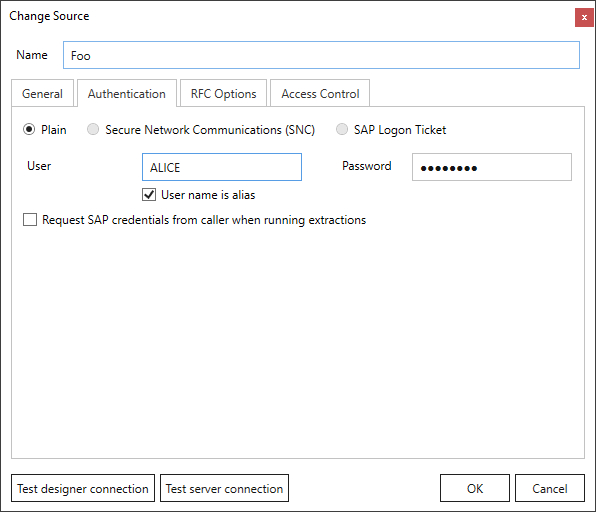
- In the Authentication tab, enter the username and password of the SAP Communication User.
- Activate the checkbox User name is alias.
- Click [Test designer connection] to validate the connection between the Board Connector Designer and the SAP system.
- Click [Test server connection] to validate the connection between the Board Connector Server and the SAP system.
- Click [OK] to save the SAP source.
Board Connector now connects to the SAP Public Cloud.
Look Up and Execute BAPIs
The process for looking up BAPIs in the SAP Public Cloud is the same as for other SAP source systems, see Look Up Function Modules / BAPIs. You can only look up BAPIs that are part of the Communication Scenarios that your Communication User has access to.
Related Topics
- SAP Help: Setting up Communication Management
- SAP Community: Calling BAPIs in the SAP S/4HANA Public Cloud
- Knowledge Base Article: Create a Client PSE to connect to SAP Cloud Systems
Written by: Valerie Schipka