Getting Started
 This section shows how to install and set up Board Connector for the first time.
Installation
To install Board Connector for the first time:
- Download a 30 day trial version of Board Connector.
- Run the Board Connector executable (BOARDConnectorSetup.exe) to install the Board Connector Designer and the Board Connector Server. For information on system requirements, see Requirements.
- Make sure that the Board Connector Service is running on your windows system and that the default port 8097 is not blocked by your firewall.
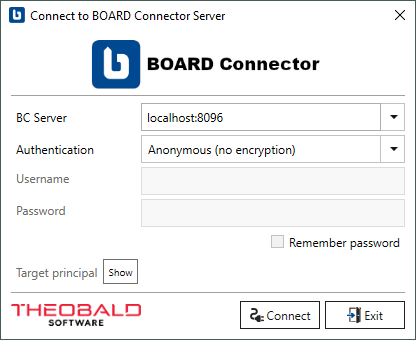
- Open the Board Connector Designer application and click [
Connect] to connect to the Board Connector Server using the default settings.
Board Connector is installed and ready to use. For more information, see Setup.
Connect to SAP
There are two types of SAP connections:
- connect via RFC protocol (default)
- connect via OData protocol
To connect to SAP using the standard RFC protocol.
- Set up an SAP dialog user with the necessary SAP user rights.
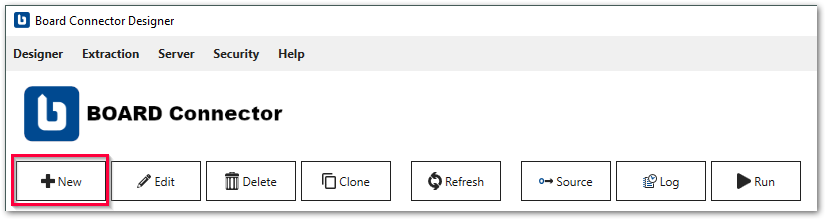
- In the main window of the Designer, click [New]. The window "Change Source" opens.
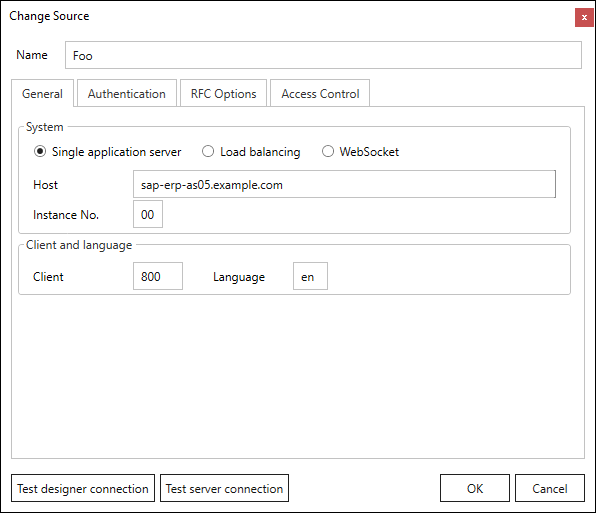
- Enter a name for the SAP connection in the field Name, e.g., s4hana, bw, etc.
- In the General tab, enter the system details of your SAP system.
Input values for the SAP connection can be found in the Properties of the SAP Logon Pad or they can be requested from the SAP Basis team.
- In the Authentication tab, enter the SAP credentials of the SAP dialog user.
- Click [Test designer connection] to validate the connection between the Board Connector Designer and the SAP system.
- Click [Test server connection] to validate the connection between the Board Connector Server and the SAP system.
- Click [OK] to save the SAP source.
The SAP connection is configured and ready to use in extractions. For more information, see SAP Connection.
Create an Extraction
Extractions are the main entities of Board Connector. They define what data to extract from SAP and where to write the data. To create a new extraction:
- In the main window of the Designer, click [New]. The window "Create Extraction" opens.
- Select an SAP Connection from the drop-down menu in Source
.
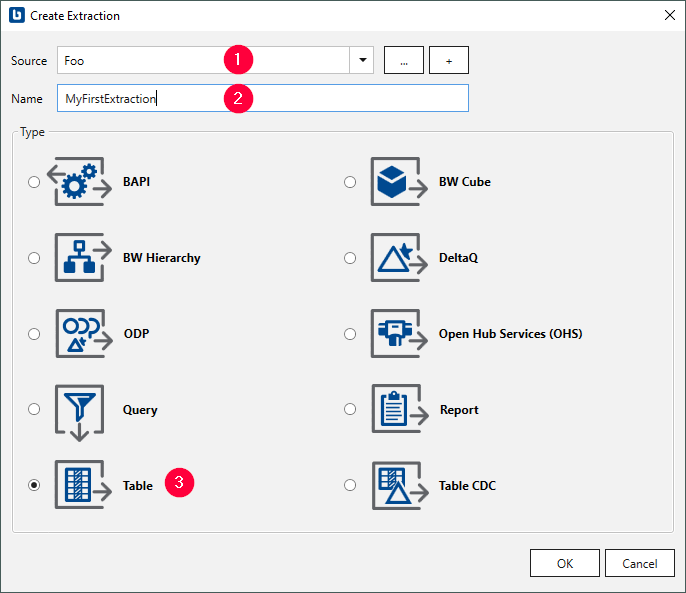
- Enter a name for the extraction .
-
Select one of the following extraction types :
Extraction Type Connection Type Description BAPI RFC Execute BAPIs and Function Modules. BWCube RFC Extract data from SAP BW InfoCubes and BEx Queries. BW Hierarchy RFC Extract Hierarchies from an SAP BW / BI system. DeltaQ RFC Extract data from DataSources (OLTP) and extractors from ERP and ECC systems. OData OData Extract data via SAP OData services. ODP(OData) OData Extract ODP-based data using OData services. ODP RFC Extract data via the SAP Operational Data Provisioning (ODP) framework. OHS RFC Extract data from InfoSpokes and OHS destinations. Query RFC Extract data from ERP queries. Note: BEx queries are covered by BWCube. Report RFC Extract data from SAP ABAP reports. Table RFC Extract data from SAP tables and views. Table CDC RFC Extract delta data from SAP tables and views. -
Click [OK]. The main window of the extraction type opens.
Follow the instructions in the documentation of the selected extraction type to set up the extraction.
The extraction is now listed in the main window of the Designer.
Tip
To edit an extraction, double-click the extraction in the main window of the Designer.
A Simple Extraction for Beginners
To extract customer master data from the SAP table KNA1:
- Create an extraction that uses the Table extraction type.
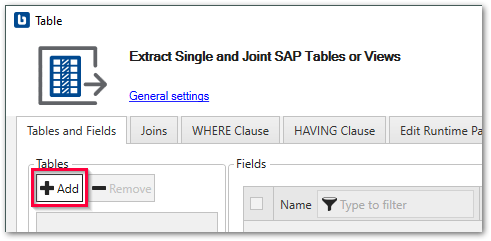
- In the main window of the extraction type, click [Add] to look up an SAP table. The window "Table Lookup" opens.
- In the field Table Name, enter the name of the table to extract (KNA1)
. Use wildcards (*) if needed.
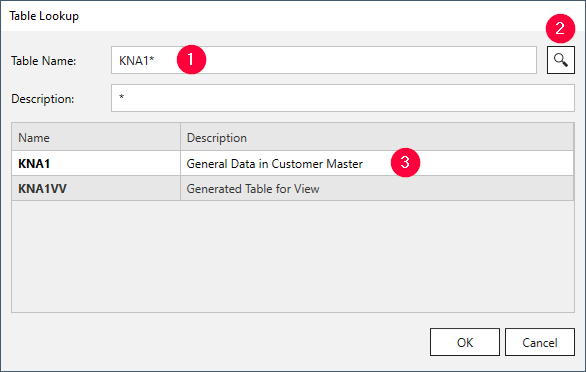
- Click [ ] . Search results are displayed.
- Select the table KNA1 and click [OK]. The application returns to the main window of the extraction type.
- Optional: Select the table columns to extract. By default all columns are extracted. For more information on filter options and advanced settings, see Define the Table Extraction Type
- Click [Load live preview] to display a live preview of the first 100 records.
- Click [OK] to save the extraction type.
The extraction is now listed in the main window of the Designer.
Run an Extraction
Extractions can be run directly in the Board Connector Designer or from Board, see Run Extractions in Board. To testrun your extraction in the Designer:
- In the main window of the Designer, select an extraction
and click [Run] . The window "Run Extraction" opens.
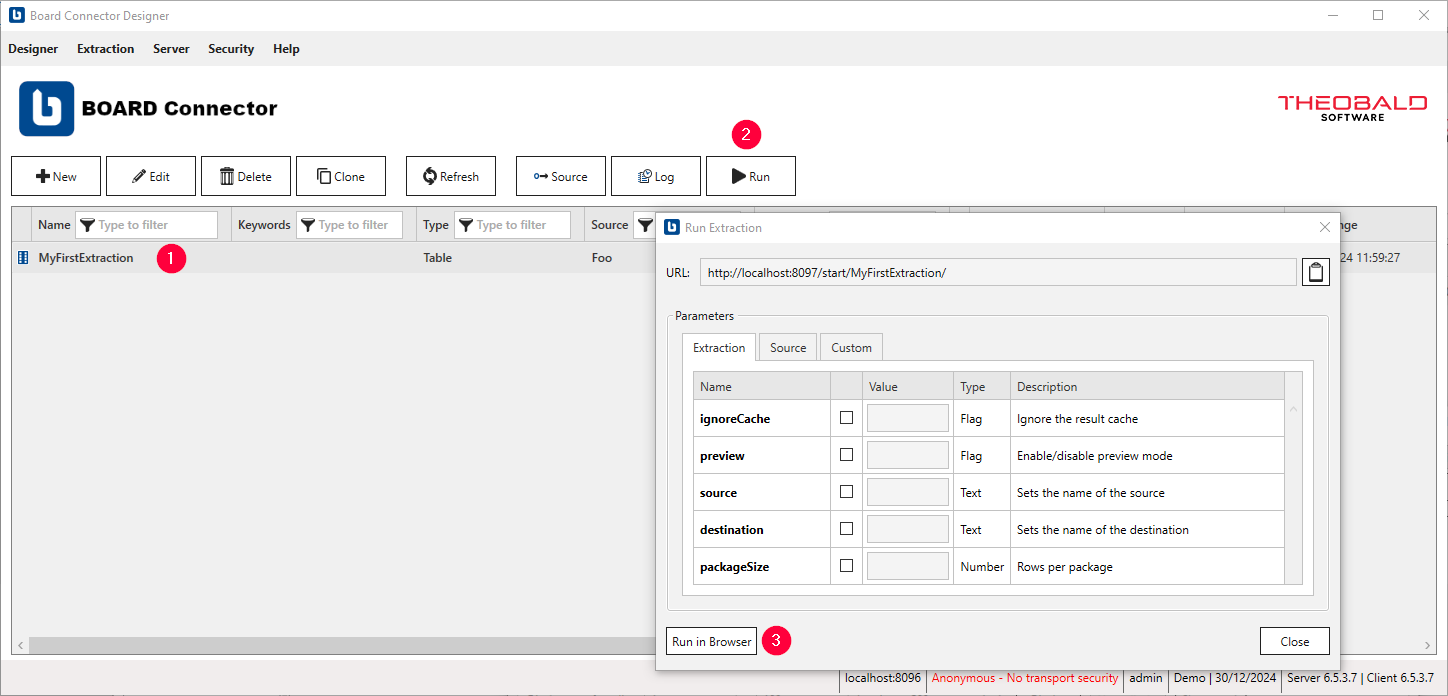
- Click [Run in Browser] to execute the extraction. If the extraction runs successfully, the extracted data is displayed in your browser.
The extraction is executed. For more information, see Run Extractions.