SAP Query
This page shows how to use the Query extraction type.
The Query extraction type can be used to extract data via SAP queries.
About SAP Queries
SAP Queries are used to access data sets in SAP, see SAP Help - Working with Queries for more information. The SAP queries that can be used with Query extraction type are created by the SAP transactions SQ02 and SQ01. To use a BW Query as a data source, see BW InfoCubes and BExQueries.
Prerequisites
- A connection to an SAP system is available, see SAP Connection.
- The SAP user has sufficient user rights, see SAP Authority Objects.
Warning
Missing Authorization.
To use the Query extraction type, access to the designated authority objects (RFC) in SAP must be available.
Adjust SAP Authority Objects: SAP Query accordingly.
Create a Query Extraction
Follow the steps below to create a new Query extraction in the Board Connector Designer:
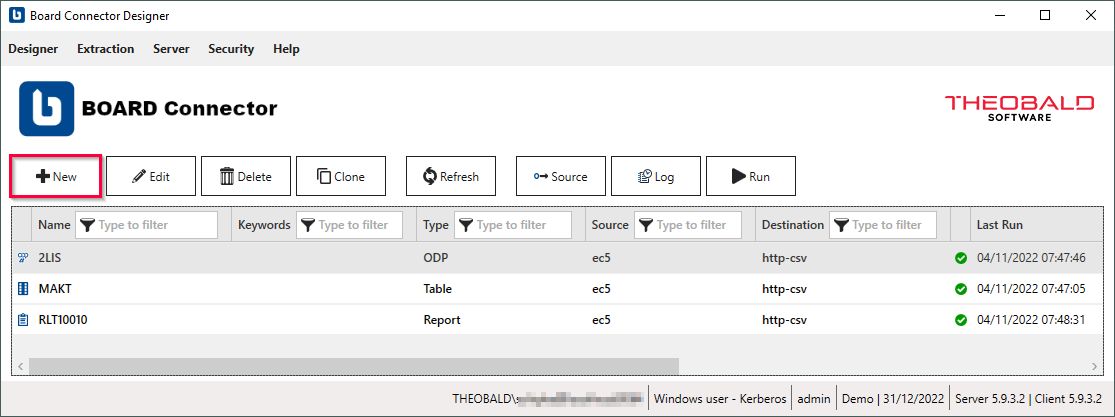
- In the main window of the Designer, click [New] to create a new extraction. The window "Create Extraction" opens.
- Select an SAP Connection of type RFC from the drop-down menu Source.
- Enter a unique name for your extraction.
- Select the extraction type Query.
- Click [OK].
The main window of the extraction type opens and you can start setting up your extraction.
Look up an SAP Query
Follow the steps below to look up a query in SAP:
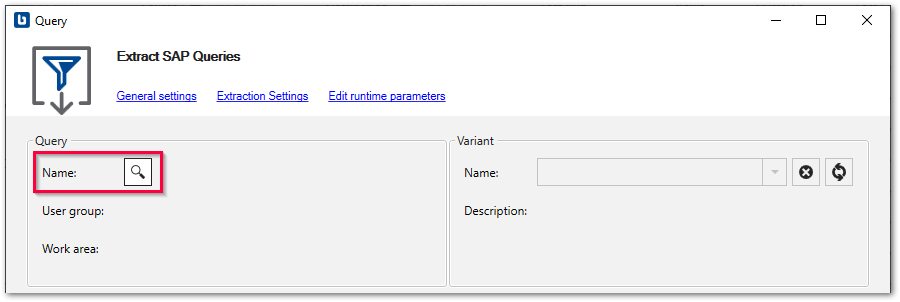
- In the main window of the extraction type, click [
]. The window "Query Lookup" opens.
- Enter the name of an SAP query in the field Query Name or the name of a user group in the field User group
.
Use wildcards (*) if needed.
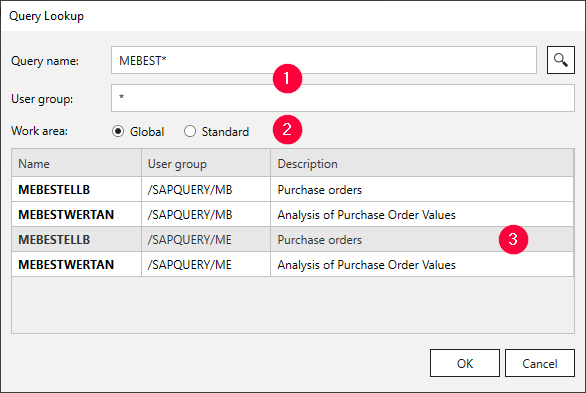
- Select the query work area that contains the query object . For more information, see SAP Help: Query Areas.
- Click [ ]. Search results are displayed.
- Select a query and click [OK].
The query is selected and the application returns to the main window.
Configure the Query Extraction Type
Follow the steps below to configure the Query extraction type:
- If the SAP query has variants, select a variant from the drop-down-list Variant. For more information, see Choose a Variant.
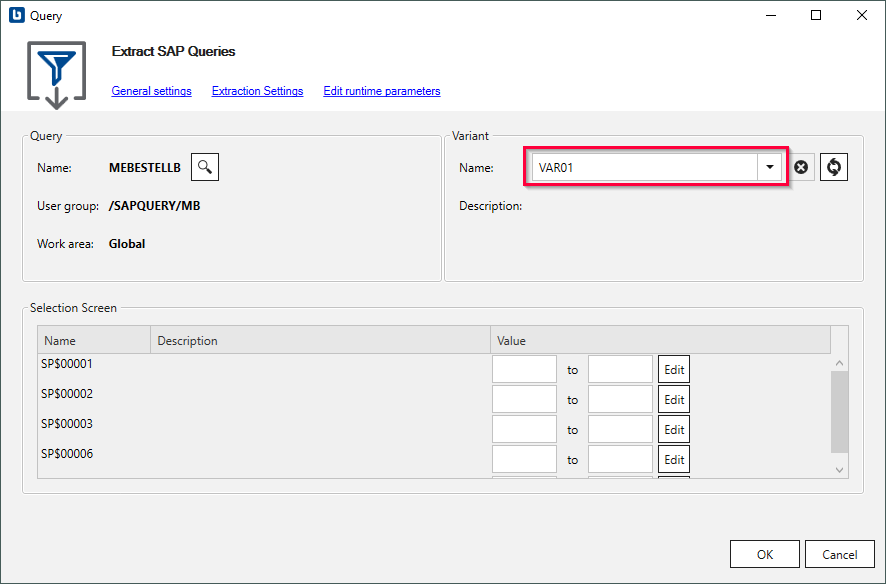
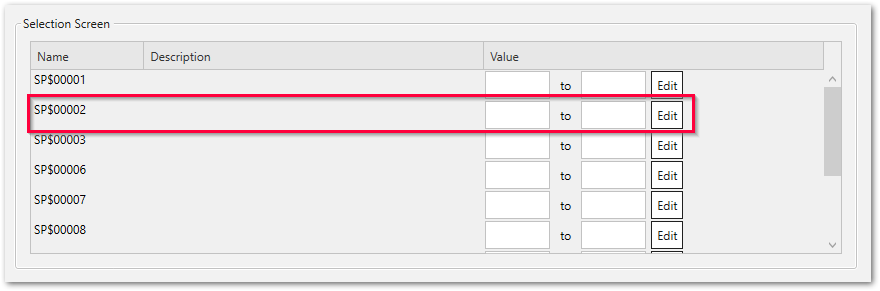
- In the section Selection Screen, edit a selection criterion you want to change or dynamize . For more information, see Edit Selections.
- Check the Extraction Settings and the General Settings before running the extraction.
- Click [OK] to save the extraction type.
The Query extraction type is configured and ready to run, see Run Extractions.