Table
This page shows how to use the Table extraction type.
The Table extraction type can be used to extract data from SAP Tables and Views.
Supported SAP Objects
- Transparent tables
- Views
- ABAP CDS Views
- HANA CDS Views
- Pool tables - table joins are not supported
- Cluster tables - table joins are not supported
RFC_READ_TABLE Restrictions
Especially with older SAP releases you may encounter a few restrictions when using the SAP standard function module (RFC_READ_TABLE) for table extraction:
- The overall width of all columns to be extracted must not exceed 512 bytes.
- It is not possible to extract data from tables that contain one or more columns of the data type f (FLTP, floating point), DEC (decimal, e.g. for percentage) or x (RAW, LRAW).
- Poor extraction performance with larger tables. Can cause also duplicates.
- Depending on the SAP version there may be other restrictions.
When facing restrictions, install the Theobald Software custom function module /THEO/READ_TABLE on your SAP system.
Warning
Converting issues
Error while converting value '*.0' of row 1530, column 3.
The SAP standard module RFC_READ_TABLE for table extraction can only extract the ABAP data type DEC to a limited extent. This leads to the mentioned example error during extraction.
Use the function module /THEO/READ_TABLE.
Prerequisites
- A connection to an SAP system is available, see SAP Connection.
- The SAP user has sufficient user rights, see SAP Authority Objects.
Warning
Missing Authorization.
To use the Table extraction type, access to the designated authority objects (RFC) in SAP must be available.
Adjust SAP Authority Objects accordingly.
Create a Table Extraction
Follow the steps below to create a new Table extraction in the Board Connector Designer:
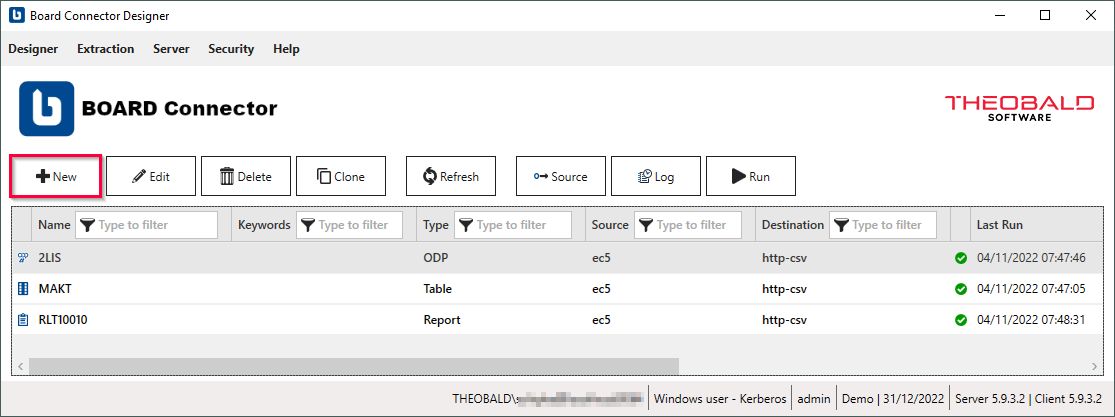
- In the main window of the Designer, click [New] to create a new extraction. The window "Create Extraction" opens.
- Select an SAP Connection of type RFC from the drop-down menu Source.
- Enter a unique name for your extraction.
- Select the extraction type Table.
- Click [OK].
The main window of the extraction type opens and you can start setting up your extraction.
Look up an SAP Table
Follow the steps below to look up a table in SAP:
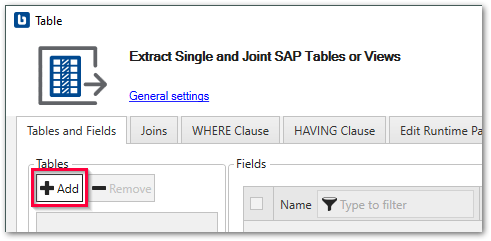
- In the main window of the extraction type, click [Add] to add a table. The window "Table Lookup" opens.
- In the field Table Name, enter the technical name of the table or View to extract
. To look up CDS Views, enter the SQL name of the CDS View. Use wildcards (*) if needed.
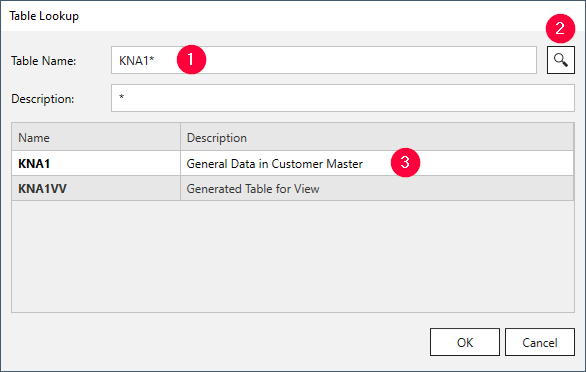
- Click [ ] . Search results are displayed.
- Select a table and click [OK].
The table metadata is retrieved from SAP and the application returns to the main window.
Configure the Table Extraction Type
To configure the Table extraction type:
- Select the columns you want to extract. By default all columns are selected. Deselect the columns you do not want to extract.
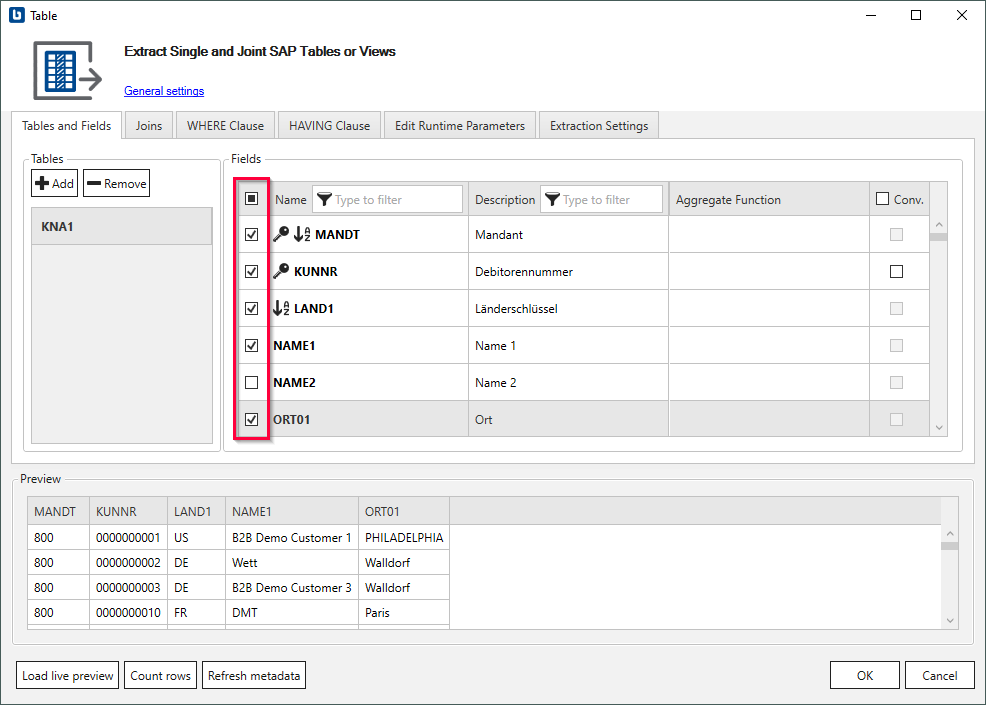
- Optional: Define a WHERE clause or a HAVING clause to filter table records. By default all data is extracted.
- Optional: Join two or more tables and extract the result of the join. For more information, see Table Joins.
- Click [Load live preview] to display a live preview of the first 100 records.
- Check the Extraction Settings and the General Settings before running the extraction.
- Click [OK] to save the extraction type.
The Table extraction type is configured and ready to run, see Run Extractions.
Related Topics
- Knowledge Base Article: Delta Table Extraction
- Knowledge Base Article: Read data from Cluster Fields in Tables PCL1 and PCL2 (Payroll)